Getting Started with MT5 Platform - Learn MT5 Software
The following tutorials explain how to use the MetaTrader 5 Platform, each guide is accompanied by numerous screen-shots so as to help traders to understand concepts explained & make it easier to learn about this online Forex platform.
Introduction
File
- Opening a Demo Account Procedure
- Open a Chart
- Opening Offline Chart
- Opening a Deleted Chart
- Saving a Profile
- Login to an Account
- Printing Forex Charts
View
- Changing Language
- Tool Bars
- Connection Bars
- Charts Bar
- Market Watch Window
- Data Window
- Navigator Window
- MT5 Terminal Window
- Forex Strategy Tester
Insert
- Indicators Insert Menu
- Insert Line Studies
- Placing Channels
- Gann Lines
- Placing Fibonacci Lines
- Insert Shapes
- Placing Arrows
- Insert Andrew's Pitchfork, Cycle Lines, Text Label
Charts
- Indicators List
- Objects List
- Bar Chart
- Line Chart
- Candlesticks
- Time frames - Periodicity
- Saving a Template
- Grid, Volumes, Auto Scroll and Shift
- Zoom in, Zoom Out & Step by Step
- Setting Properties
Tools
- Place New Order
- History Center on Tools Menu
- Options Settings
- MetaEditor Custom Indicators
- MetaEditor Automated Forex Trading Expert Advisors
Window Menu
Help Menu
Toolbars
Advanced Topics
- MQL5 Signals - Copy Top MetaTrader 5 Traders
- Advantages MQL5 Signals
- Signal Seller Advantages
- MQL5 Automated Forex Trading Expert Advisors
How to Place Forex Indicators
- Accelerator Oscillator
- Accumulation Distribution
- Alligator
- ADX
- Average True Range Indicator
- Awesome Oscillator
- Bears Power
- Bollinger Bands Indicator
- Bulls Power
- Commodity Channel Index
- Demarker
- Force Index
- Fractals
- Gator Oscillator
- Heiken Ashi
- Ichimoku Kinko Hyo Indicator
- MACD
- Market Facilitation Index
- Momentum
- Money Flow Index
- Moving Average Envelopes
- Moving Average Indicator
- Moving Average Oscillator
- On Balance Volume
- Parabolic SAR
- Relative Strength Index
- Relative Vigor Index
- Standard Deviation
- Stochastic Oscillator Indicator
- Volumes
- Williams Percentage Range
- Zigzag
Most popular search is how to save a MT5 work space in MT5, or how to save a system/MT5 chart template. Before starting the tutorial, the screen shot below shows how to save a MT5 chart template or a system & also how to save a MT5 work space. The same MT5 buttons are also used to load the MT5 chart template on another separate chart. (click on these MT5 buttons to get options on your MT5 Forex Trading Platform)
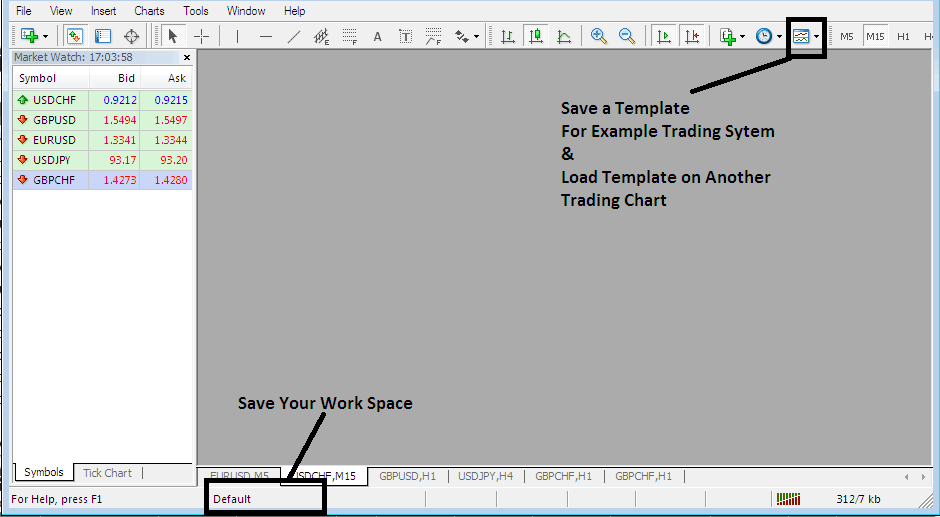
How to Save a MT5 Work Space, How to Save a Template - Forex Platform Tutorials
The MT5 is part of the online forex market. The MT5 software is installed on a client's Desktop computer.
The image below shows the user interface of the MetaTrader 5.
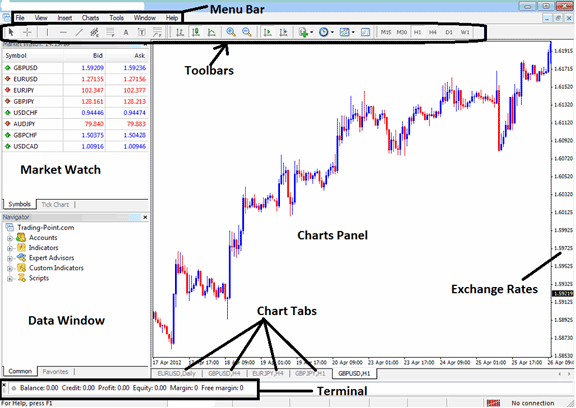
MT5 software Workspace
According to Forex trading platforms reviews, MT5 is the most widely used Forex platform. This is because it is easy to learn & can do the following tasks.
The MT5 platform is installed on a forex trader's Desktop computer and it is intended to accomplish the following:
- Plot graphical Information about exchange rates in the form of a grid/chart
- Receive streaming exchange quotes from the Forex brokers
- Perform trade operations: buying and selling of currencies
- Show the open transactions & orders within Forex platform workspace
- Perform forex technical analysis
- Testing of strategies on practice demo accounts
- Coding of custom indicators & Automated Forex Expert Advisors for the purpose of automated forex trading.
- Provide statements of transaction history & a summary of profits/losses.
The MetaTrader 5 online trading platform which is also referred to as MT5, is designed to provide technical tools that can be used by traders to make buy or sell decisions. This forex software provides online exchange quotes and streaming data about forex price movement plotted in the form of forex price charts. This information is delivered direct to the MetaTrader 5 Forex Trading Platform interface. This information that is delivered in form of realtime quotes is then analyzed using technical tools which are provided within this online trading platform.
This is a free Forex platform that is provided for by online Forex brokers. You can download the platform from online brokers sites, once you download it, you should then setup and install the platform on a Desktop computer which has an inter net connection and then connect to your broker & start receiving streaming quotes.
The MT5 has different window & chart panels, each designed to deliver a different type of market data, starting with the exchange rate quotes used to plot forex graphs to the market data window, MT5 tool bars for attaching indicators & the main menu bar used to navigate the platform.




