MT5 Navigator Window - MetaTrader 5 Forex Platform Guide
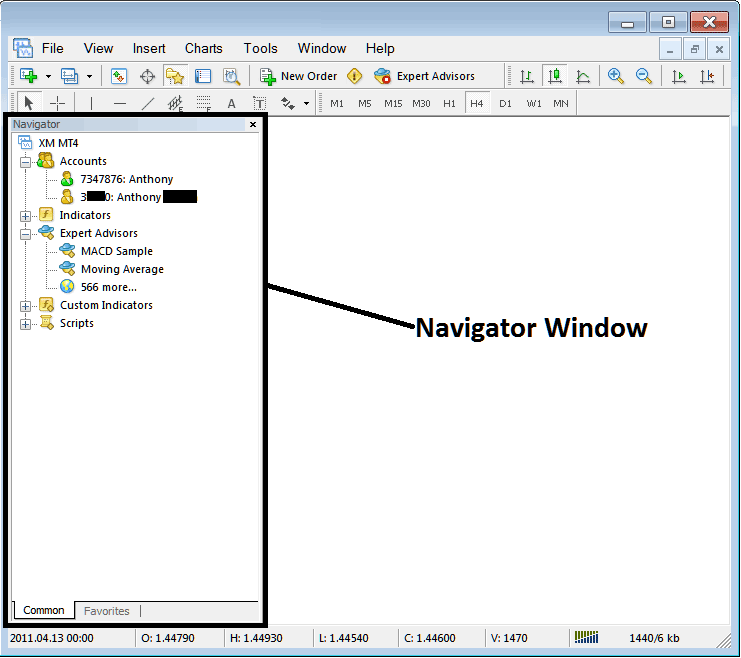
The MT5 Navigator window is mainly used to navigate the most widely used areas of the MT5 Platform. These areas are:
- Accounts: Demo & Live Accounts
- Indicators
- Automated Forex Trading EAs: A list of automated trading robots within this MT5 Platform
- Custom Indicators:
- Scripts: Scripts are used to execute some tasks in MetaTrader 5
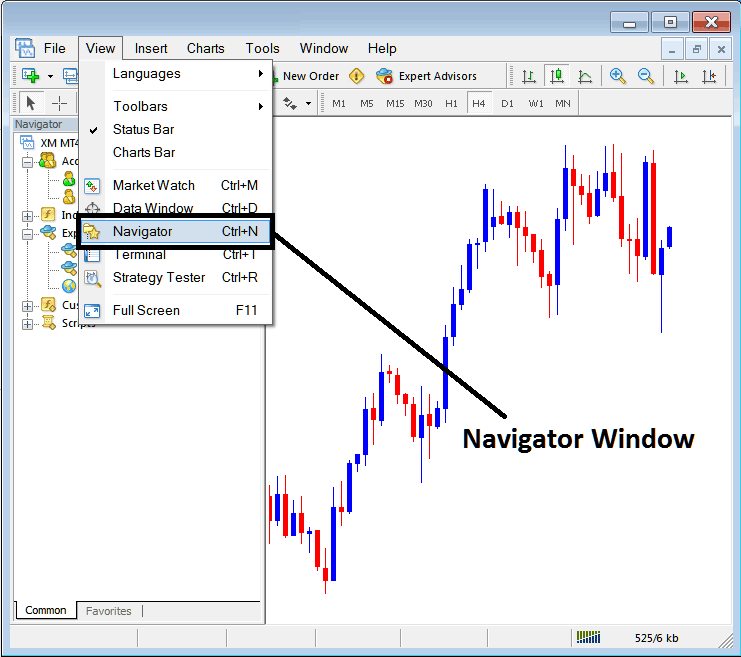
As a trader once you have selected the Navigator Button the following navigator window will appear on your MetaTrader 5.
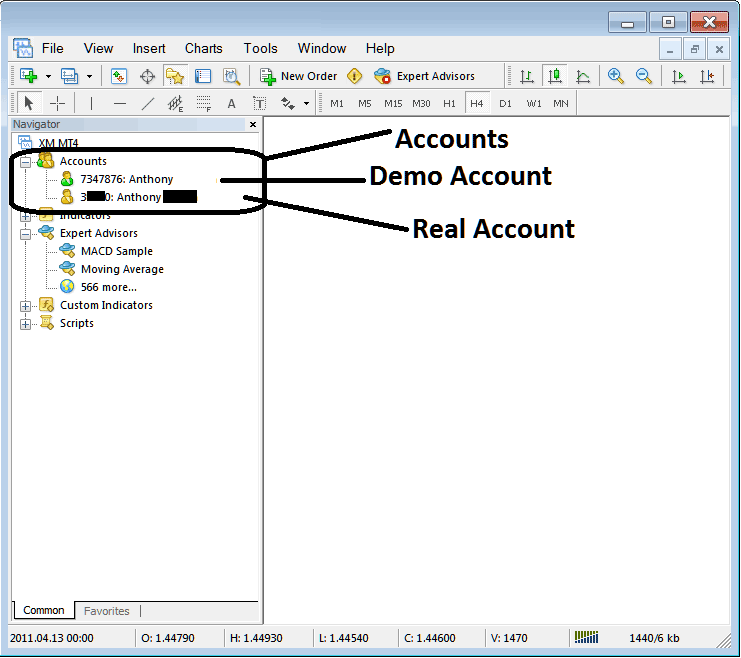
Accounts Menu - MetaTrader 5 Navigator
The First menu option on the Navigator list is Accounts tab. To view accounts tab, you can click expand button key (marked as +), & a list of your saved accounts will appear. Every time you login with a new MetaTrader 5 account the details will be saved under this "Accounts Tab".
By double clicking on any MT5 account you can activate the login and login to that account. You can switch from one MT5 account to the other using this accounts tab.
The example below shows two accounts recorded under this tab, a demo MT5 account marked as a green cartoon and a Live MT5 account marked as a gold cartoon. From this accounts tab, a trader can switch between any of this 2 accounts by double-clicking on any one of them.
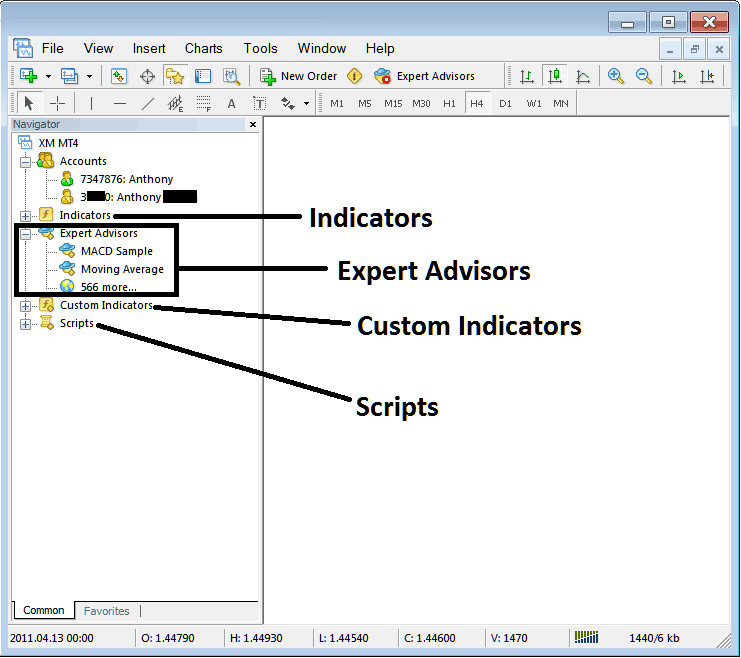
Indicators, Automated Expert Advisors, Custom Indicators & Scripts - MT5 Navigation Menu
- Indicators
- Automated Forex Trading EAs: A list of automated trading robots within this MT5 Platform
- Custom Indicators:
- Scripts: Scripts are used to execute some tasks in MetaTrader 5
The above are shown below on the screenshot, to view more option under each of these, traders click the expand button "+ button", this will illustrate more options, to hide, just click " - button" . For example the "Automated Forex Trading Expert-Advisors" option below has been expanded.
These topics will be covered in more details later, but for now as a trader the following brief introduction about each will do.
Indicators: Indicators are forex technical analysis tools used in trading & placed on Forex chart, these tools are used to generate buy and sell signals.
Automated Forex Expert Advisors: Automated Trading bots that are used to place forex trades by generating buy and sell signal automatically using programs which are coded using the MQL4 programming language.
Custom Indicators: A custom indicator includes an indicator that you have modified or downloaded from the inter net and then installed it on your MT5 Forex Platform, this technical indicator will be listed here as a "custom technical indicator"
Scripts: This is a function used to perform a certain task, for example if you open five forex trades and want to close all of them at once you can attach a "script close" on your chart thereby closing all open forex trades at once (However, you need to set up some setting on the MetaTrader to allow scripts execution trading, that is a topic for later.)
Navigator will be one of your mainly used panel when trading, to access it using a short-cut, press "Ctrl+N" button on your key board to display or hide it.




