MT5 Terminal Window - Forex MT5 Transactions Tabs Panel
The MT5 Forex Platform Terminal Window is mainly used for monitoring your Forex MT5 account balance, MT5 account equity and transaction reports mainly. There are other operations that can be set up on this panel but most of these are not commonly used.
On the online Forex platform MT5 the Terminal Window Panel is illustrated below:
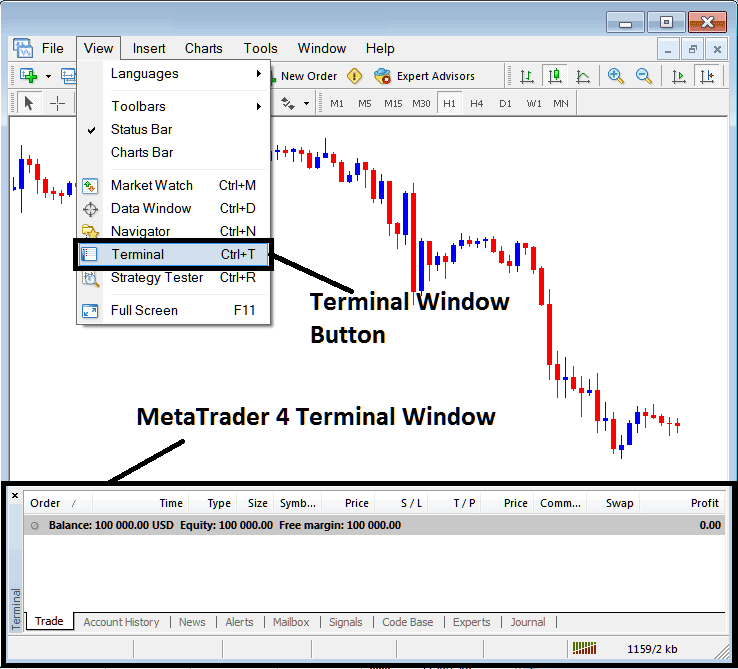
Terminal Window - MT5 Online Forex Platform
The Terminal Window Panel has the Following Sub-Menu or Tabs:
- Trade
- FX Trading Account History
- News
- Alerts
- Mailbox
- Signals
- Code Base
- Experts
- Journal
Let us look at each on its own:
Trade Tab
If you open a Forex on the MT5 Platform, the transaction will then be recorded here on this Trade Tab. For Example if you sell The EURUSD, open a sell trade order the following details will be recorded on this Trade Tab panel.
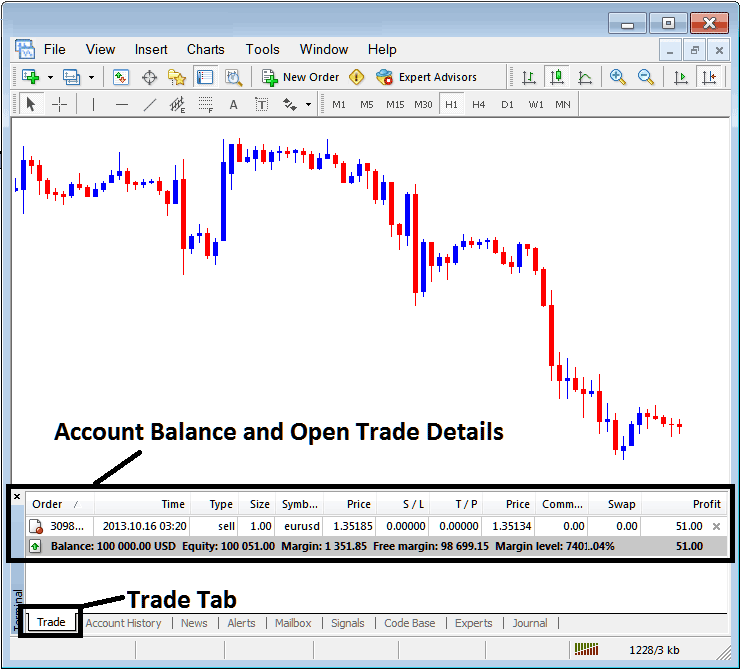
Trade Tab - Forex Platform Trading Windows
From above example we have opened a Sell EURUSD: The trade details are illustrated above under the column details marked
Order, Time, Type, Size, Quote, Price, S/L,T/P, Commission, Swap, Profit
Order, - The transaction number
Time, - The Time
Type, - The Type of order, Sell or Buy
Size, - Size of transaction, 1 Standard Lot
Symbol, - forex Symbol, EURUSD
Open Price - 1.35185
S/L, - Stop Loss
T/P, - Take Profit
Current Price
Commission, - Commission (no commission charged by this broker)
Swap, - no swap charged as per now, the trade has not stayed overnight
Profit - $ 51 dollars
Most common operation after opening a trade is to place the Stop-Loss and Take Profit, These are abbreviated as S/L and T/P. There is likely no other operation to setup after this only to monitor the forex trades within the trading software work-space after setting these two levels, stoploss will close your trading order with a minimum loss & take profit will close your it at a reasonable profit.
To place this S/L and T/P, we shall Right Click anywhere within this Trade Tab, the part shaded grey, the following menu will pop up and appear, this is used to make changes to the current order that has been opened.
This will popup as:
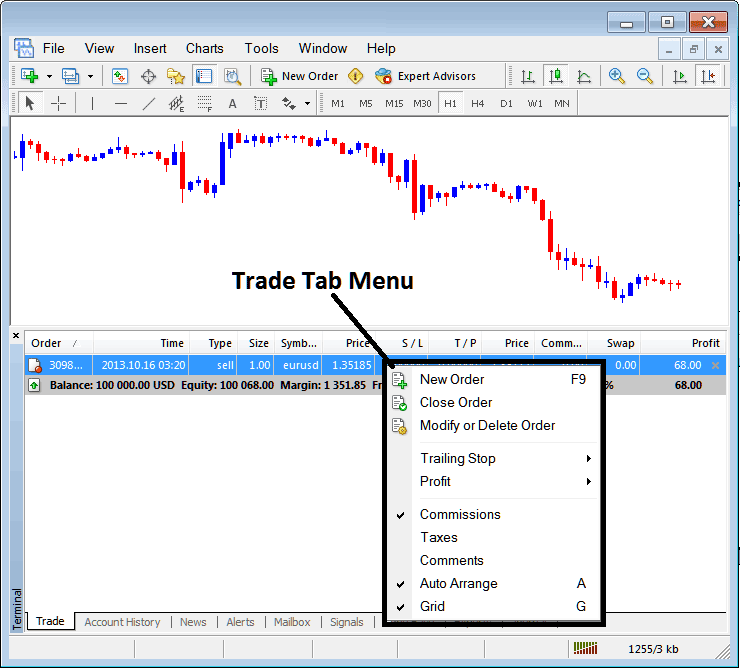
Modify a Forex Order on the MT5 Platform
The Menu has The following Options:
- New Order - Put a new transaction
- Close - Can close this transaction at current price
- Modify or Delete - Can Modify the S/L and T/P, (order can't be deleted, delete is for pending orders that are not yet executed)
- Trailing Stop - Set a trailing Stop Loss
- Profit - View profit as either pips, term forex or deposit currency: depending on which option you favor.
- Commission, Taxes, Comments, are additional columns that you can chose to show or hide by ticking/unticking(Checking/Unchecking) them.
- Auto Arrange - Arrange Currencies according to alphabet, time of open, most profitable according to sorting by choosing a column of arranging priority, for example 'Time' column.
- Grid - Show Grid or don't Show Grid, by Ticking/Unticking This MetaTrader 5 option.
To Set Take Profit and Stop Loss, T/P and S/L we use the third option, 'Modify or Delete', after clicking this the following panel will popup:
SL is set at 250 points - 25 pips
TP is set at 500 points - 50 pips
You can set this two points by selecting 250 & 500 on part labeled points, red part marked copy is for Stop Loss and blue part marked copy as is for Take Profit as shown on the screenshot below.
After that press the wide red button key marked modify to modify.
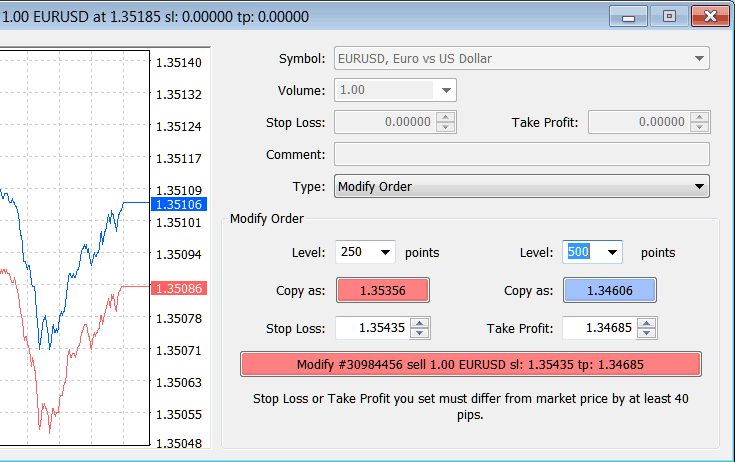
Modify a Order in MT5 forex Platform
The order will then appear as below, note that the S/L & T/P columns for our trade have now been updated as shown & illustrated below.
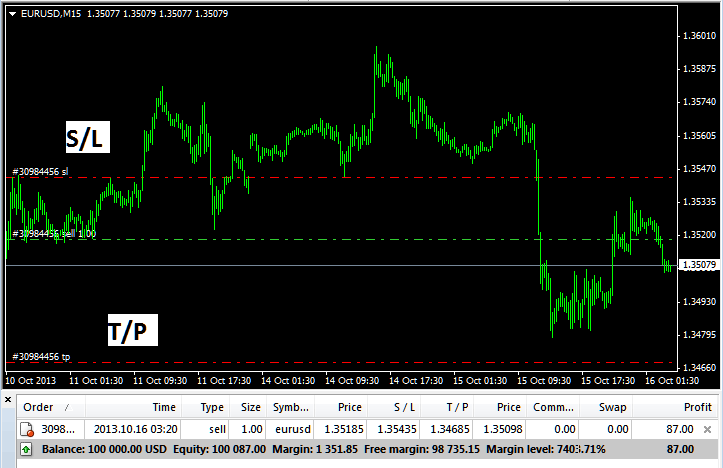
Take Profit and Stop Loss Levels Shown on Meta forex trader Platform
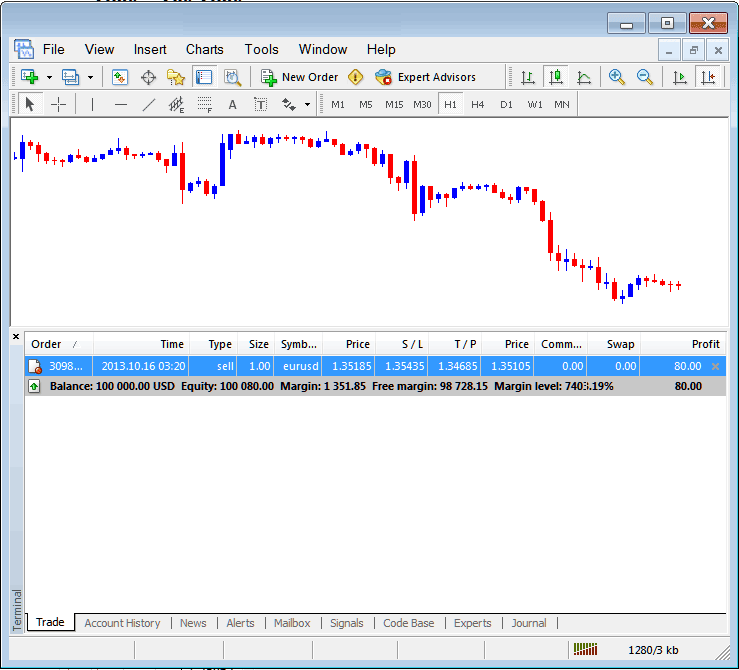
S/L and T/P Order Details Updated on the Meta 5 trader Platform Transaction Window
If you were to close the above trade now, then trades will be updated as follows, to reflect that the trade has been closed & the profit added to your MetaTrader 5 account balance.
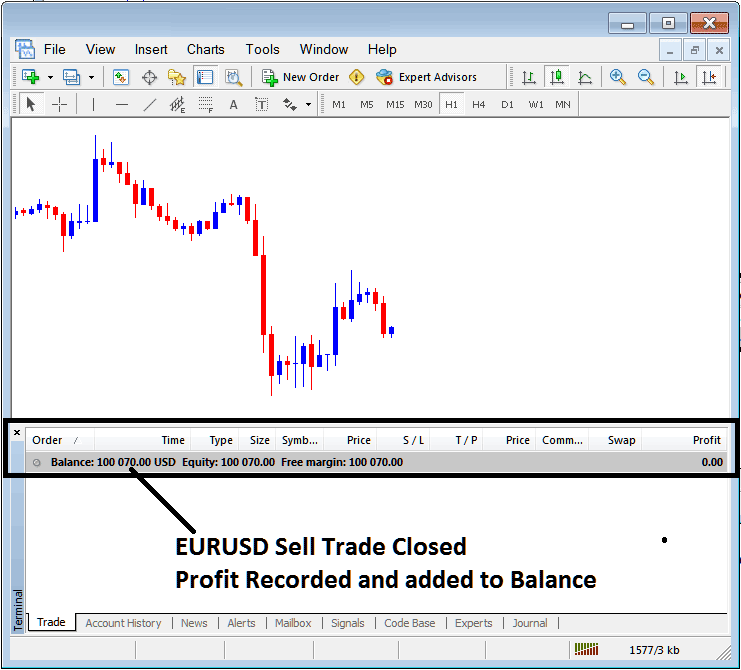
Forex Account Balance Updated on the MT5 Platform
FX Trading Account History
This is used to generate trade reports of forex trades that have been opened previously and have been closed. This is a record of all previous transactions.
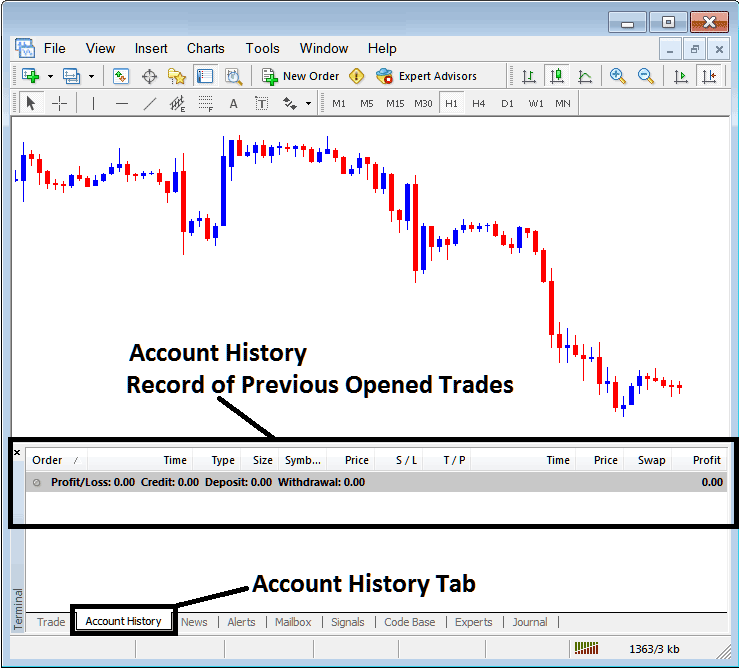
Trade Reports Window on MetaTrader 5
On the above example, there are currently no trade records on this transaction history recorded. There needs to be a couple of closed trade transactions for this record to show some entries. Let us see what happens when we close our open position of EURUSD currency pair.
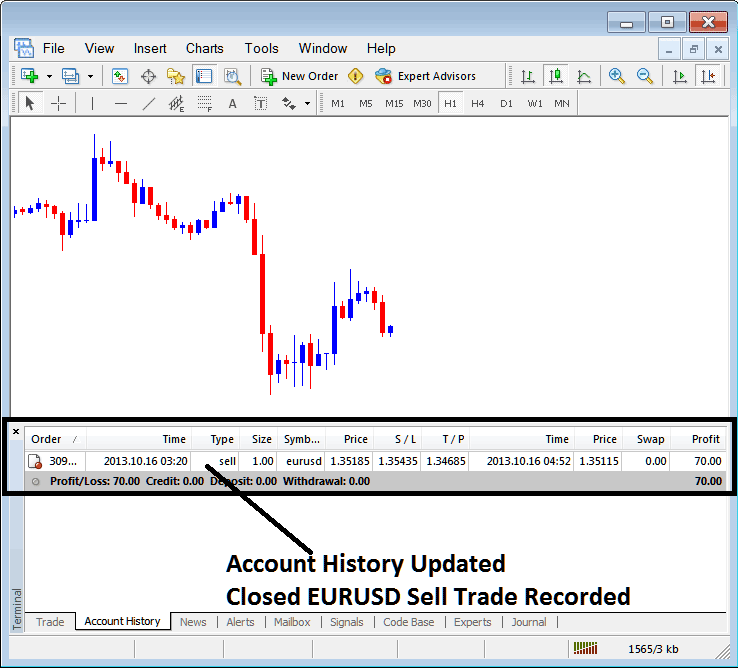
EURUSD Closed Transaction Recorded on MT5 Account History Transaction Tab
From above example, once our open EURUSD trading order was closed the transaction was then recorded as an entry within 'Account History' of the MT5 Forex Platform
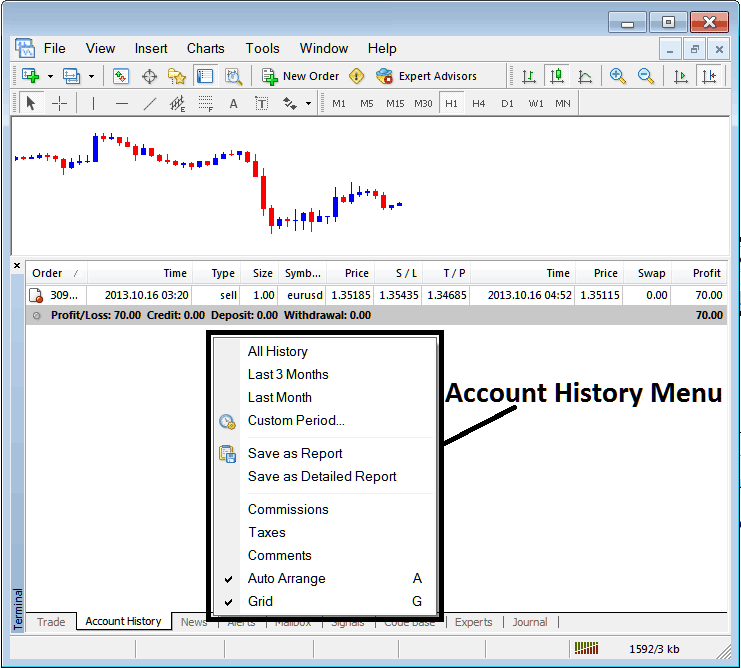
MetaTrader 5 Account History Menu
Forex Trading Account History Menu
This menu is displayed above and can be accessed by right clicking anywhere within MT5 account history panel. Last Four (commissions, Taxes, comments, Auto Arrange and Grid are used more for formatting purposes but not for trading in general, therefore we shall not look on these as they are self explaining)
The following 6 options are Shown Below:
All History, Last Three Months, Last Month or Custom Period - all these options can be used to select time period for which you want to generate history of transactions.
Save as Report, Save as Detailed Report - This will generate a report of all trade transactions along with profit & loss calculation, draw-down calculation, profit factor calculation, the expected payoff factor of the system you use along with the total number of profitable trade transactions, losing ones, the average loss per trade and the average profit per trade as illustrated below.
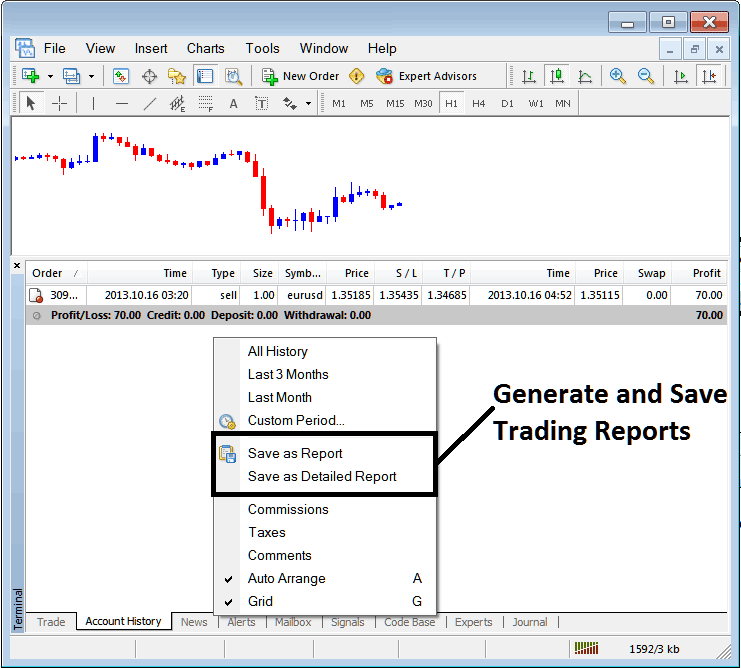
Generating Trade Reports of Your Forex Account on MT5 Trader Platform
Save as Report
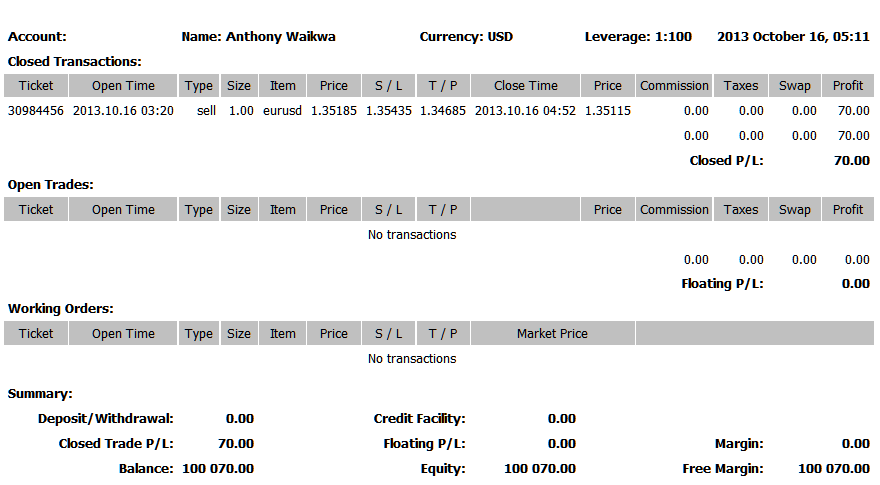
Save as Detailed Report
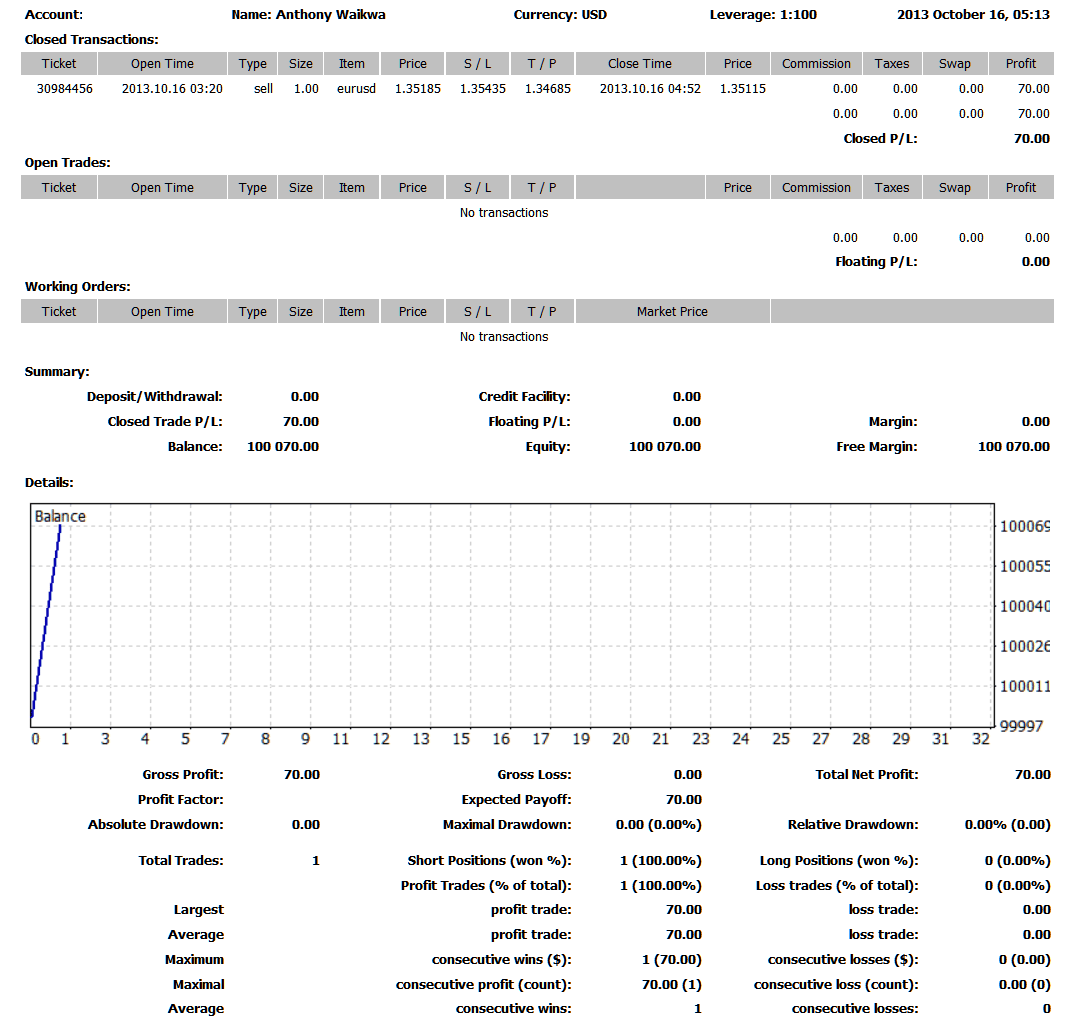
Saving detailed Reports of Transactions History on Meta Trading 4 Platform
News Tab
This is the third option within the MT5 Terminal Window this panel is used to display a list of current news provided as a news feed by your Forex broker. This is shown below:
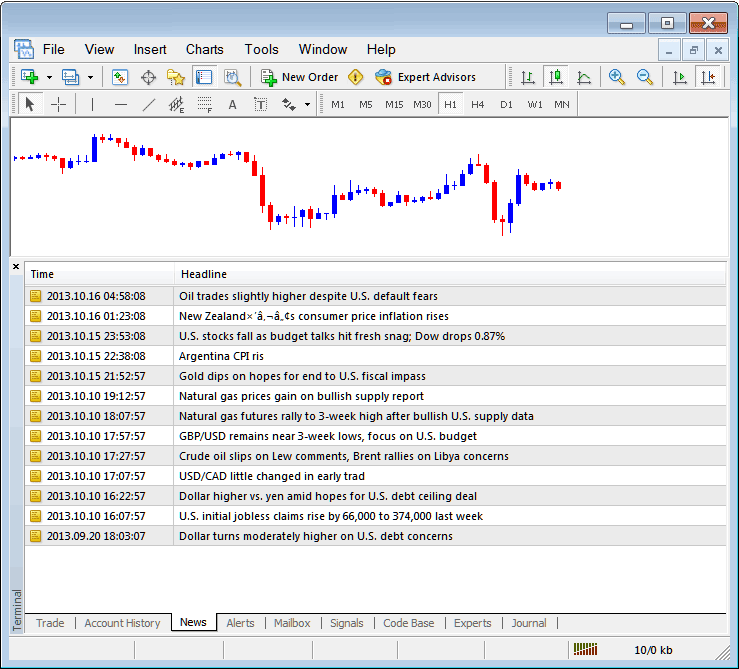
Forex News Stream on MT5 Online Forex Platform
Alerts Tab
This is used to set an alert for forex price when it reaches a pre determined level. For examples you might be using a Bollinger bands, an indicator that forms an upper boundary and lower boundary & you want to set an alert for forex price when it gets to any one of these areas.
For example, in our above example we might want to put an alert for at 50 pips below current price, we shall open the Alerts Tab, & right click to activate the menu below:
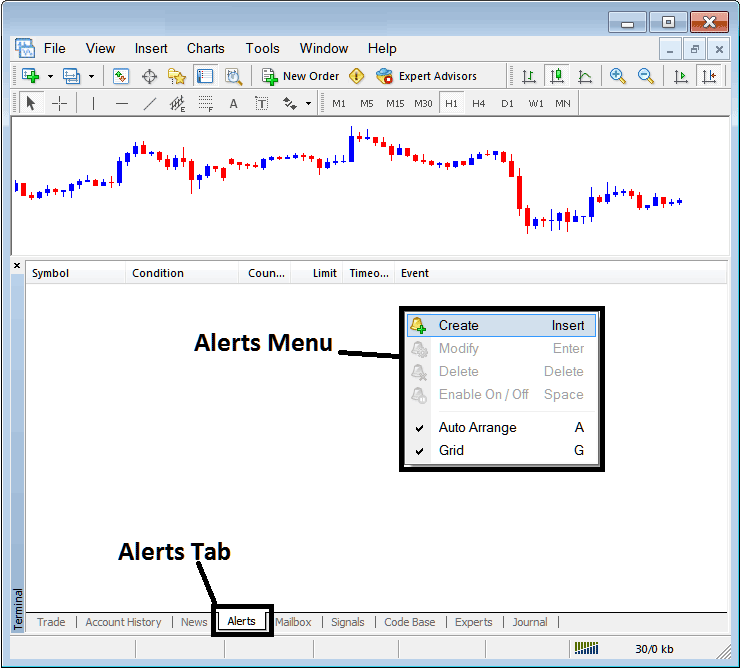
How to Set Price Alerts in MT5
On above panel, choose, Create & create one as follows:
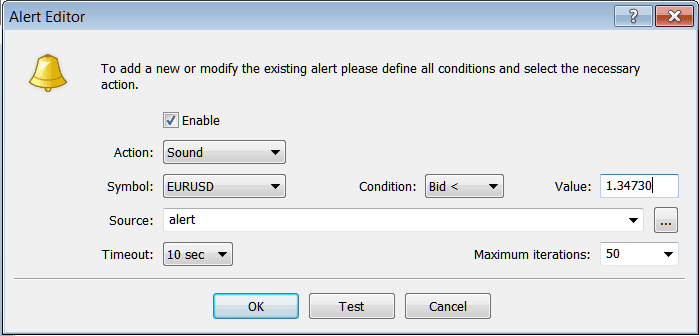
Setting Price Alerts on MetaTrader 5 Software
Put the sound as the alert action, forex symbol is the EURUSD, set the condition to set is when bid forex price is less than(Bid<-<) and put the value for examples at 1.34730, choose the source of alert sound as above, (This is a sound file with extension Alert.wav), adjust the time-out to Ten seconds and iterations at maximum of 50, then choose OK to activate it.
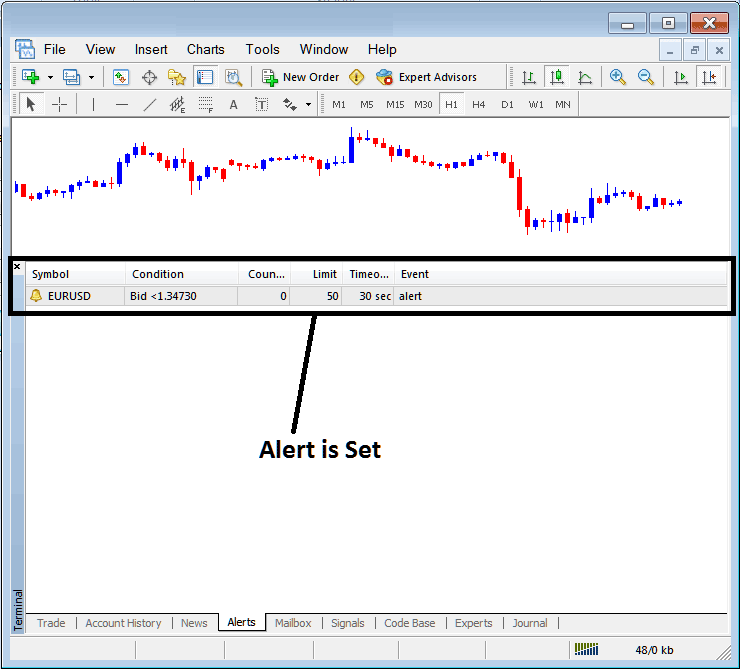
Setting Price Alerts in MT5
The above alert is then set and an alert will sound off once this forex price of EURUSD goes below this level.
By right-clicking on this, the Alert Menu will provide options for modifying it, deleting it or turning it off. You can download MT5 & practice opening This MT5 option to see how you can put a new alert or delete the same or modify it.
Mailbox Tab
Mailbox is used to view the messages which have been sent to you, to your Online Forex platform as shown below:
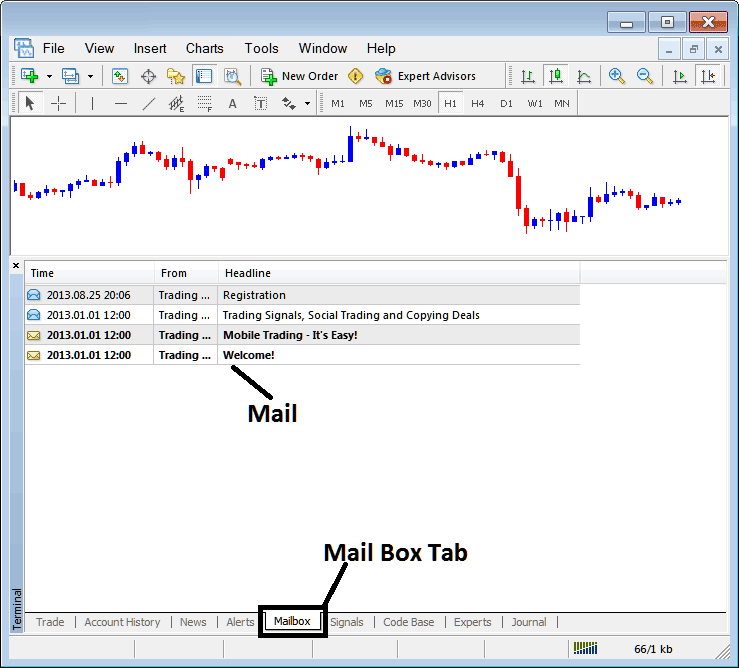
Mail Box on MetaTrader 5
FX Trading Signals Tab
Contains of a list of Forex Signal Providers that traders can subscribe to through their MT5 Forex Platform, this is shown below, one can select any signal provider and click subscribe to get the Forex signals.
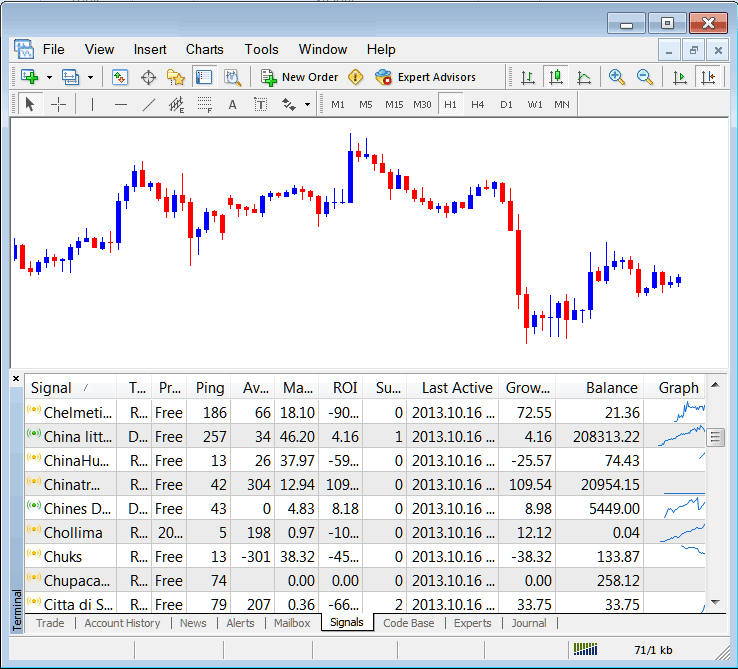
MT5 Signals Provided From MQL5 Forex Website Directly to the Platform
To learn more about MT5 MQL5 Signals, navigate to the MQL5 Forex Trading Signals Page.
CodeBase Tab
CodeBase contains a list or a library of Automated Forex Expert Advisors that one can purchase from through their MT5 Forex Platform and then use this Automated Forex Expert Advisors which are automated programs used to trade currencies. These EA Forex Robots are set up Automated Forex Expert Advisors on the traders MT5 Platform. To use these Automated Forex Trading Expert-Advisors (EAs) one has to activate automated trading option within their platform a topic explained in the next tutorial. The Code Base is shown Below:
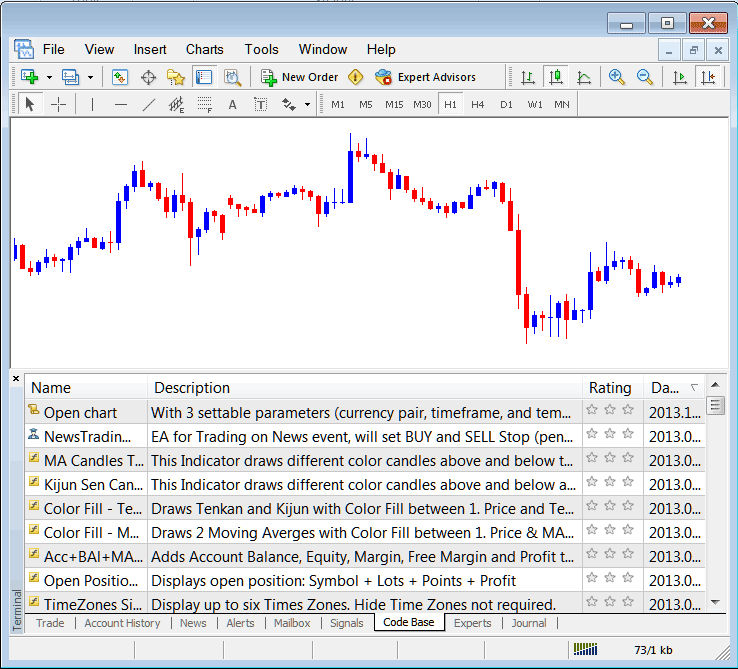
MetaTrader 5 Automated Forex Expert Advisors Provided From MQL5 Forex Website Directly to the Platform
To learn more about MT5 MQL5 Automated Forex Trading Expert-Advisors, navigate to the MQL5 Forex Automated Expert-Advisors Page.
Experts Tab
Shows a list of all Automated Forex Expert Advisors that have been installed on the MT5 Platform, for Example the image below shows two EA Forex Robots are installed on this platform. This MT5 option also shows the trading specifications of each EA, these include trading parameters such as Take Profits, Lot Size, Trailing Stop Levels and all the other custom trading parameters of the Expert Advisor that has been installed on the Forex platform.
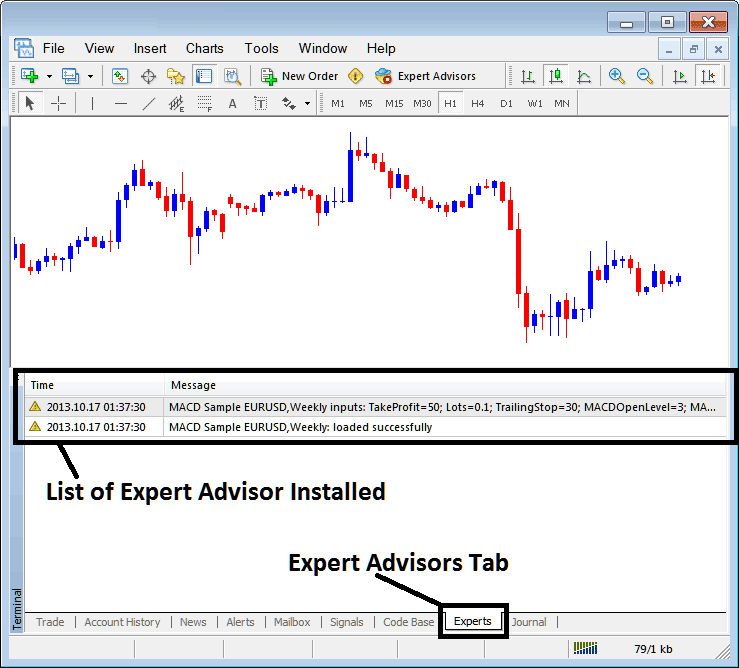
Automated Forex Expert Advisors Installed on MetaTrader 5
Journal Tab
Tracks login activities of the Meta 5 trader and from which computer and the IP address of the computer used to login to the platform.
This is more on the technical stuff & traders don't use this one a lot & therefore we shall not explain it here but you can look at this at your own free time, on your MT5 Forex Platform.




