How Do You Use Pivot Points MetaTrader 4 Technical Indicator?
Pivot Points Indicator Technical Analysis Buy & Sell Signals
This indicator consists of a central pivot which is surrounded by 3 resistance levels above and 3 support levels below.
Initially these points were used by floor traders to analyze and trade the equities & futures exchange markets. This technical indicator is considered to be leading rather than lagging.
Pivots provide a quick way for forex traders to analyze the general trend of how the market is going to be moving during the course of the day. A few simple calculations are used to plot the resistance and support levels.
To calculate these points for the coming trading day is the previous day's
- high,
- low, and
- close forex prices are used
The Forex trading day closes at 5:00PM EST this daily market closing time is when the technical indicator is updated.
The 24-hour cycle for this indicator are calculated using a complex formula. Central pivot is then used to calculate the support and resistance areas as follows:
Resistance 3
Resistance 2
Resistance 1
Pivot Point
Support 1
Support 2
Support 3
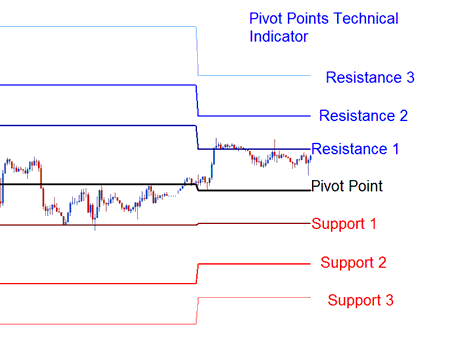
How to Add MetaTrader 4 Pivot Points Indicator on MetaTrader 4 Charts
How to Generate Buy and Sell Signals
Pivot Points indicator can be analyzed in different ways to generate forex signals. The Pivot Points indicator technical analysis methods are:
Forex Trend Identification Signals
The central pivot point is used by traders to determine the general forex trend direction. The forex trades opened will only be opened in the direction of the trend.
- Buy forex trading signal - forex price is above the central Pivot Point
- Sell forex trading signal - forex price is below the central Pivot Point
Forex Price Break-out Signals
Forex price break-out signals are generated as follows
- Buy forex trading signal - forex buy trading signal is generated when the price breaks-out upwards through the central Pivot Point.
- Sell forex trading signal - forex sell trading signal is generated when the price breaks downward through the central Pivot Point.
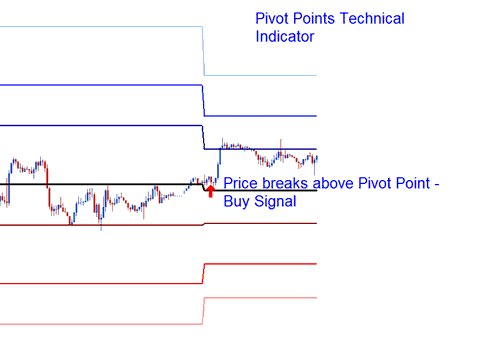
Forex rice Breakout above Pivot Points Technical Indicator
Forex Price Reversal Signal
Forex price reversals are generated as follows
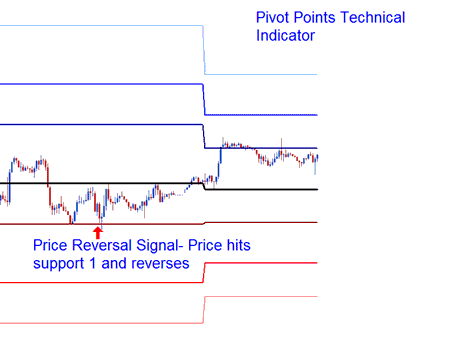
Buy forex trading signal - when price moves down towards one of the Pivot Points indicator support level, then touches the support level or moves slightly through the support level then quickly reverses and moves upward.
Sell forex trading signal - when price moves up towards one of the Pivot Points indicator resistance level, then touches the resistance level or moves slightly through resistance level then quickly reverses and moves downward.
Setting Stoploss Orders and Take Profit Values
The central Pivot Point and the other Pivot Points indicator support levels & resistance zones are used by traders to identify suitable stop loss levels and take profit areas.
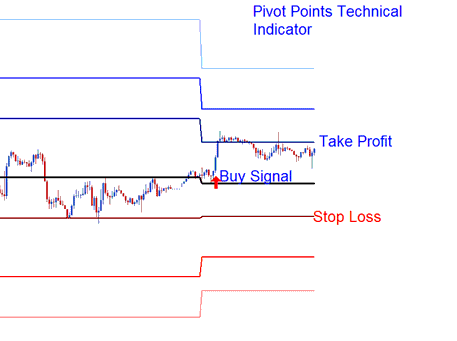
Setting Stoploss & Take Profit Level Pivot Points Support Level and Resistance Areas
If a buy forex trade is opened above the central Pivot point - the Resistance 1 or Resistance 2 can be used to set the take profit level, and the Support 1 can be used to set the Stop Loss Level for the forex trade.
To download Pivot Points indicator:
https://c.mql5.com/21/9/pro4x_pivot_lines.mq4
Once you download the Pivot Points indicator, open it with MQL4 Language Editor, Then Compile this Pivot Points indicator by pressing the Compile Button and Pivot Points indicator will be added to your MT4 trading forex platform.
NB: Once you add Pivot Points indicator to your MetaTrader 4, the Pivot Points indicator has additional lines named Mid Points, to remove these additional lines open MQL4 Language MetaEditor(MetaTrader 4 shortcut keyboard key - press F4), and change line 16 from:
Extern bool midpivots = true:
To
Extern bool midpivots = false:
Then Press Compile again, and Pivot Points indicator will then appear as exactly shown on this learn forex web site.
How to Add MetaTrader 4 Pivot Points Indicator on MetaTrader 4 Charts
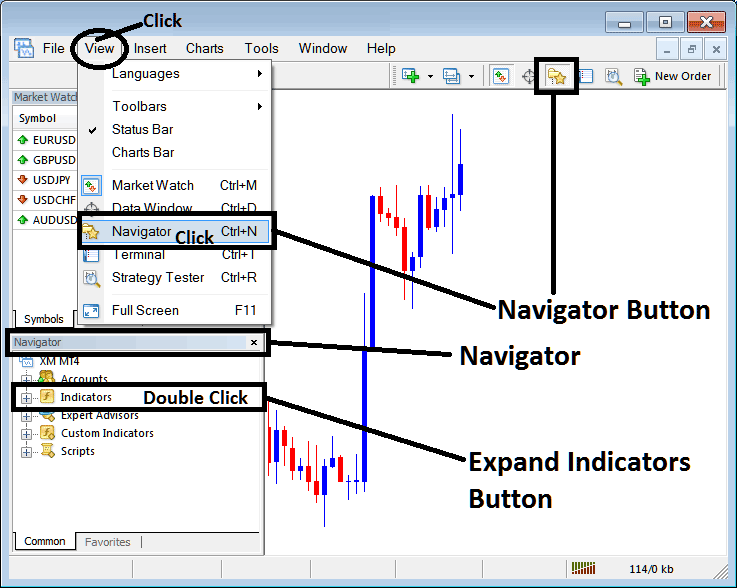
Step 1: Open MT4 Platform Navigator Panel
Open MT4 Navigator window as shown below: Go to "View" menu (click), then select "Navigator" window (click), or From Standard Tool Bar click the "Navigator" button or press keyboard MetaTrader 4 shortcut keys "Ctrl+N"
On MT4 Navigator window, select "Indicators", by Double Clicking
How Do You Use MetaTrader 4 Pivot Points Technical Indicator?
How to Add Pivot Points MetaTrader 4 Indicator
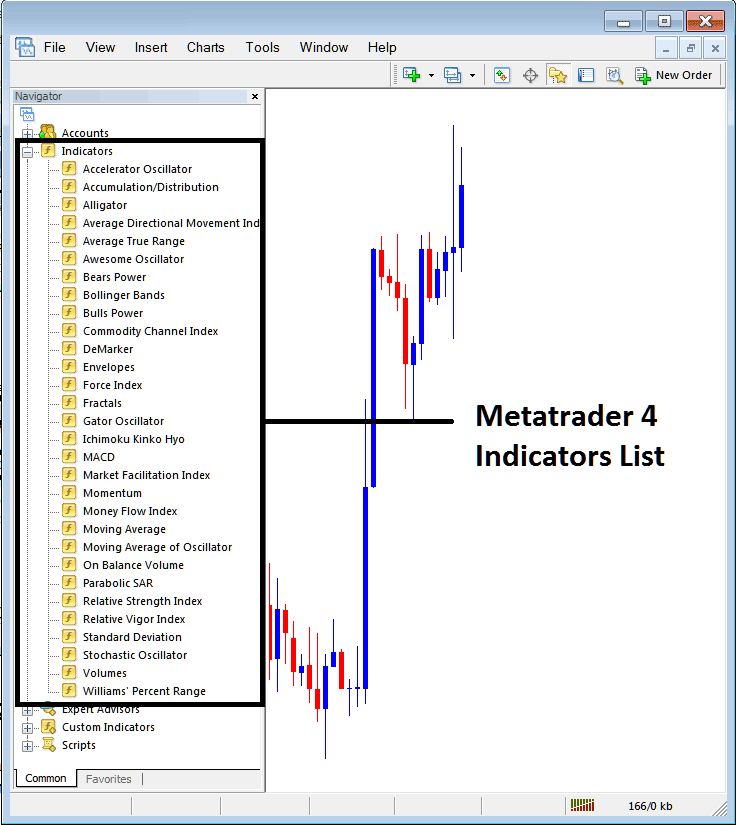
Expand the menu by clicking the expand button (+) or double click the "indicators" menu, after this the button will appear as (-) and it will then display a list of MetaTrader 4 indicators as shown below - choose the Pivot Points technical indicator from this list of MetaTrader 4 indicators so that you can add the Pivot Points MetaTrader 4 indicator on the MetaTrader 4 forex chart.
How Do You Use MetaTrader 4 Pivot Points Technical Indicator?
How Install and Add Custom Pivot Points Indicator on MetaTrader 4?
If the MetaTrader 4 indicator that you want to add on the MetaTrader 4 charts is a custom MT4 indicator - for example if the Pivot Points indicator that you want to add is a custom MetaTrader 4 indicator you will need to first add this custom Pivot Points MetaTrader 4 indicator on the MetaTrader 4 platform and then compile this custom Pivot Points technical indicator so that this newly added Pivot Points MetaTrader 4 forex custom indicator appears on the custom technical indicators list on the MetaTrader 4 software.
To learn how to add Pivot Points indicators on MT4 platform - how do you add Pivot Points indicator window to MT4 platform? - how do you add Pivot Points forex custom indicator on MT4 platform? - How to add a custom Pivot Points custom forex indicator on MetaTrader 4.
How Do You Use MetaTrader 4 Pivot Points Technical Indicator?




