How Do You Use DeMarker MetaTrader 4 Technical Indicator?
DeMarker Indicator Technical Analysis & DeMarker Buy & Sell Signals
Developed by Tom Demark.
DeMarker indicator is designed to overcome the general shortcomings of the traditional overbought and oversold forex technical indicators.
The DeMarker indicator is used by traders to predict potential forex market bottoms and forex market tops by using forex price data comparisons from one candlestick bar to the next.
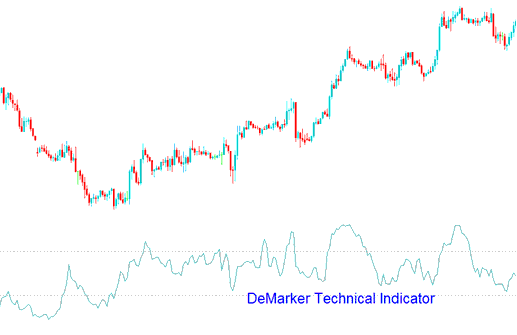
How to Add MetaTrader 4 DeMarker Indicator on MetaTrader 4 Charts
How to Generate Buy and Sell Signals
DeMarker indicator is analyzed in the same way as other overbought / oversold forex technical indicators. The DeMarker indicator overbought level is marked at 70 level while DeMarker indicator oversold is marked at 30 level.
Bullish Reversal Forex Signal - When the DeMarker indicator falls below 30 level - bullish forex price reversal should be expected by traders.
Bearish Reversal Forex Signal - When the DeMarker indicator rises above 70 level - bearish forex price reversal should be expected forex traders.
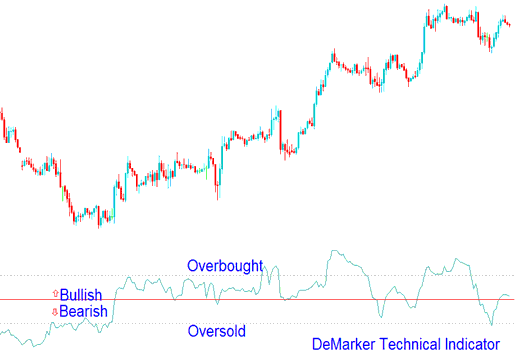
Analysis of MetaTrader 4 Indicator Demarker Trading Indicator
If you use longer forex chart time-frames to trade the Demarker indicator, you will get to catch the long term forex trends. If you use the short forex chart time frames based on shorter periods you can enter the forex market at the point where the risk is minimum and you can also plan the time opening the forex trade so that it is within the direction of the long term forex trend.
How to Add MetaTrader 4 DeMarker Indicator on MetaTrader 4 Charts
Step 1: Open MT4 Software Navigator Window Panel
Open MT4 Navigator window as shown below: Go to "View" menu (click), then select "Navigator" window (click), or From Standard Tool Bar click the "Navigator" button or press keyboard MetaTrader 4 shortcut keys "Ctrl+N"
On MT4 Navigator window, select "Indicators", by Double Clicking
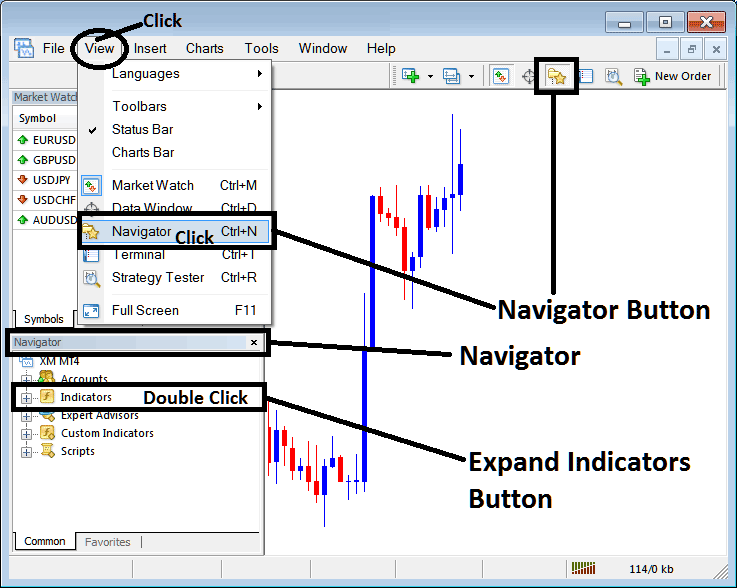
How Do You Use MetaTrader 4 DeMarker Technical Indicator?
How to Add DeMarker MetaTrader 4 Indicator
Expand the menu by clicking the expand button (+) or double click the "indicators" menu, after this the button will appear as (-) and it will then display a list of MetaTrader 4 indicators as shown below - choose the DeMarker technical indicator from this list of MetaTrader 4 indicators so that you can add the DeMarker MetaTrader 4 indicator on the MetaTrader 4 forex chart.
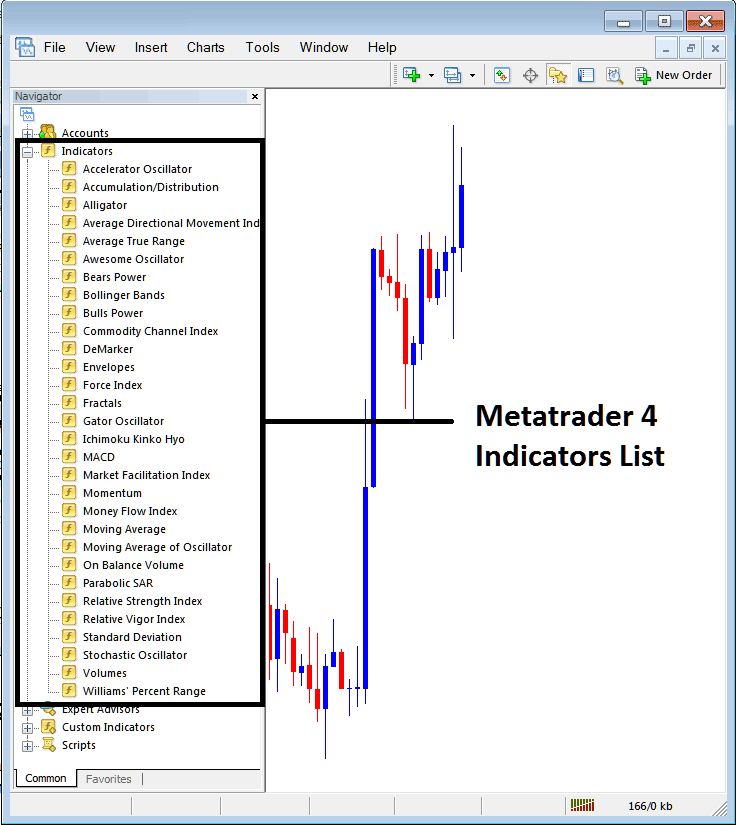
How Do You Use MetaTrader 4 DeMarker Technical Indicator?
How Install and Add Custom DeMarker Indicator on MetaTrader 4?
If the MetaTrader 4 indicator that you want to add on the MetaTrader 4 charts is a custom MT4 indicator - for example if the DeMarker indicator that you want to add is a custom MetaTrader 4 indicator you will need to first add this custom DeMarker MetaTrader 4 indicator on the MetaTrader 4 platform and then compile this custom DeMarker technical indicator so that this newly added DeMarker MetaTrader 4 forex custom indicator appears on the custom technical indicators list on the MetaTrader 4 software.
To learn how to add DeMarker indicators on MT4 platform - how do you add DeMarker indicator window to MT4 platform? - how do you add DeMarker forex custom indicator on MT4 platform? - How to add a custom DeMarker custom forex indicator on MetaTrader 4.
How Do You Use MetaTrader 4 DeMarker Technical Indicator?




