How Do You Use MACD MetaTrader 4 Technical Indicator?
MACD indicator Technical Analysis & MACD Buy & Sell Signals
Created by Gerald Appel,
MACD indicator is one of the simplest, reliable and most commonly used forex trading indicator.
MACD indicator is a momentum forex oscillator and also a forex trend following indicator.
Construction of MACD Indicator
The construction of MACD indicator calculates the difference between two moving averages and then draws that as the MACD "Fast" line: the a second MACD "Signal" line is then calculated from the resulting MACD "Fast" line and then drawn on the same panel window as the MACD "Fast" line.
- MACD "Fast" line - Blue Line
- MACD "Signal" line - Red Line
The "standard" MACD values for the MACD "Fast" line is a 12 forex price period exponential moving average and a 26 forex price period exponential moving average and a 9 period exponential moving applied to the MACD fast line, this draws the MACD "Signal" line.
- MACD Fast line = difference between 12 and 26 exponential moving averages
- MACD Signal line = moving average of this difference of 9-periods
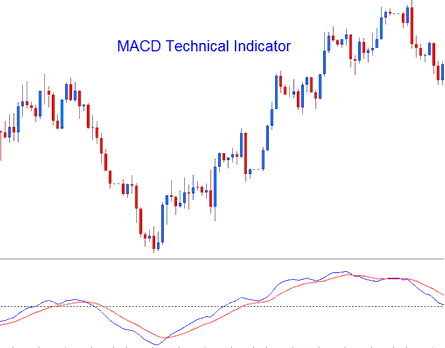
How to Add MetaTrader 4 MACD Indicator on MetaTrader 4 Charts
How to Generate Buy and Sell Signals
MACD indicator is commonly used as a trend following indicator & works most effectively when analyzing trending forex market movements. The three common forex trading methods of using MACD indicator to generate forex trading signals are:
MACD Indicator FX Crossovers Forex Trading Signals:
MACD Fast line/Signal line Crossover:
- A forex buy trading signal is generated when the MACD Fast line crosses above the MACD Signal line
- A forex sell trading signal is generated when the MACD Fast line crosses below the MACD Signal line.
However, in a strong forex trending market this MACD indicator crossover signals gives a lot of forex whipsaw signals - the best MACD indicator crossover signals to use would therefore be the Zero Line Crossover Forex Trading Signal that is less prone to forex whipsaw signals.
MACD Zero Line Crossover Signals:
- When the MACD Fast line crosses above zero center line level a forex buy trading signal is generated.
- When the MACD Fast line crosses below the zero center line level a forex sell trading signal is generated.
MACD Forex Divergence Trading:
When analyzing forex divergences between the MACD indicator & forex price - MACD indicator can prove to be very effective in identifying potential forex trend reversal and forex trend continuation points in forex price movement. There two types of forex trading divergences:
- Classic MACD Divergence Signals
- Hidden MACD Divergence Signals
MACD Overbought/Oversold Forex Trading Conditions:
MACD indicator is also used to identify potential overbought and over-sold conditions in the forex price action movements.
These MACD indicator overbought and oversold levels are generated if the shorter MACD indicator lines separate dramatically from the median - this is a forex trading signal that forex price action is over-extending and the forex price will soon return to more realistic levels.
MACD FX Indicator & Moving Average Forex Crossover FX Trading System
MACD technical indicator can be combined with other forex technical indicators to form a trading system. A good forex indicator combination with MACD indicator is the Moving Average crossover forex trading system. A forex trading signal is generated when both MACD indicator & Moving Average crossover forex trading system gives a signal in the same direction.
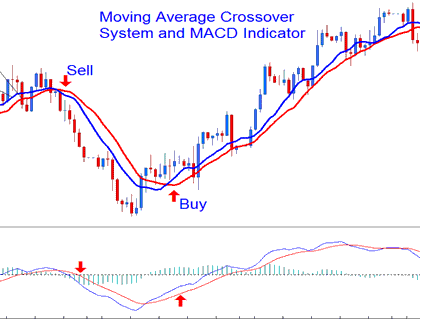
Analysis of MetaTrader 4 Indicator MACD Trading Indicator
How to Add MetaTrader 4 MACD Indicator on MetaTrader 4 Charts
Step 1: Open MT4 Platform Navigator Panel
Open MT4 Navigator window as shown below: Go to "View" menu (click), then select "Navigator" window (click), or From Standard Tool Bar click the "Navigator" button or press keyboard MetaTrader 4 shortcut keys "Ctrl+N"
On MT4 Navigator window, select "Indicators", by Double Clicking
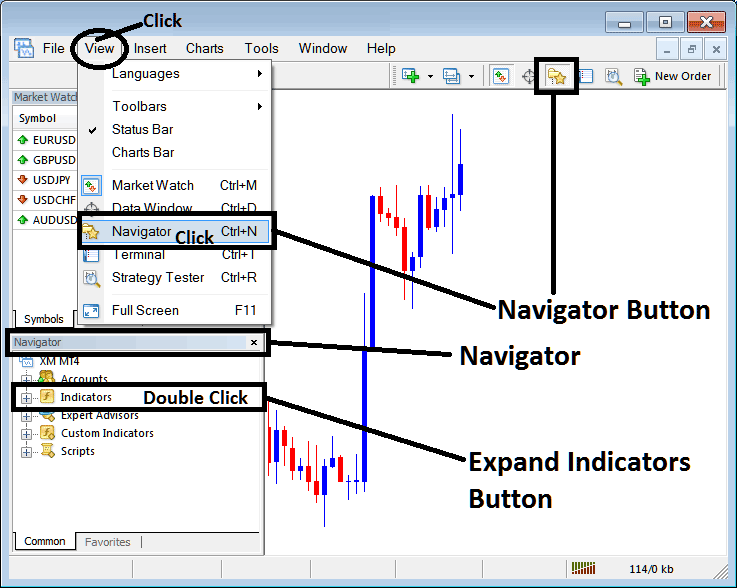
How Do You Use MetaTrader 4 MACD Technical Indicator?
How to Add MACD MetaTrader 4 Indicator
Expand the menu by clicking the expand button (+) or double click the "indicators" menu, after this the button will appear as (-) and it will then display a list of MetaTrader 4 indicators as shown below - choose the MACD technical indicator from this list of MetaTrader 4 indicators so that you can add the MACD MetaTrader 4 indicator on the MetaTrader 4 forex chart.
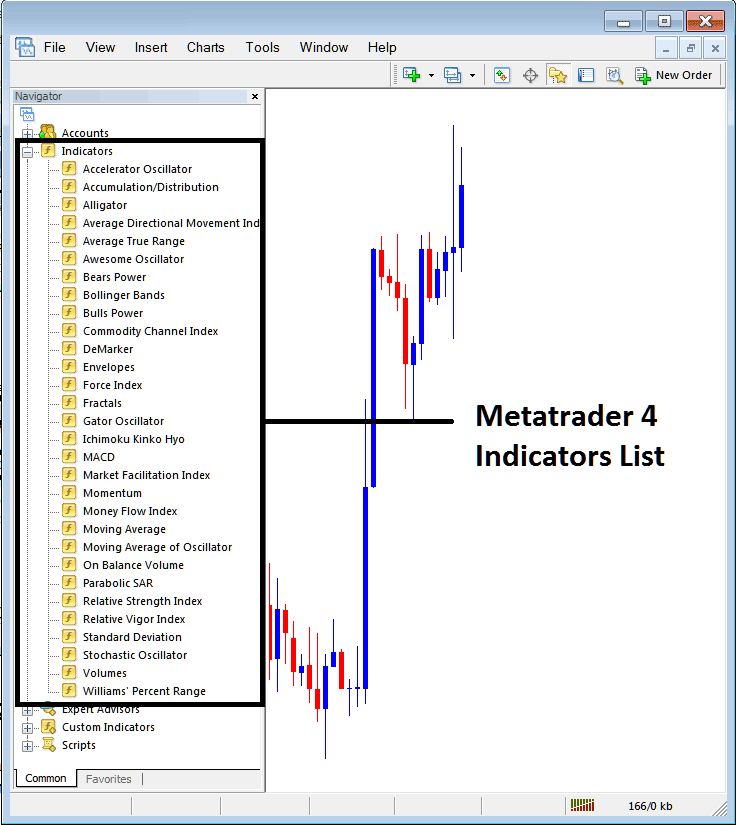
How Do You Use MetaTrader 4 MACD Technical Indicator?
How Install and Add Custom MACD Indicator on MetaTrader 4?
If the MetaTrader 4 indicator that you want to add on the MetaTrader 4 charts is a custom MT4 indicator - for example if the MACD indicator that you want to add is a custom MetaTrader 4 indicator you will need to first add this custom MACD MetaTrader 4 indicator on the MetaTrader 4 platform and then compile this custom MACD technical indicator so that this newly added MACD MetaTrader 4 forex custom indicator appears on the custom technical indicators list on the MetaTrader 4 software.
To learn how to add MACD indicators on MT4 platform - how do you add MACD indicator window to MT4 platform? - how do you add MACD forex custom indicator on MT4 platform? - How to add a custom MACD custom forex indicator on MetaTrader 4.
How Do You Use MetaTrader 4 MACD Technical Indicator?




