How Do You Use Kase DevStop 2 MT5 Technical Indicator?
Technical Analysis of MT5 Kase DevStop 2
Developed by Cynthia Kase
The Kase DevStop 2 forex technical indicator calculates an average range of forex price, and the three standard deviations of this forex price range.
Forex Analysis of MT5 Indicator Kase DevStop 2
Kase DevStop 2 forex technical indicator is used to identify realistic exit points for forex trades based on forex price volatility, variance of the forex price volatility and the forex price volatility skew. Kase DevStop 2 forex technical indicator draws 4 lines. The 4 Kase DevStop 2 forex technical indicator lines are described as a Warning Line and 3 Standard Deviations Indicator Lines of 1, 2 and 3. These Kase DevStop 2 forex technical indicator lines allow forex traders to take forex profit or cut forex trading losses at these levels where the probability of a forex trade remaining profitable is very low, while at the same time without taking more forex losses or cutting forex profits any time sooner than it necessary is.
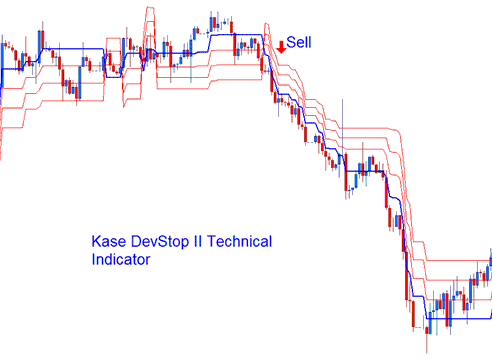
The three Kase DevStop 2 forex technical indicator red lines are used by traders to set forex exit levels or forex stop loss levels. The Kase DevStop 2 forex technical indicator is a forex trend following indicator.
How to Add MT5 Kase DevStop 2 Indicator on MetaTrader 5 Charts
Step 1: Open MetaTrader 5 Platform Navigator Panel
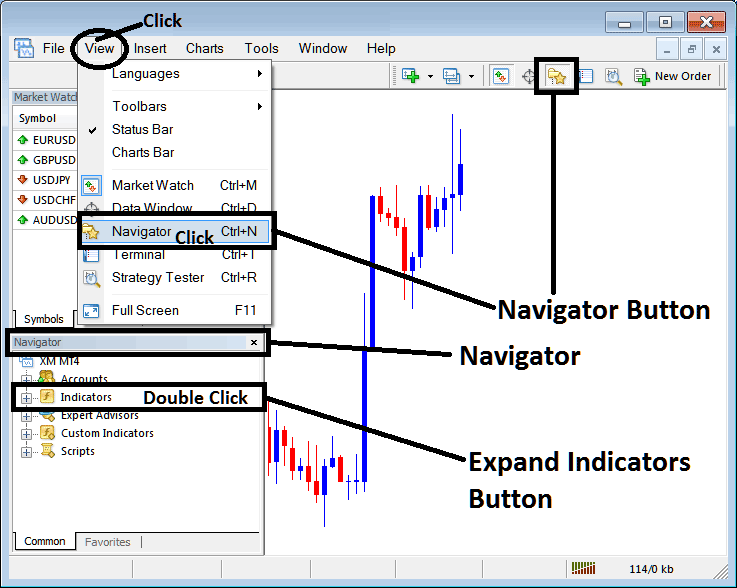
Open MetaTrader 5 Navigator window as shown below: Go to "View" menu (click), then select "Navigator" window (click), or From Standard Tool Bar click the "Navigator" button or press keyboard MT5 shortcut keys "Ctrl+N"
On MT5 Navigator window, select "Indicators", by Double Clicking
How Do You Use MT5 Kase DevStop 2 Indicator?
How to Add Kase DevStop 2 MT5 Indicator
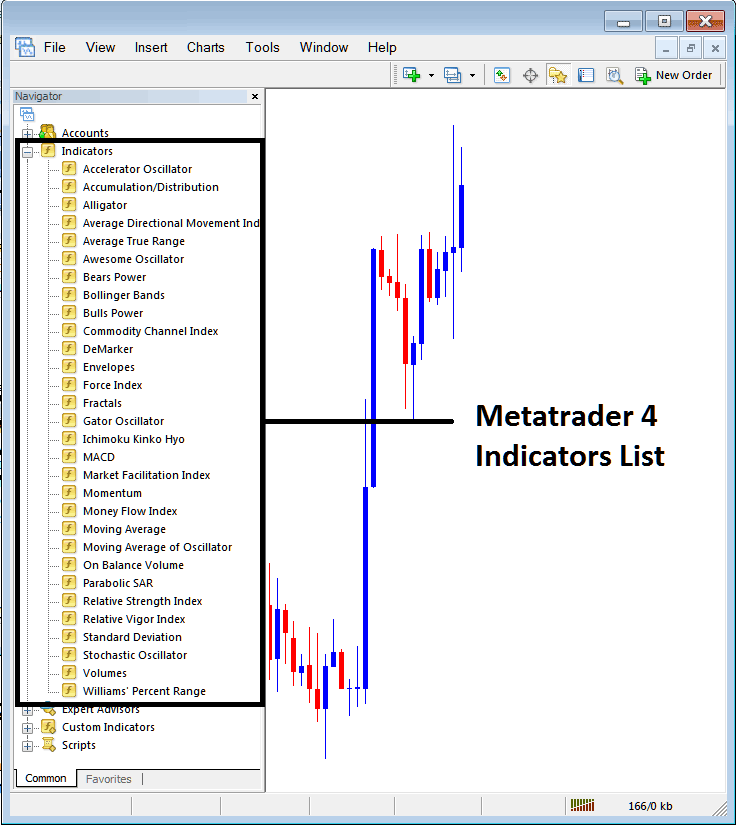
Expand the menu by clicking the expand button (+) or double click the "indicators" menu, after this the button will appear as (-) and will now display a list of MT5 technical indicators as shown below - choose the Kase DevStop 2 forex indicator from this list of MT5 technical indicators so that you can add the Kase DevStop 2 MT5 technical indicator on the MT5 forex chart.
How Do You Use MT5 Kase DevStop 2 Indicator?
How to Install and Place Custom Kase DevStop 2 Indicator MetaTrader 5
If the MT5 indicator that you want to add on the MT5 charts is a custom MT5 indicator - for example if the Kase DevStop 2 indicator that you want to add is a custom MT5 indicator you will need to first add this custom Kase DevStop 2 MT5 technical indicator on the MT5 platform and then compile this custom Kase DevStop 2 forex indicator so that this newly added Kase DevStop 2 MT5 forex custom indicator appears on the custom forex indicators list on the MT5 platform.
To learn how to add Kase DevStop 2 indicators in MT5 - how do you add Kase DevStop 2 indicator window to MT5 platform? - how do you add Kase DevStop 2 forex custom indicator on MetaTrader 5? - How to add a custom Kase DevStop 2 custom technical indicator on MetaTrader 5.
How Do You Use MT5 Kase DevStop 2 Indicator?




