How Do You Use DeMark Projected Range MT5 Technical Indicator?
DeMark Projected Range Technical Indicator Technical Analysis & DeMark Projected Range Buy & Sell Signals
Developed by Tom Demark.
DeMark Projected Range forex technical indicator is used to determine the potential high and potential low forex prices that the chart forex price is likely to reach.
This is referred to as range projection - range projection is calculated using the opening forex prices and the closing forex prices of the most recent forex price period.
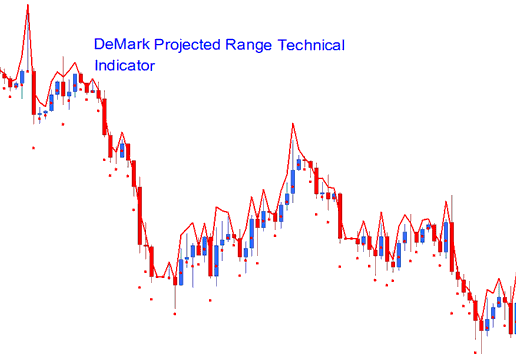
How to Add MT5 DeMark Projected Range Indicator on MetaTrader 5 Charts
How to Generate Buy and Sell Signals
DeMark Projected Range forex technical indicator will show two points - the projected high of forex price & the projected low of forex price of a specific forex price period. This range projection will then be used as the reference point.
Bullish Upward Forex Trend Signal
If the next forex price candlestick bar opens above the projected high of forex price then the forex market trend will continue in an upwards forex trend.
Bearish Downward Forex Trading Trend Signal
If the next forex price candlestick bar opens below the projected low of forex price then the forex market trend will continue in a downward trend.
Range Forex Market
If the next forex price candlestick bar opens within the projected range - then this is interpreted as a signal that the forex market will remain in a range based sideways movement.
How to Add MT5 DeMark Projected Range Indicator on MetaTrader 5 Charts
Step 1: Open MetaTrader 5 Platform Navigator Panel
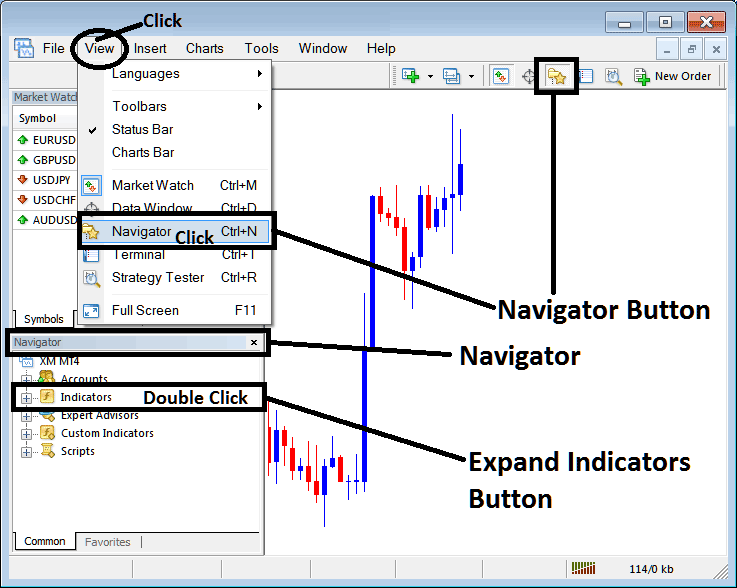
Open MetaTrader 5 Navigator window as shown below: Go to "View" menu (click), then select "Navigator" window (click), or From Standard Tool Bar click the "Navigator" button or press keyboard MT5 shortcut keys "Ctrl+N"
On MT5 Navigator window, select "Indicators", by Double Clicking
How Do You Use MT5 DeMark Projected Range Indicator?
How to Add DeMark Projected Range MT5 Indicator
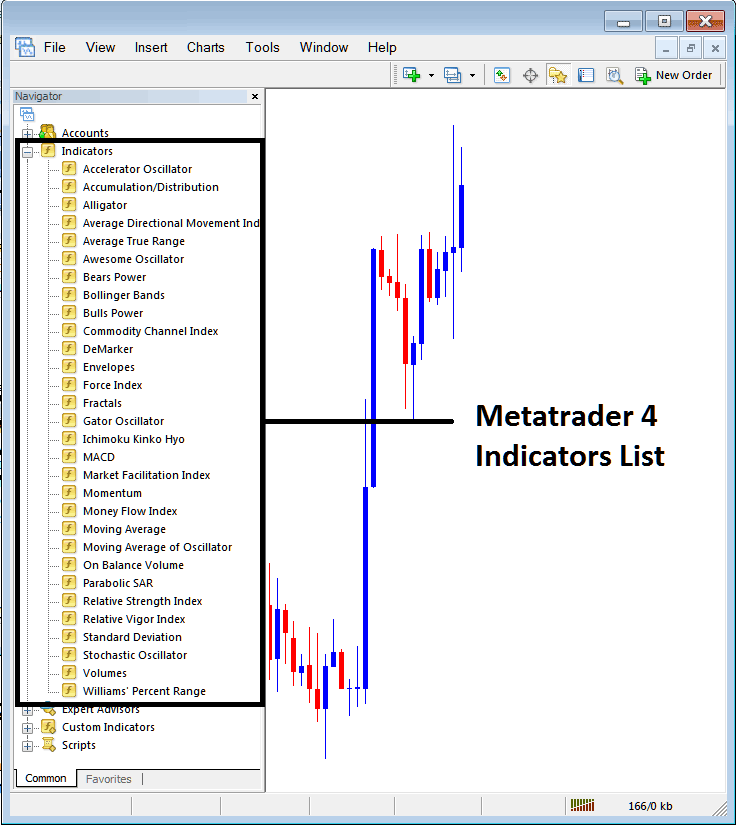
Expand the menu by clicking the expand button (+) or double click the "indicators" menu, after this the button will appear as (-) and will now display a list of MT5 technical indicators as shown below - choose the DeMark Projected Range forex indicator from this list of MT5 technical indicators so that you can add the DeMark Projected Range MT5 technical indicator on the MT5 forex chart.
How Do You Use MT5 DeMark Projected Range Indicator?
How to Install and Place Custom DeMark Projected Range Indicator MetaTrader 5
If the MT5 indicator that you want to add on the MT5 charts is a custom MT5 indicator - for example if the DeMark Projected Range indicator that you want to add is a custom MT5 indicator you will need to first add this custom DeMark Projected Range MT5 technical indicator on the MT5 platform and then compile this custom DeMark Projected Range forex indicator so that this newly added DeMark Projected Range MT5 forex custom indicator appears on the custom forex indicators list on the MT5 platform.
To learn how to add DeMark Projected Range indicators in MT5 - how do you add DeMark Projected Range indicator window to MT5 platform? - how do you add DeMark Projected Range forex custom indicator on MetaTrader 5? - How to add a custom DeMark Projected Range custom technical indicator on MetaTrader 5.
How Do You Use MT5 DeMark Projected Range Indicator?




