Insert Shapes on Commodities Trading Charts on the MT4 Platform
To place shapes on the MT4 commodity trading software, a trader can use the Insert Menu & use the insert shapes button key that is illustrated and shown below.
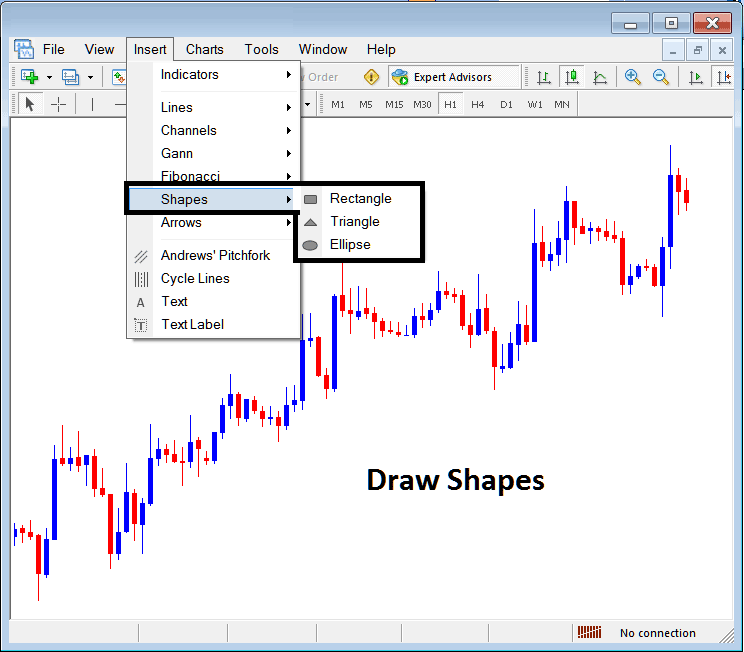
Insert Shapes in MetaTrader 4
The options of which shapes that can be plotted on the MT4 software are:
- Rectangle
- Triangle
- Ellipse
Draw Rectangle on Commodities Trading Chart
To draw a rectangle in MT4 commodity charts, a trader will choose the rectangle button & then choose between which points on a Commodity Trading chart to draw this rectangle. To adjust a triangle that has already been drawn, a trader can also double click anywhere on this shape and then select the square buttons that appear at all the corners of this rectangle and drag them to adjust this rectangle.
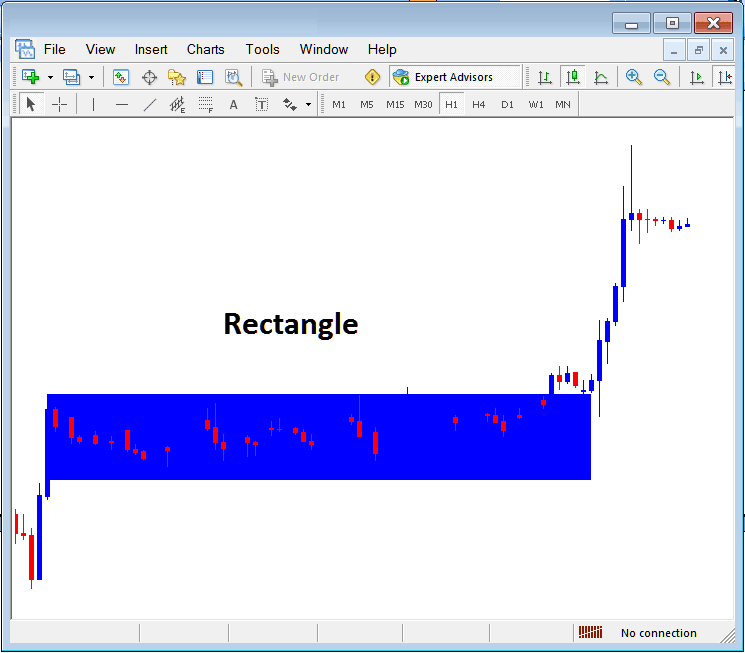
Drawing Rectangle Shape on MT4 Commodity Trading Charts
The rectangle shape is used to draw a consolidation range pattern where commodity price break out to one side will mean commodity price movement will continue in that direction, as shown above, when the price breaks out upwards it continues to move in that direction.
Draw Triangle
To draw a triangle, a trader can select the triangle button and then on the MT4 commodities chart, select 3 points, point 1, 2 and 3 after which the triangle is drawn within these three selected chart points. To adjust the triangle, just double click this triangle, then select the square buttons appearing on the edges as shown below and adjust the triangle points.
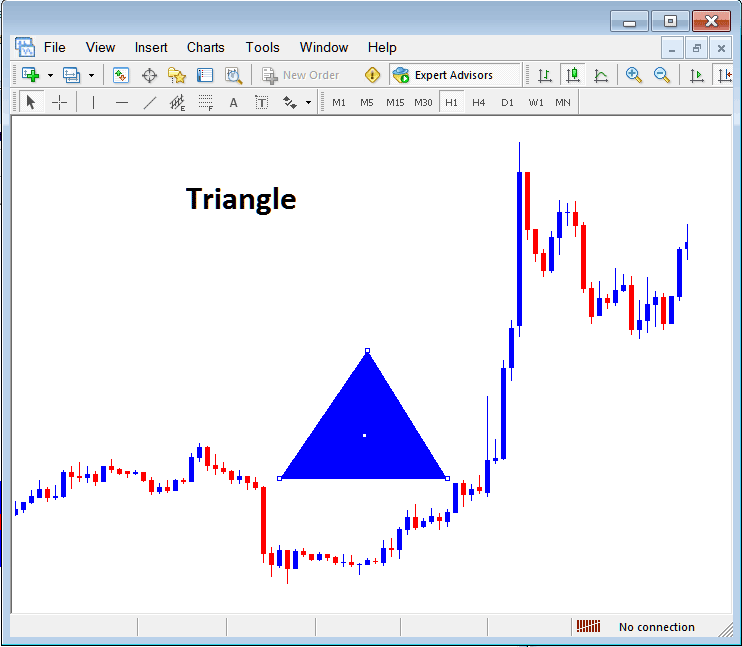
Drawing Triangle on Commodities Charts on MT4 Software
Draw Ellipse
To draw the ellipse shape, follow procedure below:
- Select the Ellipse button key as displayed above
- On the chart choose point 1 & drag the mouse to point 2, (the ellipse will appear as a line)
- Doubleclick the ellipse using the small squares at the middle, click, hold & drag this square and the ellipse will be adjusted as shown below.
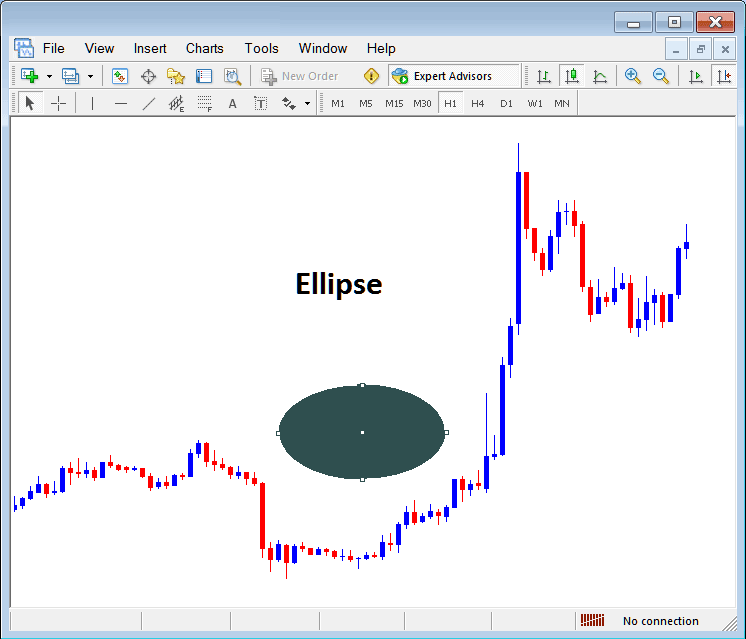
Drawing Ellipse Shape on MT4 Commodities Trading Charts in MetaTrader 4