Inserting Line Studies Tools on the MT4 Software
The next option on the Insert menu within the MT4 commodity platform is Line Studies Button. These tools are used to insert & draw commodity trend-lines or to place various technical analysis tools on Commodity Trading charts. This button is shown below:
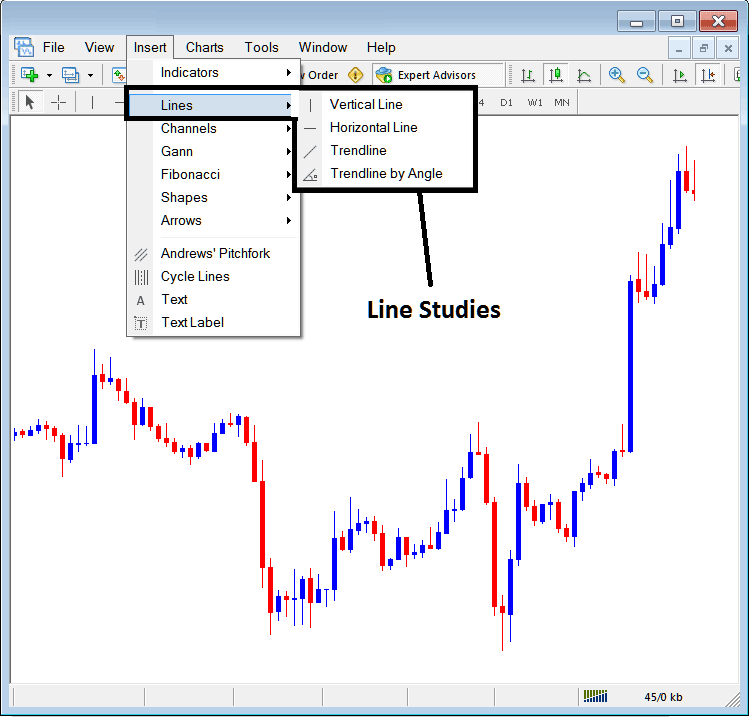
Line Studies in MetaTrader 4
The button can be used to insert the following on the Commodity Trading charts:
- Vertical Line
- Horizontal Line
- Commodity Trading Trend Line
- Commodity Trading Trend by Angle
A trader may require to draw any of these line studies on Commodity Trading charts for different purposes: each line study will be placed on the chart depending on the type of analysis that a trader want to achieve.
Vertical Line
This is placed on a Commodity Trading chart when a trader wants to mark a specific point in a commodities trading chart, maybe to mark the time they bought commodity or sold commodity. To insert this vertical line on a Commodities Trading chart, a trader will open insert menu, as shown above, then click on the 'Vertical Line' option - to choose this, cursor will also change to show vertical line icon & then choose point on Commodity chart where you want to draw this line.
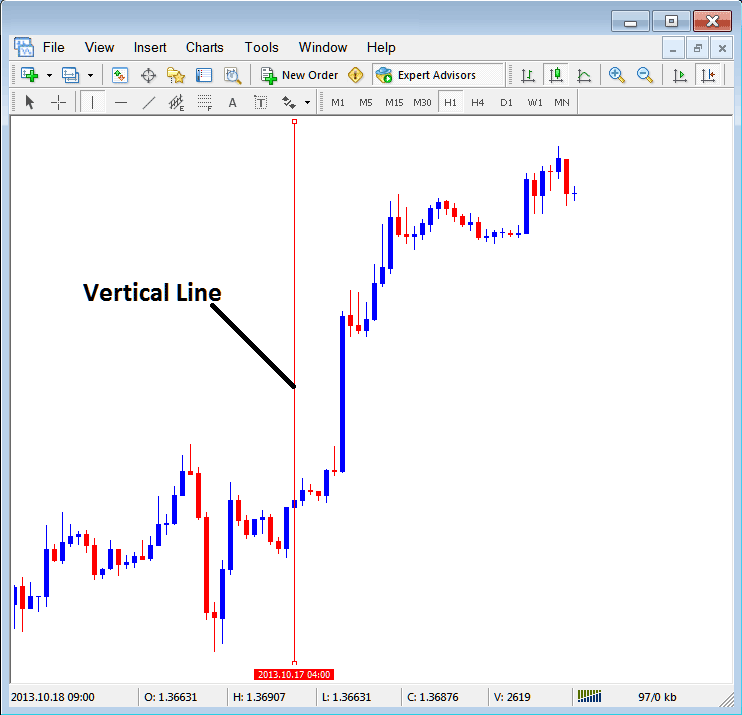
Insert a Vertical To a Commodity Trading Chart in MT4
Horizontal Line
On MT4 Commodity trade platform, this line is placed on a Commodity Trading chart so that to mark a resistance level or a support level on the commodities trading chart. The horizontal line can be drawn by selecting its button key within insert menu & then clicking on level where you want to place it.
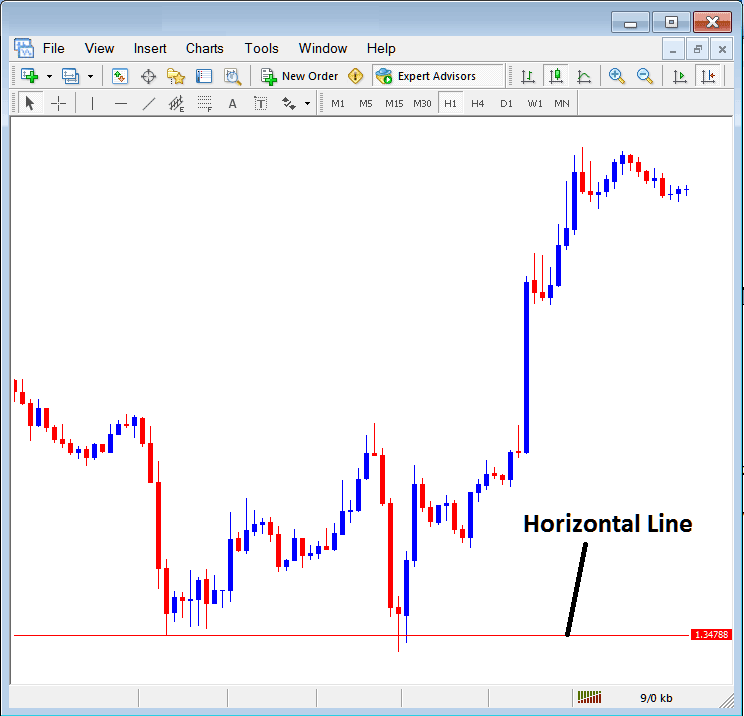
Drawing a Horizontal Line on MetaTrader 4
On the commodities trading example above this horizontal line is drawn at commodity price support point, the commodity price bounces up the second time that it gets to this point. Commodity trend then changes to upward commodity trend direction.
Commodity Trading Trend Line
This is one of the most oftenly used technical analysis tool in commodity trading. To draw this commodity trend line a trader can access this button from the insert menu. An upward commodity trend line on MT4 software is shown below.
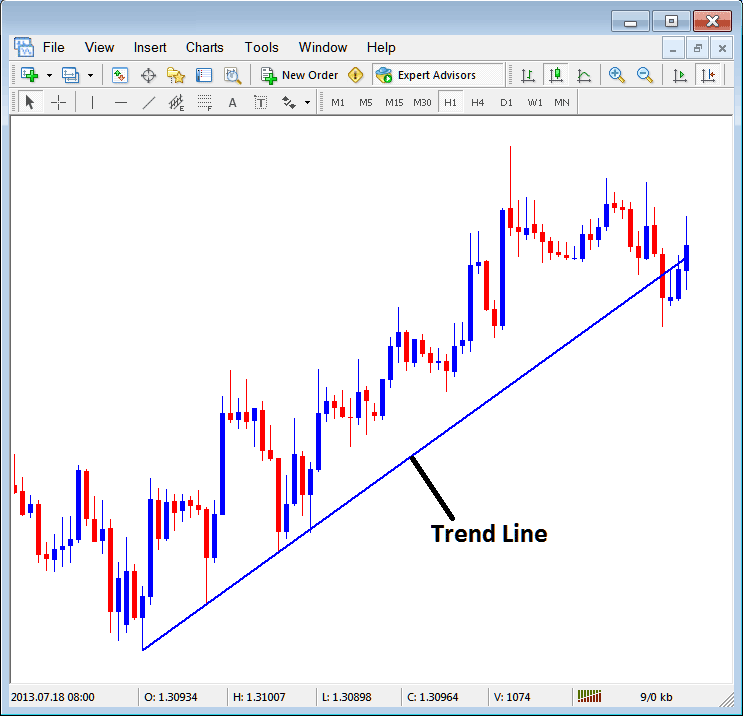
Commodity Trading Trend Line Drawn on MetaTrader 4
To draw a commodity trend line a trader has to have 2 points and join these points with the trend line & then extend it as shown above.
A trader can draw this commodity trend line for either an upward commodity trend direction or downward commodity trend direction
Commodity Trading Trend Line by Angle
The next option is to draw a commodity trend by angle, this one looks exactly like the ordinary commodity trendline displayed above, only that in addition it'll show the angle at which the trend line is slanting which many trades may use as a signal and specify to only trade if the angle is more than 30 degrees.
Customizing
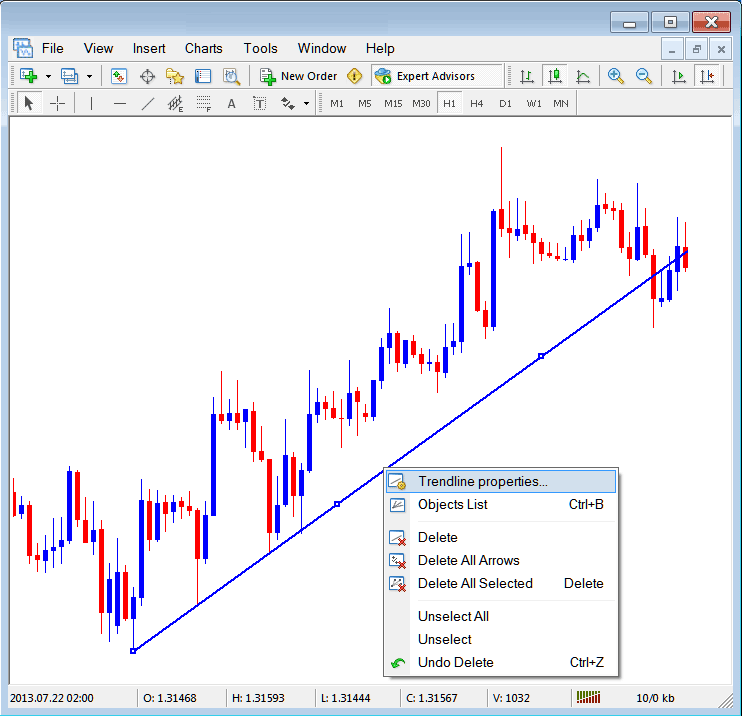
As a trader you might want to change the formatting of a particular item for examples let use the "Commodity Trading Trendline" study, if you want to edit its properties then you can choose it by double-clicking on it, then right-click on it and the following menu will show.
Changing
Common Properties
After the above menu pops up (Note the trend line has three square points that you can click and drag with your mouse to adjust it to another point using these three squares), select the first option only "Commodity Trading Trendline Properties", the following pop up window panel will pop-up.
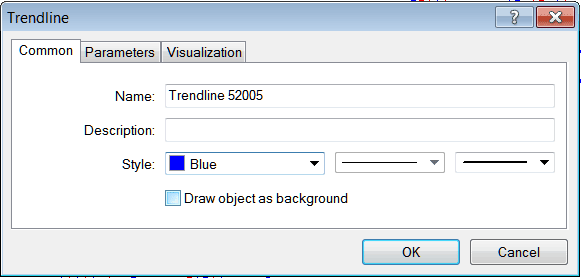
From this menu a trader can rename the trend line, give it a description, change the style color to another color using the down arrow next to the color named "Blue" above or change the width property by selecting a different style from the 2 drop down arrow buttons next to the color button, and then select okay.
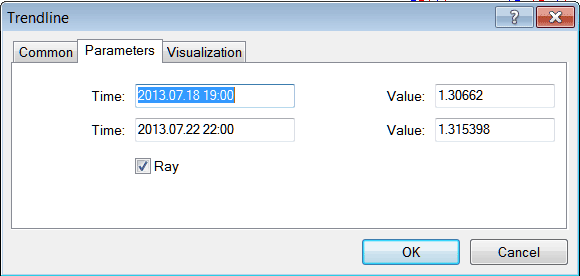
The other options are marked 'Parameters' and 'Visualization'
Parameters
On parameter, tick/untick the option marked as 'Ray', this will extend/unextend the trend line upto the point where you've selected. Download the MetaTrader platform to learn what this we are talking about.
Visualization
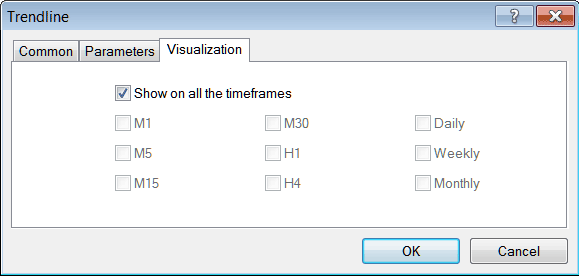
Visualization is used to select whether the line is shown on all timeframes or only shown on a select few timeframes that a trader can choose and select from this option as shown below.
Customizing Tools MT4 Studies