Setting up Fibonacci Expansion in MetaTrader 4 and Changing its Settings
The steps below explain how to draw these levels, how to use this tool & how to change its settings.
How to Add This Tool on MT4
Steps: This tool is not shown by default in MetaTrader 4 settings, if the button isn't shown on your MT4 software, (no need to download this indicator) then find "MT4 Line Studies Toolbar" shown below and follow steps below:
1. MT4 Line Studies ToolBar
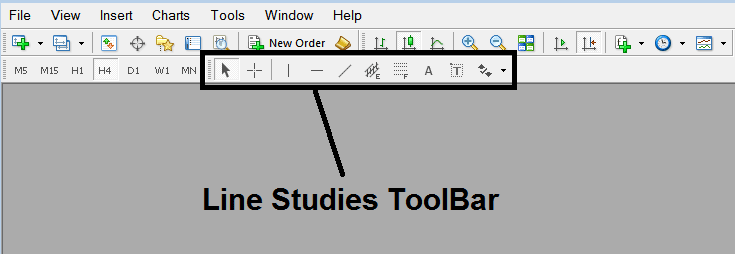
2. Customize Line Studies Tool bar
Right-click the Customize button (illustrated below) >>> A drop-down menu pops up, Select Customize >>>
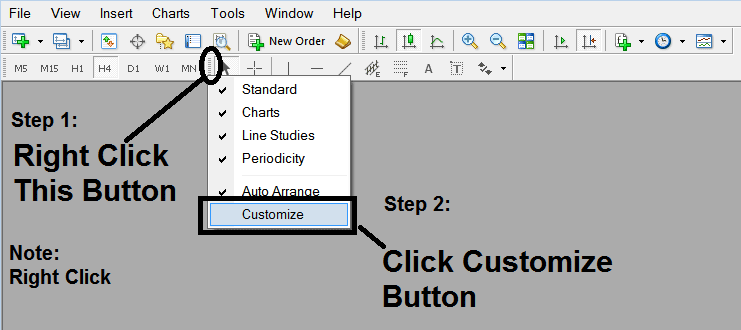
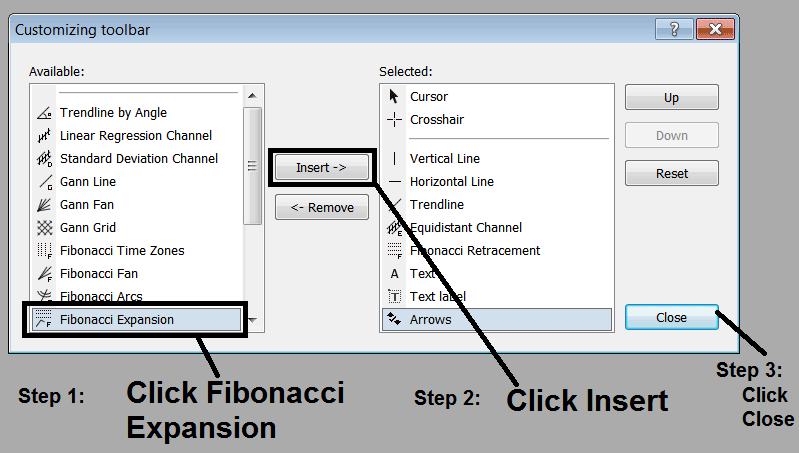
3. Place This Tool on MetaTrader 4
Choose the expansion tool from the pop up panel which will then appear >>> Click Insert button >>> Click Close. (Shown Below)
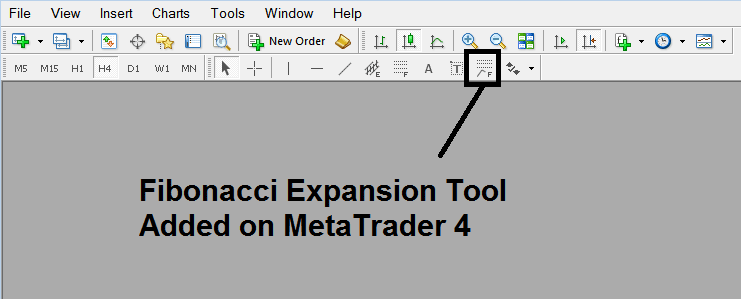
4. CFD Fibonacci Expansion Tool Added
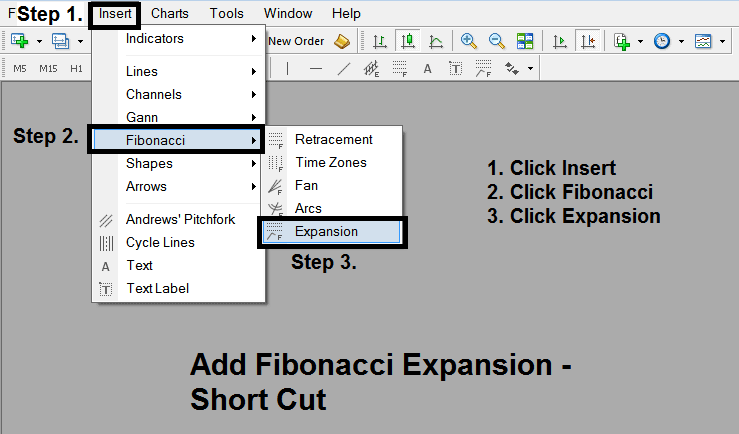
Short Cut of How to Add
You can also use this short-cut instead of the above technique, do this:
- Click "Insert Menu"
- Click Fibonacci
- Click Expansion
Steps on How to Draw Expansion
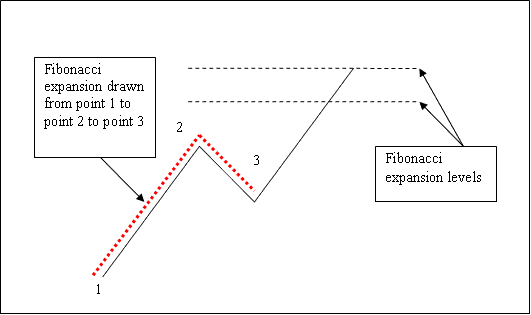
Steps. Once you've added this button, you can draw this tool by selecting it & drawing it on a cfd chart. Three points will be marked 1, 2 and 3, choose the Fibo indicator, place the indicator on point 1 and while still holding down the mouse button drag the mouse upto point marked 2.
How to Adjust This Tool on a Chart
Steps. Once you have drawn this indicator, you might need to move one point or another to the exact position where you precisely want. These 3 points are marked 1, 2 & 3 & these are used to change the settings after this indicator has been drawn on a CFD chart.
To change the settings: do this, doubleclick the indicator, it appears as dotted lines (shown above), three cursor points appear that are marked 1 2 3, you can then use these Three points to adjust & fit the indicator accordingly to your chart (just click on the point you want and move it).




