Charts Toolbar Menu and Customizing it on MetaTrader 4
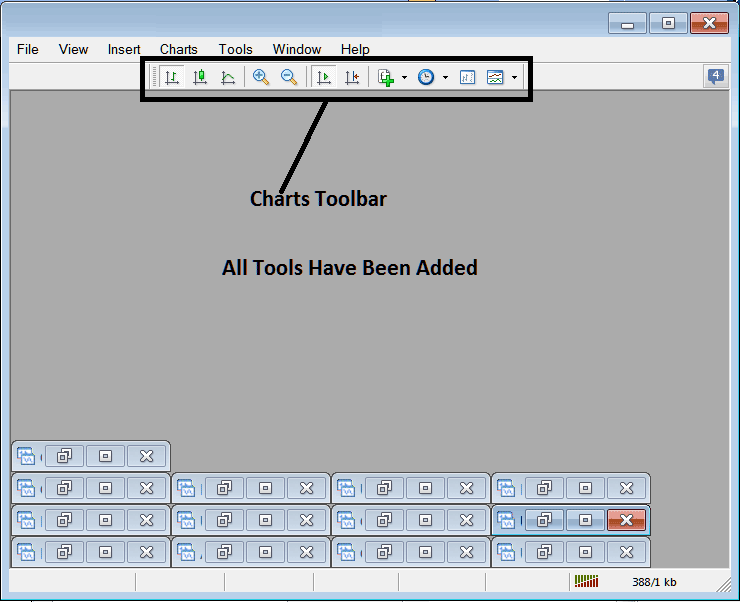
The Charts toolbar on the MetaTrader 4 is shown below.
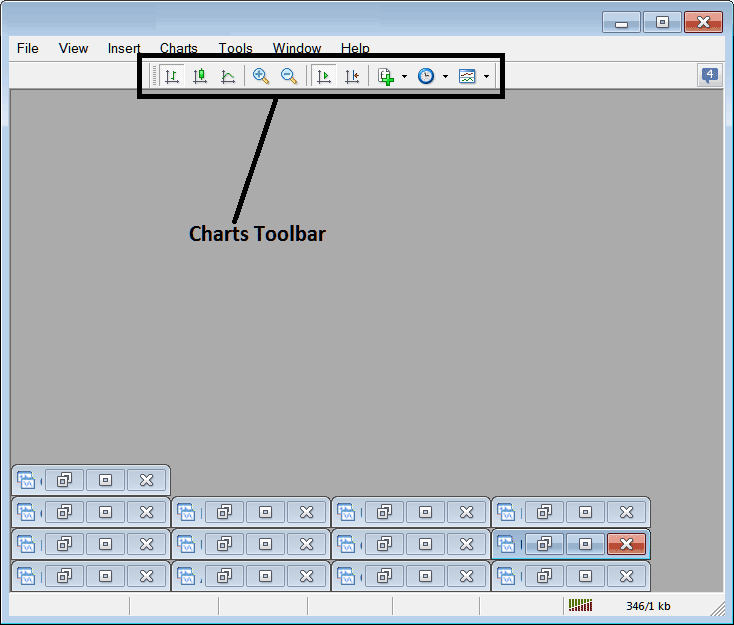
Before explaining how to use each item listed on this charts tool bar, let's make sure that all the available tools are added to it by customizing it:
- Right-Click at the customize button to the left of this tool bar (Looks like a stack of coins) as displayed below.
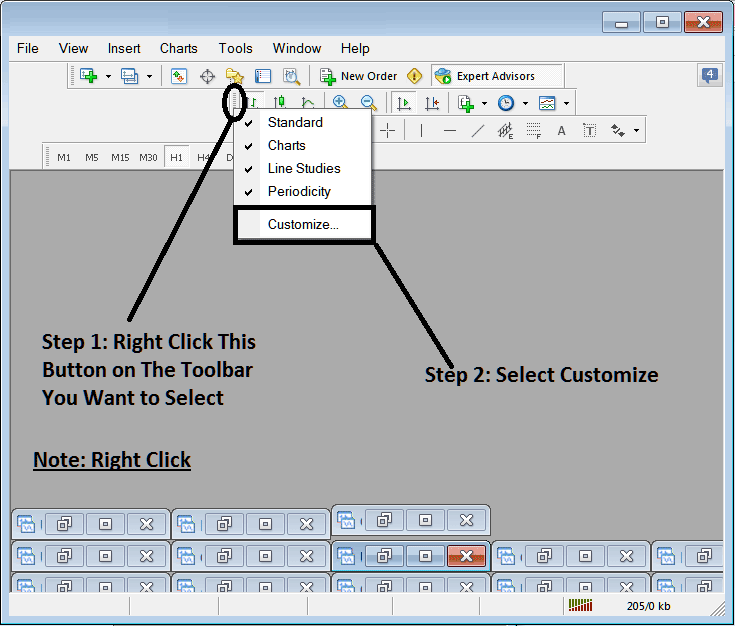
2. Click customize 3. Add all Tools
How to Customize
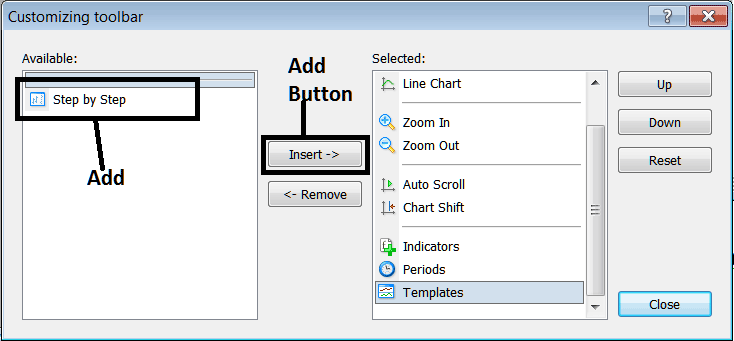
After adding the customize window will look like:
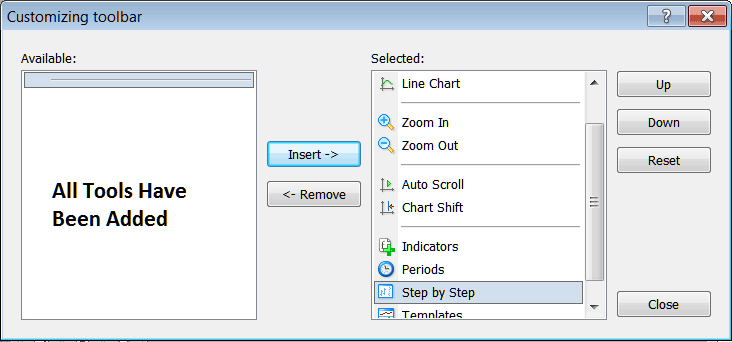
The toolbar will now look like:
Explanations of CFD Trading Tools Listed
The following guide explains how to trade with each of the buttons numbered below:

1: Bar button, sets the chart drawing method to Bars
2: Candlesticks button, sets the chart drawing method to Candles
3: Line button, sets the chart drawing method to Line plot
4: Zoom In, zooms in
5: Zooms Out, zooms out
6: Auto Zoom, automatically zooms the trading chart to highlight the most recent cfd price candlesticks automatically once it has been clicked. That way the workspace of the cfd prices shows the real time candle that's being quoted in that moment.
7: Chart Shift, shifts the recent cfd price candlestick towards the center, therefore leaving space between the most recent candlestick and the extreme right side of the MT4 platform, making it easier for technical analysis.
8: Technical Indicators menu shows a list of all trading indicators & from this list a trader can select a particular indicator, double click on it to place it on the trading panel.
9: Periodicity displays all the chart timeframes and a trader can change to a different timeframe for the from the one they are using by clicking this periodicity shortcut button key.
10: CFD Step by Step is used to back test manual cfd systems where a trader places their trading system on a cfd chart, moves it back for about 2 months, then starts to move it cfd step by step while at the same time recording where their strategy would have given a buy signal or a sell signal or an exit trading signal, just the same way a trader would have traded real time while the cfd prices update.
11: Templates Button used to save new templates & load templates which have been saved on the platform.
All the buttons provide short cuts instead of traders looking for these option the long way using the main navigation menu, a trader just clicks a tool and gains quick access to it. The tool-bar will mainly contain the tools that are frequently used by a trader within the MT4 CFD Platform.




