Chart Time Frames
MT4 Stocks Trading Chart Time Frames; Multiple Time Frame Indicator
Periodicity is commonly referred to as Stocks Trading Chart Time Frames by many traders. On the MetaTrader 4 platform.
The button key below is used to choose the periodicity or stocks chart timeframe to trade with. This button can be accessed on the MT4 platform as shown below.
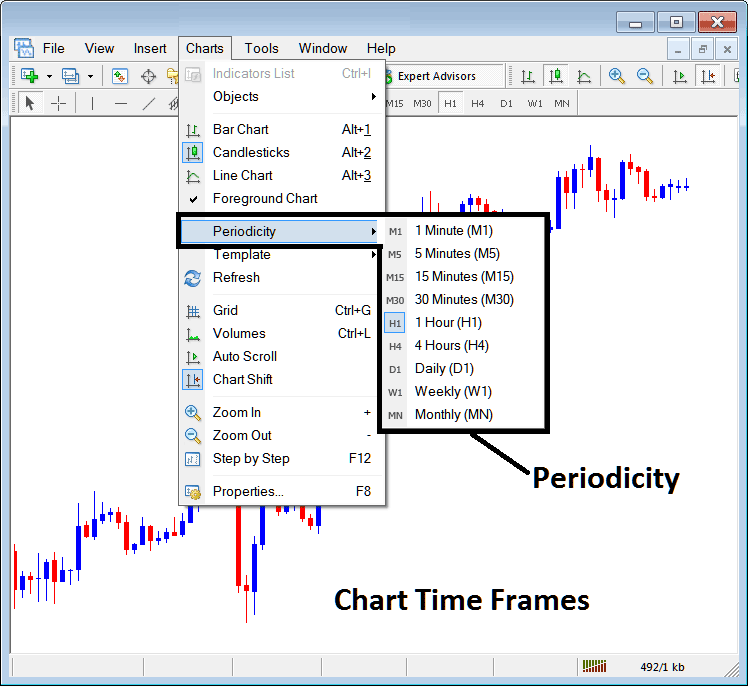
MT4 Stocks Chart Time Frames
On MT4 stock platform these stocks chart timeframes are:
- 1 Minute Stocks Chart Time-Frame - M1
- 5 Min Stocks Chart Time-Frame - M5
- 15 Minute Stocks Chart Time-Frame - M15
- 30 Min Stocks Chart Time-Frame - M30
- 1 Hour Stocks Chart Time-Frame - H1
- 4 Hours Stocks Chart Time-Frame - H4
- Daily Stocks Chart Time-Frame - D1
- Weekly Stocks Chart Time-Frame - W1
- Monthly Stocks Chart Time-Frame - MN
How to Know Which Stocks Chart Time-Frame You are Using
A common question especially if you're new to stocks would be how to identify which stocks chart timeframe you are using on your MT4 software:
There are various techniques of knowing which MetaTrader 4 stocks chart timeframe you are using as Shown below:
Use the above Menu as Shown above
In the above stocks example once you select the periodicity button under the charts menu, then the list of stocks trading MT4 chart timeframes is shown and the stock chart timeframe that is currently selected, the one that you are using will be highlighted with a different color, on our above example this is the 1 Hour(H1) stocks chart timeframe, whose Icon on the left is highlighted in light blue.
How to Use Periodicity Toolbar - MT4 Multiple Timeframes On One Chart
This MT4 periodicity toolbar is by default located at the top of the MT4 stock platform and has all the stock chart timeframes marked as shown below. The chart timeframe that a trader is using will be marked differently from the other stocks chart timeframes, the selected stocks chart timeframe will be "indented" as shown below:
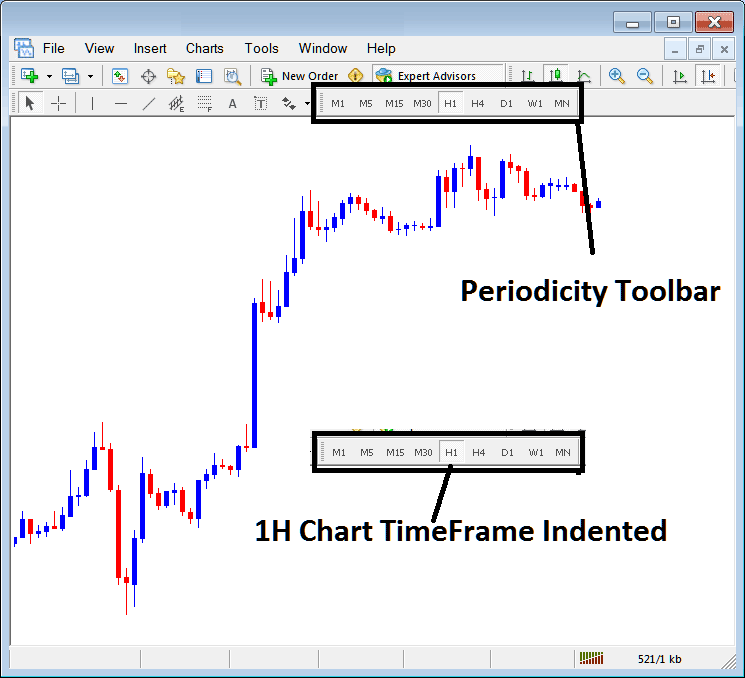
Use the data displayed at the top left corner to get MT4 Stocks Chart Time-frame
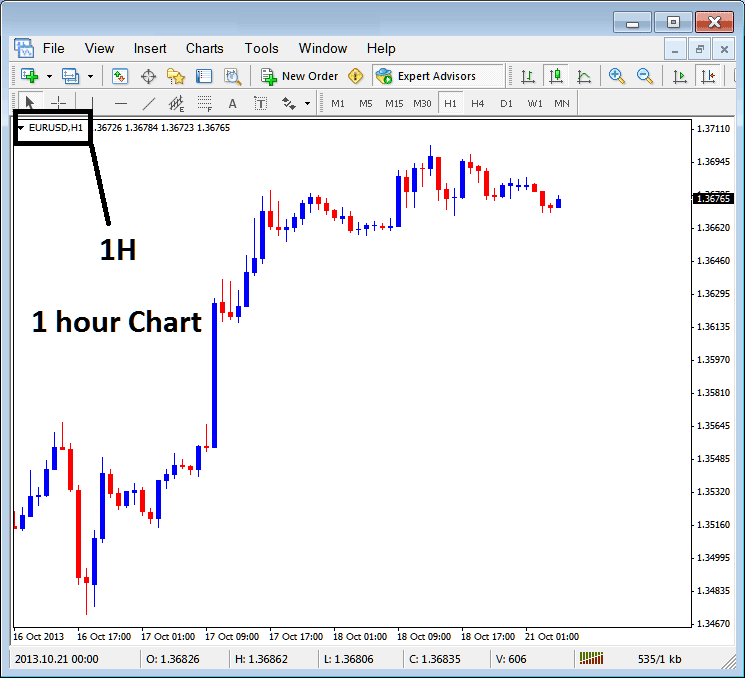
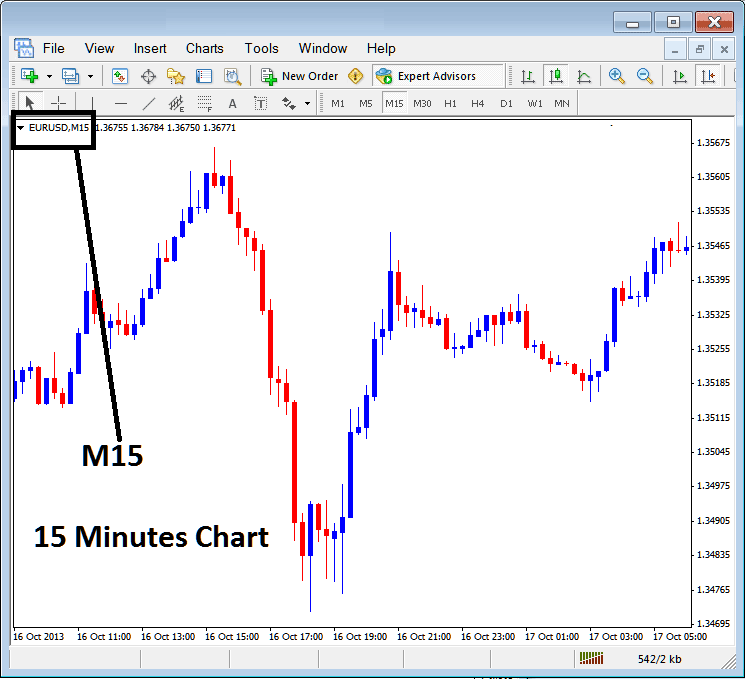
At the top left corner of the stocks MetaTrader 4 chart, MT4 stocks chart time-frame is displayed as shown below:
1 H MT4 Stocks Chart Time-frame
15 Min MT4 Stocks Chart Time-frame
When you open a stocks chart you can then use the above three methods to know which periodicity - stocks chart time frame you're trading with.
You can also use the tabs, if you are trading many stocks charts. To view this tab, Go to "View Menu" then Select "Charts Bar". The following MT4 bar will appear that you can use to navigate and it indicates the stocks trading instrument as well as the stock chart timeframe.
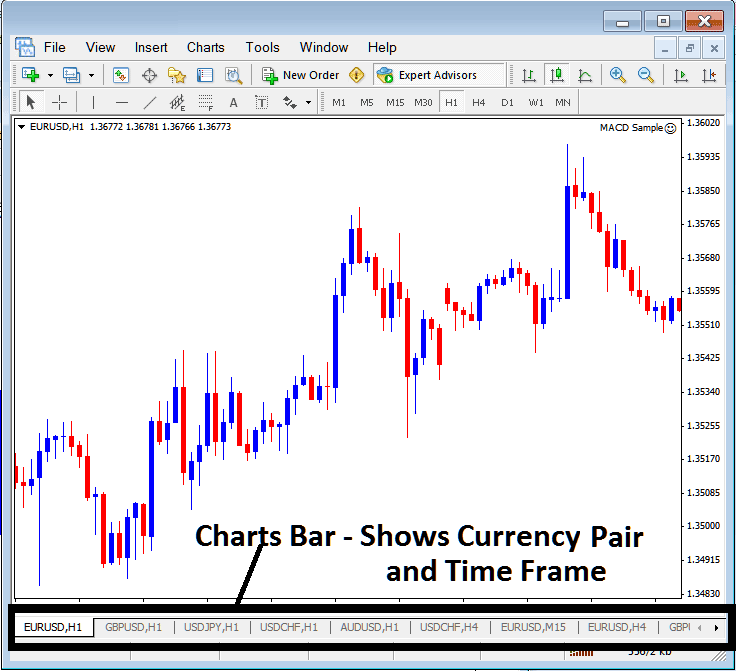
Navigation tabs on MT4 platform workspace.




