Trading Stocks Read and Add a Custom MetaTrader 5 Indicator in MT5 Platform
Stocks Trading Add a Custom MetaTrader 5 Indicator in MT5 Platform
Trading Stocks Install a Stocks Trading Custom Indicator to Your MetaTrader 5 Stocks Trading Platform
- Download MetaTrader 5 custom indicator.
- Locate the Custom technical indicator and copy this MetaTrader 5 custom indicator file.
- Open the data folder on MetaTrader 5 platform.
- Open MQL5 file in MT5.
- Locate the Navigator Window.
- On the navigator window panel, find the Custom Technical Indicators option.
- Open your Custom indicator by double-clicking the indicator.
- The Custom Technical Indicator Properties window panel will popup.
- The Custom Technical Indicator Will now be added to your MetaTrader 5 platform.
Trading Stocks install custom indicators on MetaTrader 5
Trading Stocks Add Custom Indicators to Stocks MT5 Platform
MT5 Stocks Platform MetaEditor Tutorial: Adding Custom Indicators
The MetaEditor language Editor is a programming environment on the MetaTrader 5 stocks software which stock traders can use to add new Custom Technical Indicators, Scripts, Libraries and Include Files which are used in coding. The MetaTrader 5 platform MetaEditor is commonly used by Stocks traders who use Automated Stock Expert-Advisors to place trades. This learn MT5 tutorial we shall look at how to add a custom indicator on the MetaTrader 5 platform using the MetaEditor, to learn how to add a new Expert Advisor you can go to the: Adding a new MetaTrader 5 Stock Expert Advisor MetaTrader 5 Stocks Platform Tutorial.
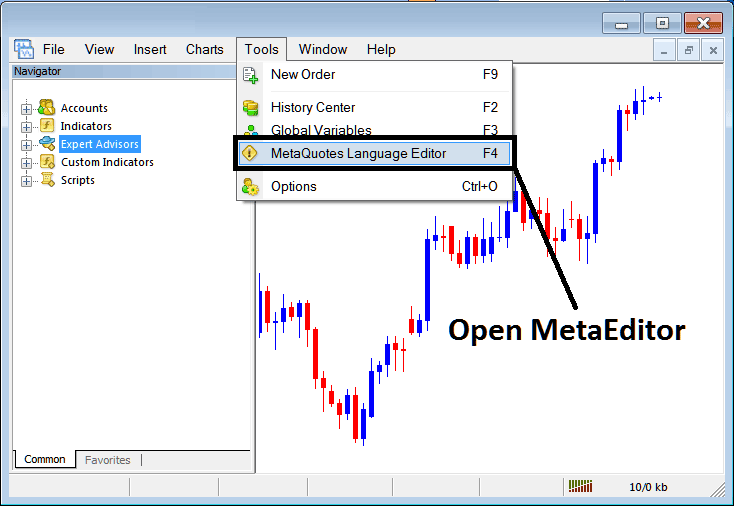
The MT5 online stock platform Meta-Editor environment is displayed below.
Read and Add a Custom MetaTrader 5 Indicator in MT5 Platform
MetaEditor Menu

Read and Add a Custom MetaTrader 5 Indicator in MT5 Platform
On MetaTrader 5 platform, after adding an Indicator a trader will require to compile this newly added item so that it can now be recognized by the MetaTrader 5 Stocks Platform and start to appear on the MetaTrader 5 platform Navigator Window.
Adding a New Stocks Trading Custom Indicator in MT5 Platform
After you have opened the MetaQuotes Language Meta-Editor on your MetaTrader 5 platform as shown above (Keyboard Short Cut Key - Press F4), you can then follow the steps below:
Step1: Go To File Menu, Then Select "New"

Read and Add a Custom MetaTrader 5 Indicator in MT5 Platform
Step2: On the Popup window that pops up on your screen choose "Custom Trading Indicator" and then click next.

MetaTrader 5 Window Panel for Adding Custom Technical Indicator
Step3: Select & Enter a Name as Shown Below and then Click Next

Name of New Custom Indicator in MT5
Step4: Specify if it is to show on a separate window panel panel or not, Then Click Finish
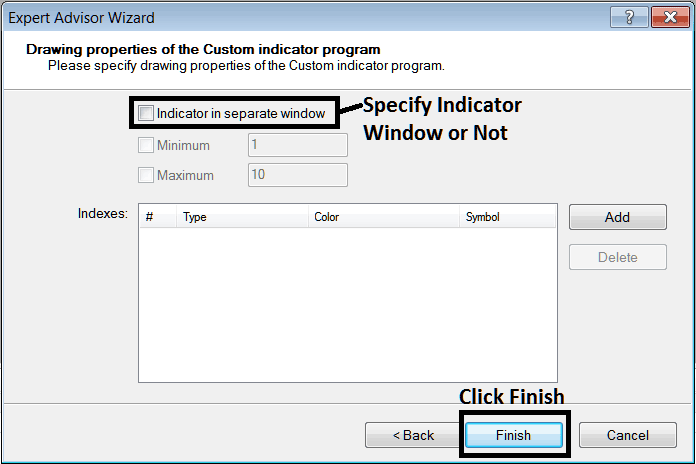
Custom Trading Indicator Properties Settings
For an MetaTrader 5 custom indicator that is a stocks price overlay - do not check this box, & for an oscillator like the RSI or Stochastic Oscillator - check the above option.
Following Program will popup on the MetaTrader 5 Stocks trade platform MetaEditor Window
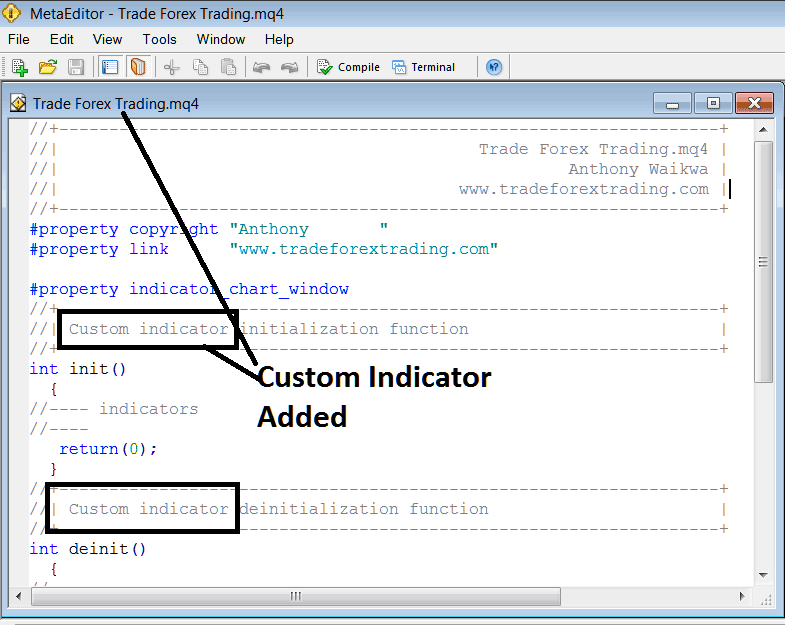
Adding Custom Technical Indicator on MetaTrader 5 MetaEditor
To program a customized MetaTrader 5 indicator it requires that you're a coder who knows C + + Object Oriented Programming Language, which is the programming language that the MQL5 programming language uses in the programming of the MetaTrader 5 platform. Or you can find the community of MQL5 Programmers & they can program the custom indicator for you.
Step4: Compile
Do not forget to compile, for MetaTrader 5 Stocks Trading custom indicator to be recognized by the MetaTrader 5 stock trading platform: one must compile the program, then close and restart the MetaTrader 5 platform, just like restarting your computer - you will restart MetaTrader 5 platform so that the new added custom MetaTrader 5 custom technical indicator can start appearing & be listed on the MT5 Navigator Window.
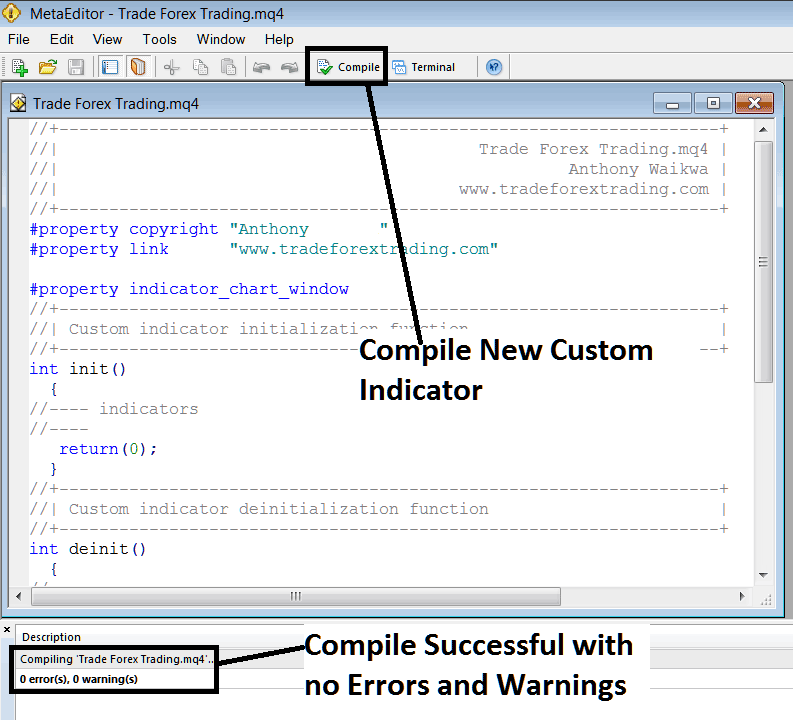
Compile New Custom Indicator on The MetaTrader 5 Stocks Platform
If there are no Errors, it will be compiled successfully without any error as displayed above.
Step5: Rebegin MetaTrader 5 online stock software and it should now be listed on the MetaTrader 5 Navigation Menu as shown below and you can start trading with newly added custom technical indicator.
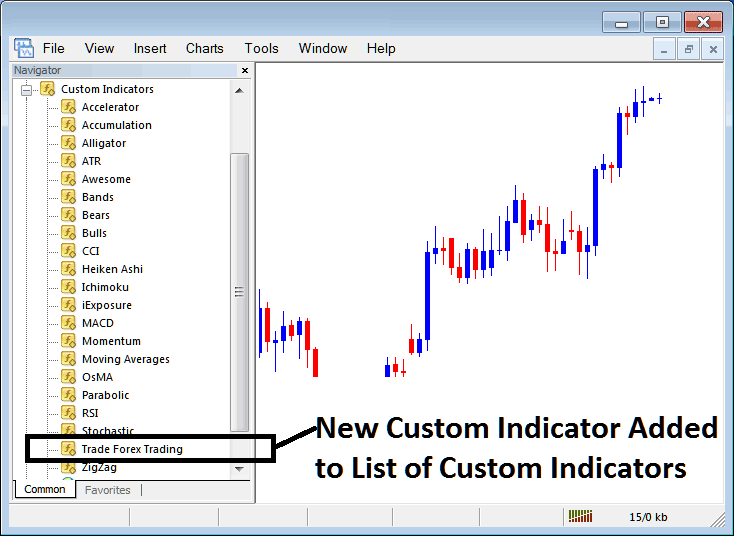
New Custom Indicator Added To Indicator List on MetaTrader 5
How to Add a Downloaded Custom Stock Indicator on Stocks Trading Platform
If you download an indicator from a source on the internet for example on www.tradeforextrading.com, and it is now on your computer - to add it to the MetaTrader 5 platform, follow the steps below:
Step1: On MT5 Stocks Platform File Menu of MetaEditor, Choose "Open"
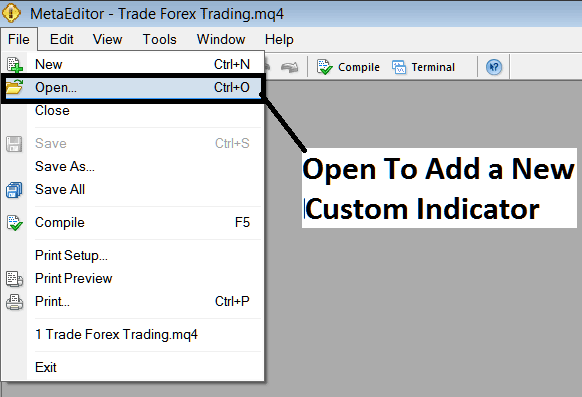
Add a Downloaded Indicator to MetaTrader 5 Platform
Step2: Locate the Download Folder from the Popup window that appears as shown below.

Trading Stocks Add Custom Indicators to Stocks MT5 Platform?
Step3: Once you open the downloaded custom technical indicator it'll be displayed on the MetaEditor Work Space - you can then follow the above procedure for compiling the downloaded MetaTrader 5 indicator, once it is compiled without errors, restart your MetaTrader 5 platform and it will now be added on the stock platform navigator menu & you can start to trade with it on your MT5 Stocks Trading Platform.
Read and Add a Custom MetaTrader 5 Indicator in MT5




