How Do I Download MT4 on PC? - How Do I download MetaTrader to My Laptop? - How to Setup MT4
Procedure on how to download MetaTrader 4 to your laptop is explained below:
Setup MT4 - How to Use MT4 Tutorial
- Locate the MetaTrader 4 download in Downloads Folder
- Right-click or double click in MetaTrader 4 Install.EXE to begin installing MetaTrader 4 software
- Follow the instructions illustrated below to complete the Meta Quotes MT4 Software installation
Forex MT4 Setup - How to Setup MT4 - Introduction to MT4 Guide
How to Setup MT4 - Introduction to MT4
To begin trading Forex, a trader will need to first setup the MT4 forex trading software on their computer and also learn how to trade in MT4 Metaquotes software. This MetaTrader 4 platform is the platform with which forex traders will be using to place forex trades in the FX trading market. MetaTrader 4 platform is the top rated forex trading platform in online Forex trading market.
MetaTrader 4 Setup for PC - MT4 Download - How Do I Install MT4 - Introduction to MT4 PDF Tutorial Platform
To get MT4 Software a trader requires to first of all download MetaTrader 4 for PC from online MT4 forex brokers.
Once you have downloaded MetaTrader 4 software you will need to go to the download location of your Firefox browser (first maximize the Firefox window on the desktop): as a Short Cut press both keyboard keys CTRL + J keys on your keyboard to get the MT4 download location. Once you are on this download location double-click to open Forex trading software and continue as follows.
Step 1: The following window pop up will launch the MT4 software application click next to proceed.
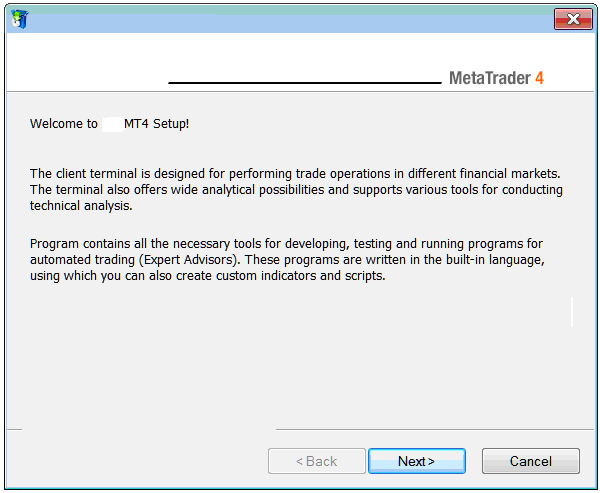
Forex MT4 Tutorial - How to Use MT4 Platform Tutorial
Step 2: Check the box below & click next to proceed with MT4 platform setup.
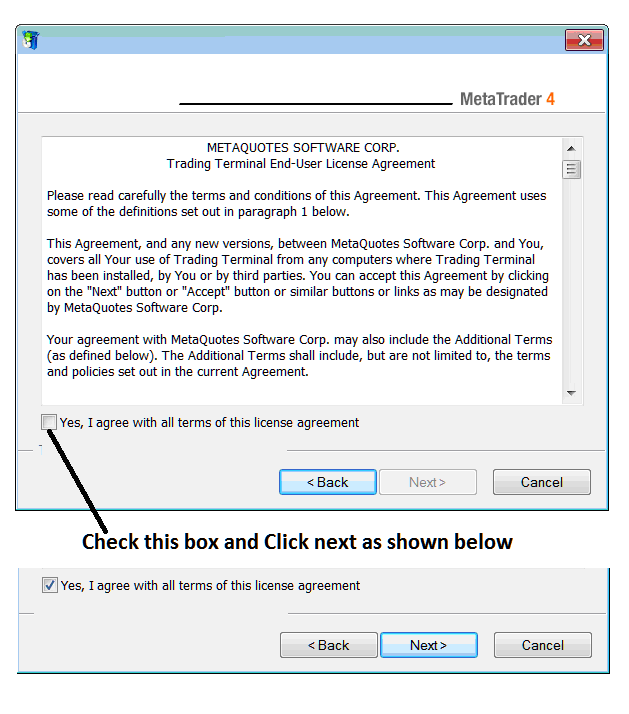
MetaTrader 4 Setup for PC - Install MT4 Platform Guide
Step3: On next window panel you'll see the following settings, click next to proceed without changing any of the settings - MetaTrader 4 software Forex trading.
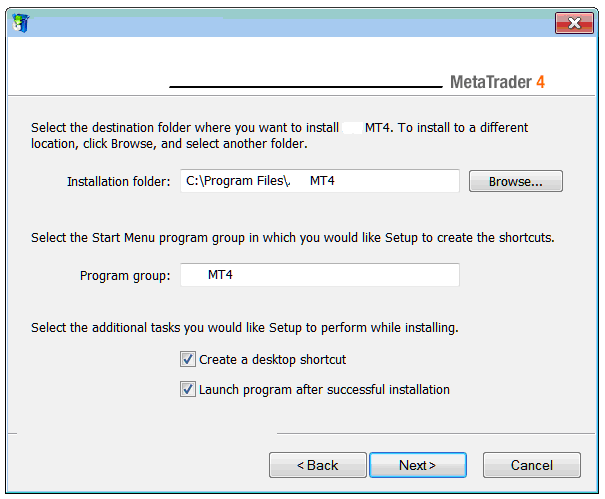
Forex MT4 Setup - Forex MT4 Guide
The following progress window will pop-up showing the progress of Forex MT4 software set-up, this might take a few minutes to complete, at this point you'll have to wait for progress bar to complete.
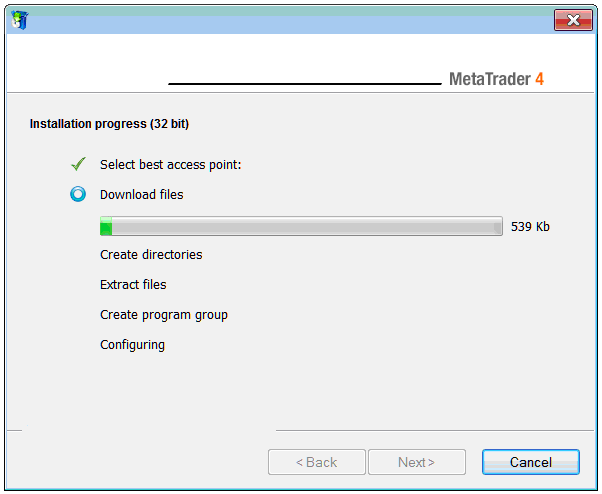
Metaquotes MT4 Download - MT4 Setup for PC
Once the installation progress is complete the following window panel will appear, click the 'Finish' button to finish the setup of the MetaTrader 4 software.
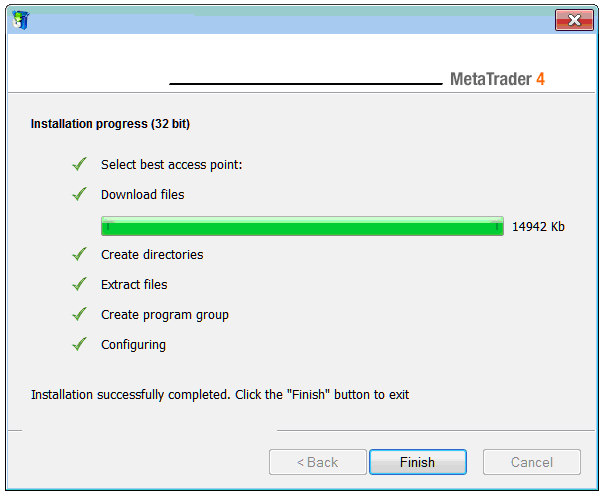
Metaquotes MetaTrader 4 Download - MT4 Tutorial for Beginner Traders - Install MT4 Platform Guide
MT4 Tutorial - Forex on MT4 - MT4 features
The installation of MT4 platform for Forex trading is now complete and you can access it from the desktop, as a desktop icon marked 'MT4' or clicking begin menu on your Desktop PC computer>>> then choose all programs>>> then choose MetaTrader 4.
Cannot Install MT4 - How to Setup MT4 Platform Guide
If you can't install MT4 software, then you should first follow the above procedure or use another version of MetaTrader 4 software for examples if you are using a Mac Book PC then download MetaTrader 4 for mac and once you download MT4 for macbook - install it on your Mac Book PC. If you want to trade with a phone you can download the MT4 iPhone version or MT4 Android version or MT4 iPad version.
You can also use the following resources to study more about MT4 setup:
Forex MT4 setupForex MT4 tutorialForex MetaTrader 4 downloadHow to use MetaTrader 4 platformHow to use MT4 practice account
If you want to trade with MT5 platform then you will need to specify MT5 download before downloading the forex software and if you have a Mac you will also need to specify MT4 download for mac before downloading this software.
How to download MetaTrader FX Phone App
To learn how to trade on MetaTrader 4 Mobile App you will need a how to use MetaTrader 4 android tutorial.
Once you open the MT4 software, then you can now begin to practice forex trading using a practice account.




