Setting Properties on Charts Menu in MT5
The last menu item in the charts menu on the MT5 is the properties button. This button represents settings of the chart that is on the MT5 workspace. The properties button on the charts menu is shown below.
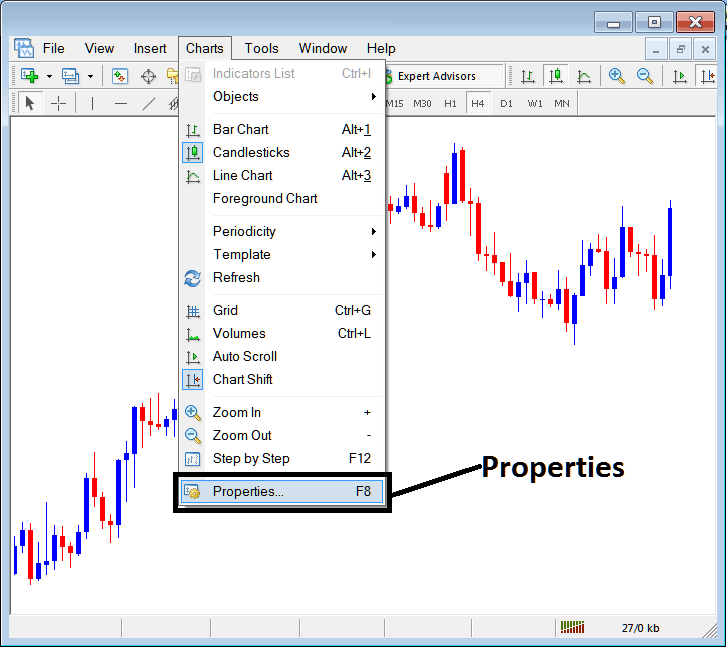
Properties Button in MetaTrader 5 for Editing Properties & Settings
Commodities Trading Chart Properties
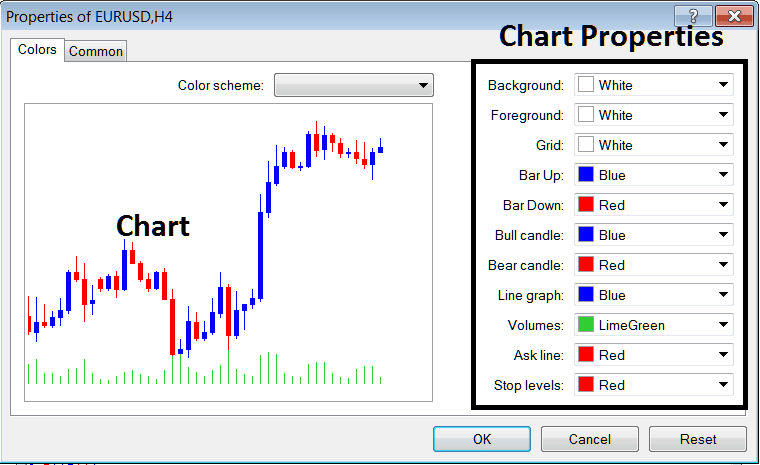
By clicking the 'properties' button, the following window pop up will appear displaying various settings for the chart. The examples below illustrate two examples with different settings.
Example 1:
Example 2:
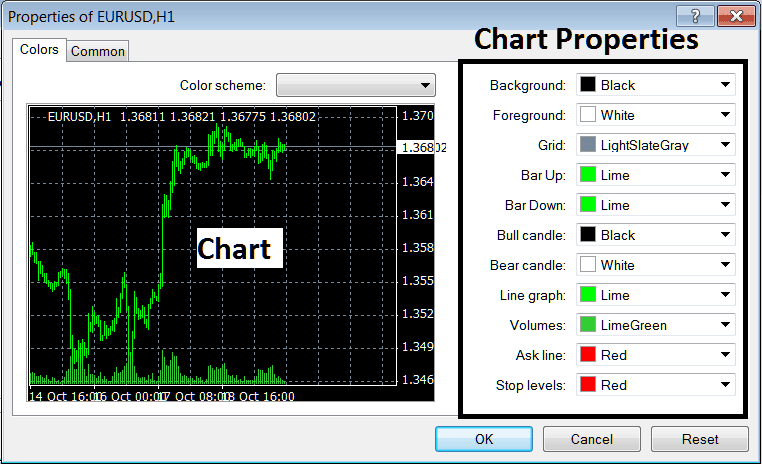
The following properties can be adjusted from the above menu:
- Back ground - change background
- Fore ground - change foreground, objects in the foreground
- Grid - place or remove the grid
- Bar Up - Color of bars, bullish bar
- Bar Down - Color of bars, bearish bar
- Bull Candlestick - Color of candlesticks, bullish candle
- Bear Candlestick - Color of candlesticks, bearish candle
- Line Graph - Color of Line
- Volumes - Settings of Volumes
- Ask Line - Setting of Ask Line
- Stop Levels - Settings of the Stop Levels Line
In the above 2 example these properties are different & thus the difference in the appearance of these 2 different settings shown on the preview window above.
The Color Scheme
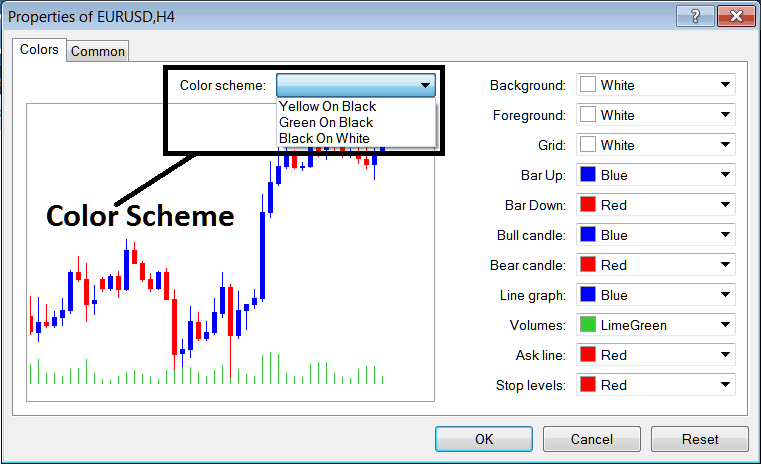
The chart properties window also lists three color scheme as shown below that traders can load and these color schemes are the default pre saved color schemes of the MT5 Commodity Trading Platform.
Candles Settings
Common Settings
On the properties panel there's also next tab marked as "Common" as shown & shown below, this button key is for common settings.
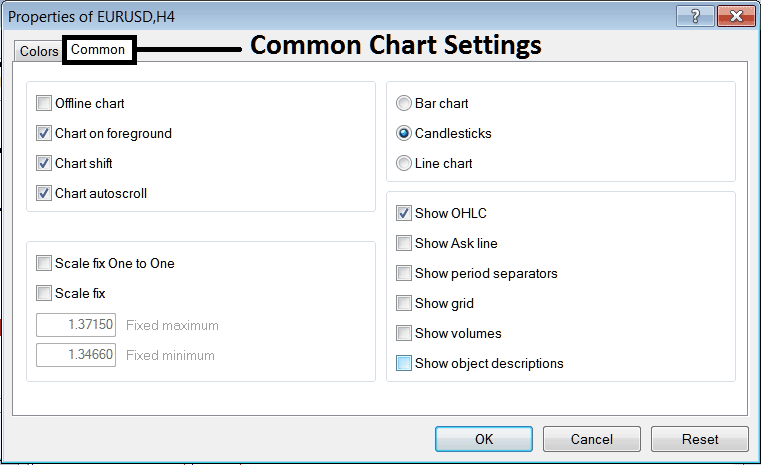
The following are The Common Setting that can be activated or deactivated using this window panel:
Offline, foreground option, shift option and auto scroll properties can also be activated or deactivated from properties common settings option as shown above.
Type of chart can be selected from this menu from the Options Bar, commodity candles and Line.
Show OHCL, Show ASK Line, Show Period Separators, Show Grid, Show Volumes and Show Object Description option can be activated or deactivated on this common settings option as illustrated above.
To know more about the above setting or to find out what a particular option means or what it displays you can download the MT5 Platform and practice placing these object on charts and changing some of these properties & settings.