How Do You Draw Downward CFD Trend Lines on MetaTrader 5?
How Do You Trade and Draw Downward CFD Trend Lines on MetaTrader 5?
MT5 CFDs Trading Platform Trendline Drawing Tools For Drawing CFDs Trend-Lines on MetaTrader 5 CFDs Charts
The MT5 trend line plotting tools used to plot cfd trend lines in MT5 are located on the MT5 charts toolbar within the MT5 platform, To access this MT5 charts toolbar if it is not activated on your MT5 platform, Click in 'View' Next to 'File' menu at tops left corner of the MT5 cfds platform & click 'View', Then Click on 'Tool Bars' button key, Then Check the 'Lines Tool-bar' by clicking on it.
Below is example of the cfds MT5 trendline plotting charts tool-bar. To plot a cfd downwards trend-line on a cfd chart just click this cfd trend-line plotting tool and select the point where you want to plot the downward cfd trend line.
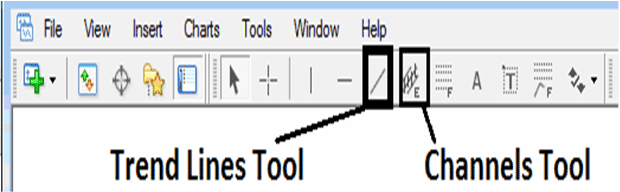
How Do I Draw Downwards CFD Trendlines on MetaTrader 5?
Drawing a Downwards CFD Trend Line on MetaTrader 5
When it comes to learning how to plot the downwards cfd trend lines on cfds charts, you need to know that when the cfds trading market is bearish it forms lower lows & lower highs forming a downwards general cfd price trend direction. These are the chart points that are used to plot the downward cfd trend-line on the MT5 cfds charts.
To draw downwards cfd trendlines we use resistance levels & to draw a downward cfd trend-line correctly two resistance levels are needed as illustrated and shown on the downwards cfd trend line examples explained below.
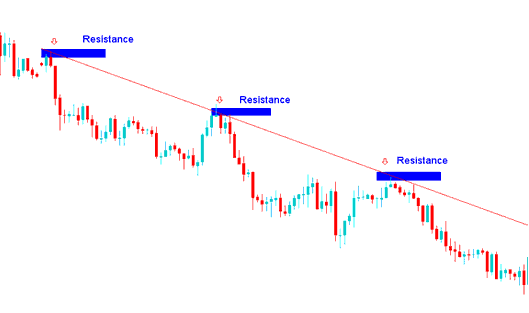
How Do I Draw Downwards CFD Trend-Lines in MT5 Software?




