Trading CFD Analyze Buy & Sell CFD Orders on MT4 CFD Charts
CFD Trade Buy & Sell CFD Orders on MT4 CFD Charts
To open a buy or a sell cfd trade in MT4 platform - open the Market Watch Window, Select the CFD Quote you want to open a CFD Trade with, open the cfd chart of the trading instrument quote by double clicking on the cfd quote, then from the cfd chart open a buy or sell cfd trade using the MetaTrader 4 order window shown below:
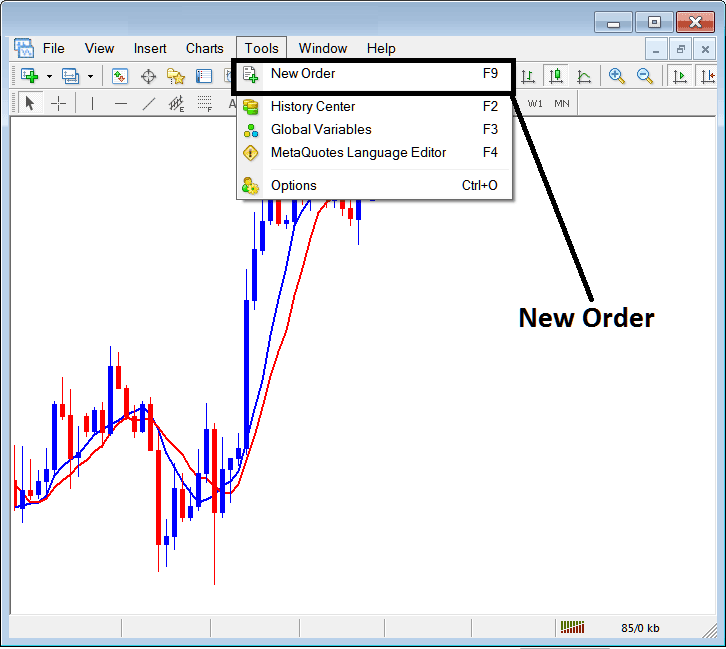
Place New CFDs Order on Tools Menu on MT4 Platform
A new buy or sell order to buy or sell cfd can be found on the tools menu found in the MetaTrader 4 CFD Trading Platform. The "New CFD Trading Order" button for placing a new trade transaction on the MetaTrader 4 platform is displayed below. (MetaTrader 4 ShortCut Key-board Keys 'F9')
Analyze Buy & Sell CFD Orders on MT4 CFD Charts?
Buy or Sell CFD Trading Order on MetaTrader 4 Software
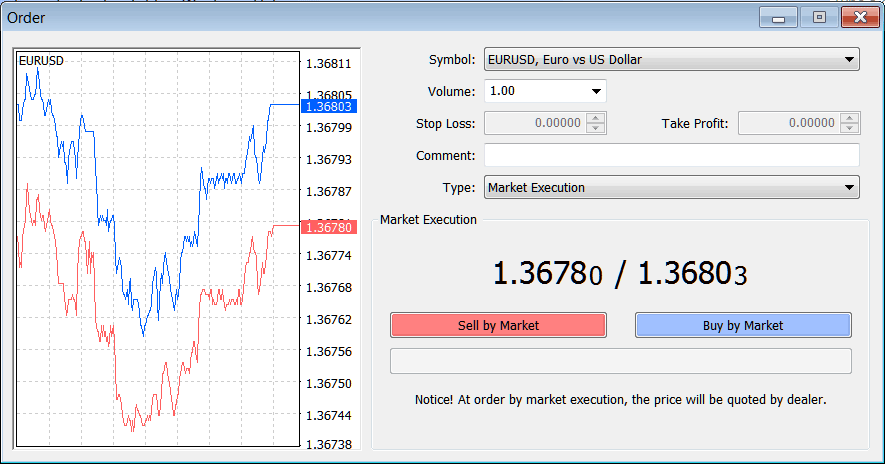
As a cfd trader, once you select the new cfd order button key as illustrated above the following trade order popup window will appear. This popup includes settings for placing a new cfd trade.
Choose Buy to open a Buy CFD Trade
Select Sell to open a Sell CFD Trade
Analyze Buy & Sell CFD Orders on MT4 CFD Charts?
The Following Settings are specified for setting up a new cfd trading order:
- Quote - Specify the instrument to be traded.
- Volume - The Number of Lots to be transacted
- Stop Loss CFDs Order - Set Stop Loss CFD Order, This option can be set after opening trade, or for pending cfd orders
- Take Profit CFDs Order - Set Take Profit CFD Order, This option can be set after opening trade, or for pending cfd orders
- Type: Market Execution or Pending CFD Order
- Sell by Market - Open a Sell CFD Trade
- Buy by Market - Open a Buy CFD Trade
To Buy at current cfd price select the Buy by Market button
To Sell at current cfd price select the Sell by Market button
How Do I Interpret Buy & Sell CFD Orders on MT4 CFD Charts




