Trading CFD Analyze and Add a CFDs Chart on MT5 Platform
How Do You Add a CFDs Chart on MT5 Platform?
To add a new cfd chart on the MT5 platform go to the 'File' menu at the top left corner of the MT5 platform, then from the File drop down menu select or click the 'New Chart' button. Then select the cfds chart you want to open from the cfd list of charts which appears in MetaTrader 5 software.
Trading CFD Open a CFDs Chart on MT5 CFD
To open a cfd chart on the MT5 platform follow the procedure explained below:
To open a new cfd chart from the cfd example explained below, click the 'File' tab at the tops left corner as illustrated below, then choose the option 'New Chart'.
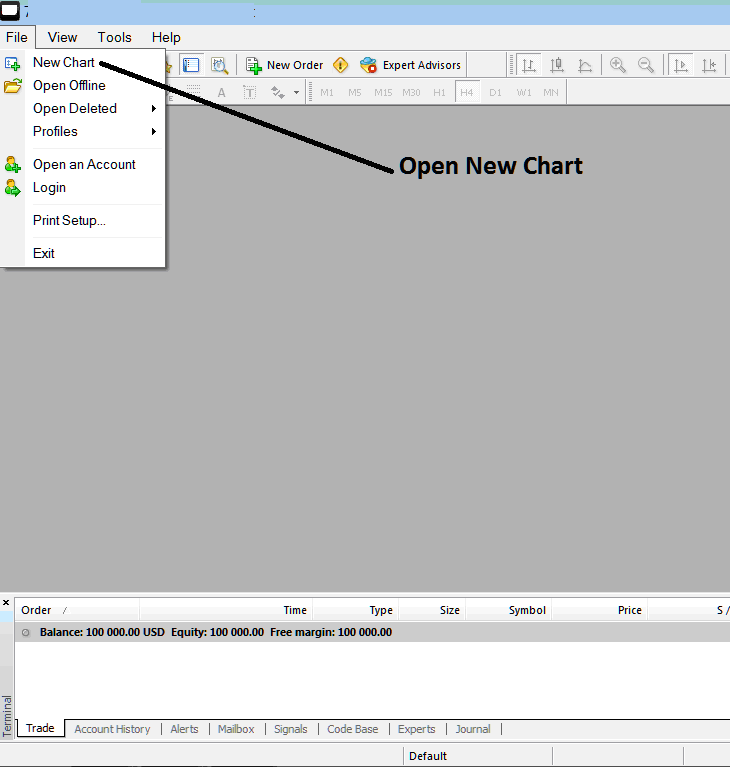
How Do You Add a CFDs Chart on MT5 Platform? - How Do I Add a CFDs Chart in MetaTrader 5 Platform?
After clicking 'New Chart' a dropdown menu will appear with a list of trading instruments that as a trader you can select which to open.
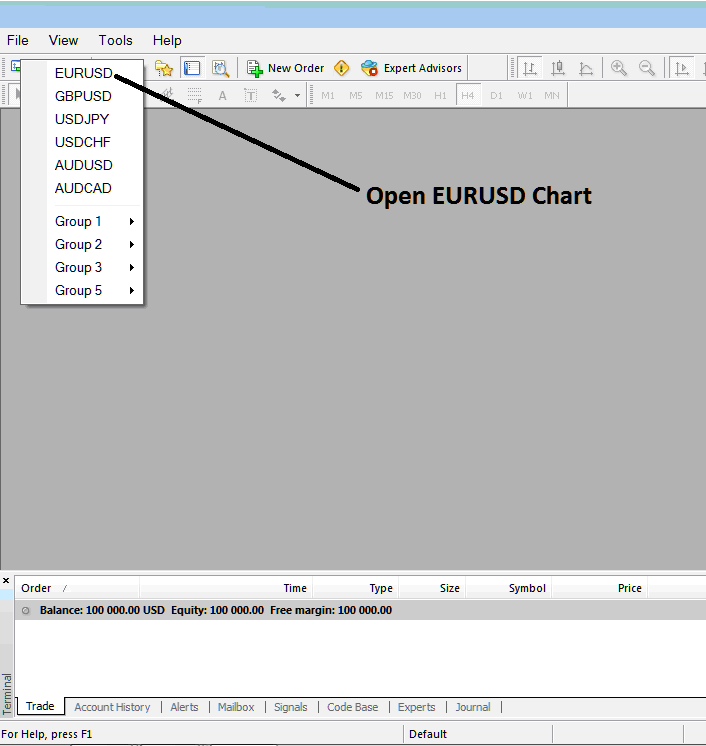
How Do You Add a CFDs Chart on MT5 Platform? - How Do I Add a CFDs Chart in MetaTrader 5 Platform?
The following MT5 cfd chart will then be opened on the MT5 platform as shown below.
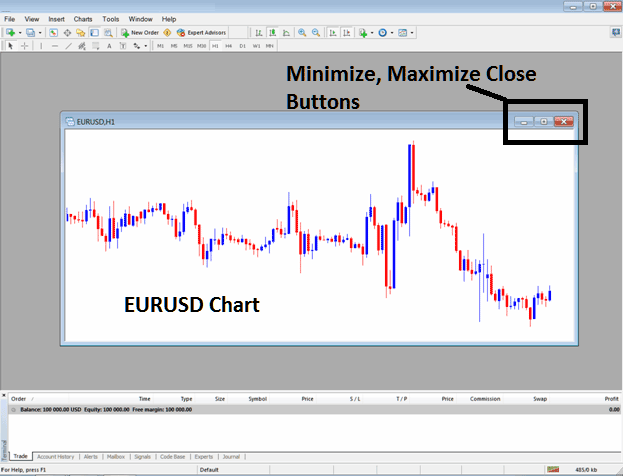
How Do You Add a CFDs Chart in MetaTrader 5 Platform?
As a trader you can maximize the MT5 cfd chart as shown below and you can then open cfds trades from the MT5 cfd charts or you can place technical analysis indicators to analyze the cfd price movement on the cfds trading chart.
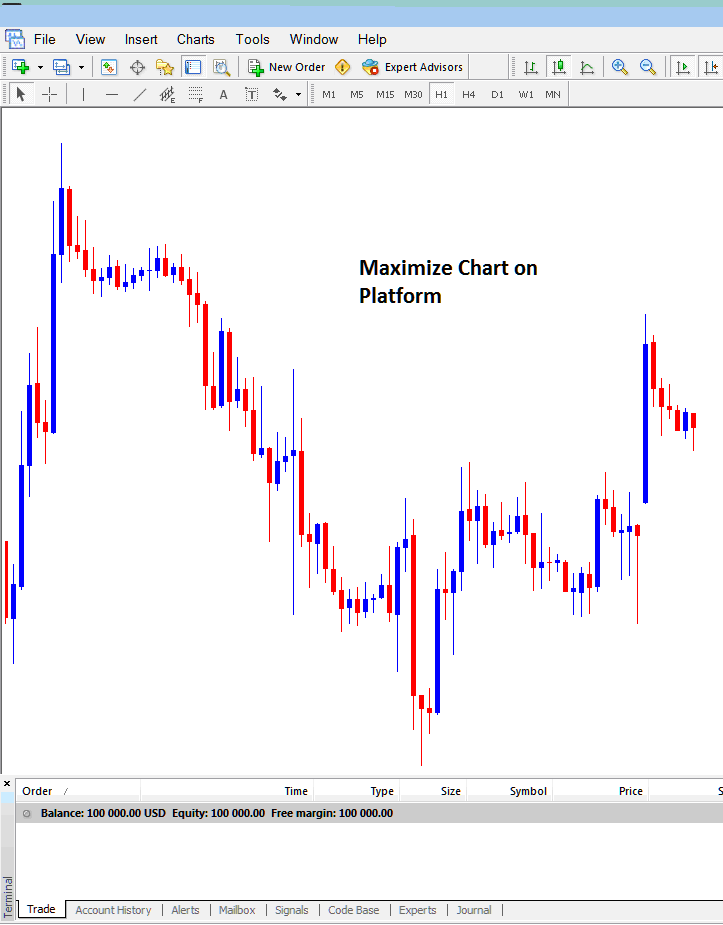
How Do You Add a CFDs Chart in MetaTrader 5 Platform?
Interpret and Add a CFDs Chart in MetaTrader 5 Platform?




