Window Menu For Crude Oil Trading Charts
The window menu in MT5 platform is where you access any of the open charts: listed here & can also be accessed from here: furthermore, you can open a new chart, arrange and rearrange, Tile Horizontally, Tile Vertically or even arrange them as Icons.
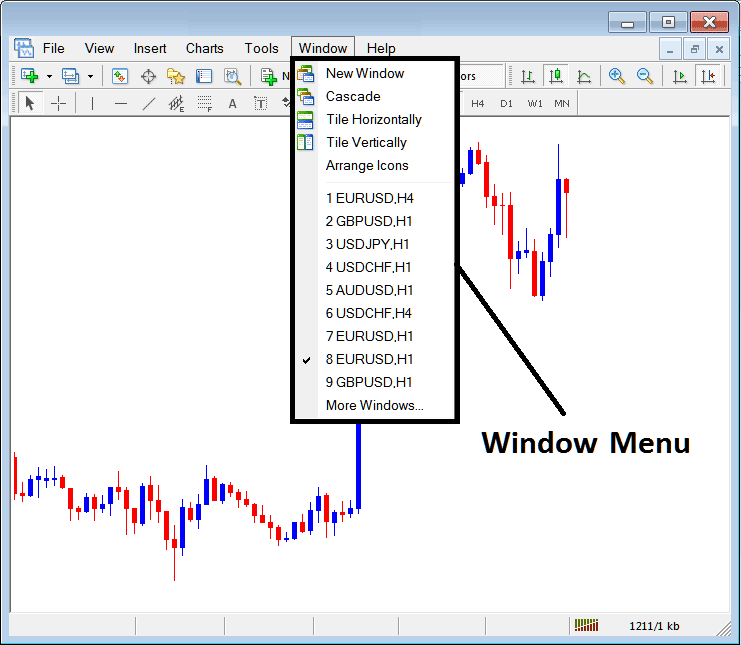
New Window
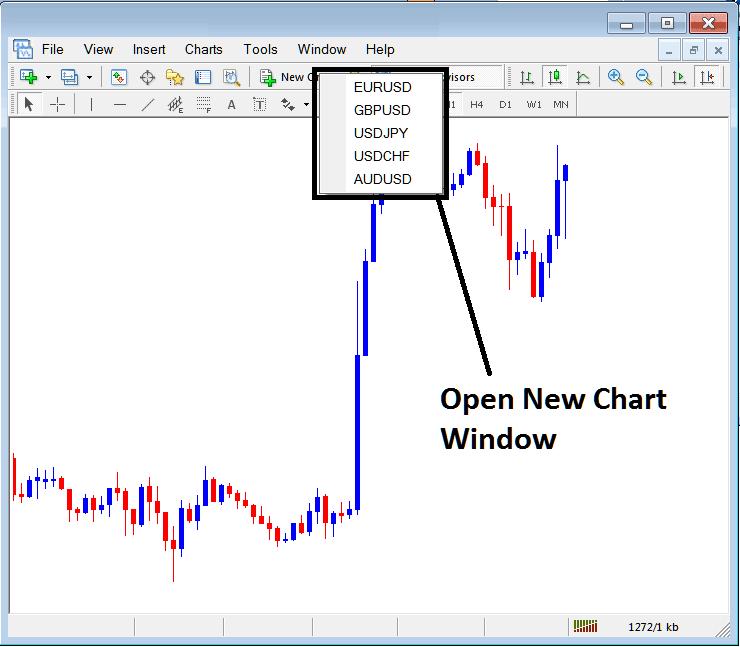
The new window panel option is the first item on this menu & is used to open new charts, by clicking this menu it will show a list of MetaTrader 5 quotes that trader can trade with. Clicking any of the financial instrument below will display a new chart for that financial instrument.
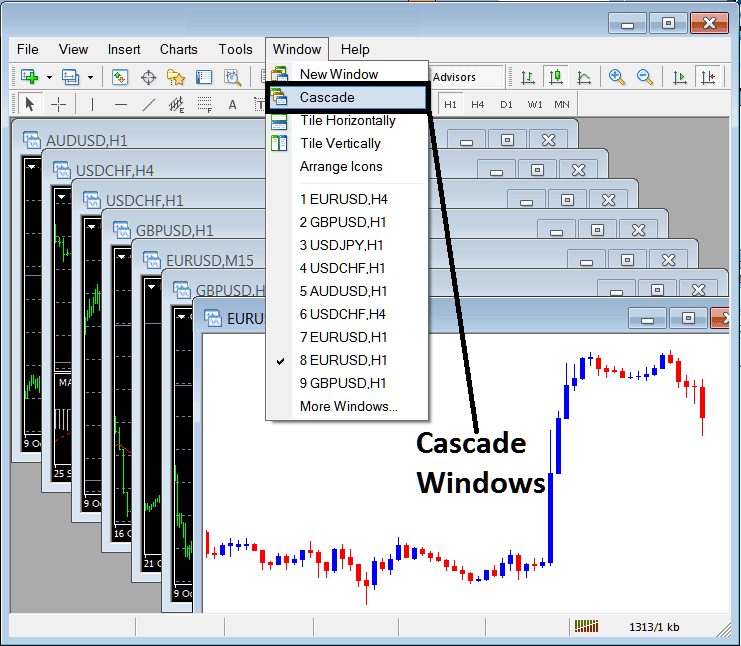
Cascade Windows
To arrange windows in a cascaded format, use the cascade button key which is the second option on the menu. An example of cascaded arrangement is shown below.
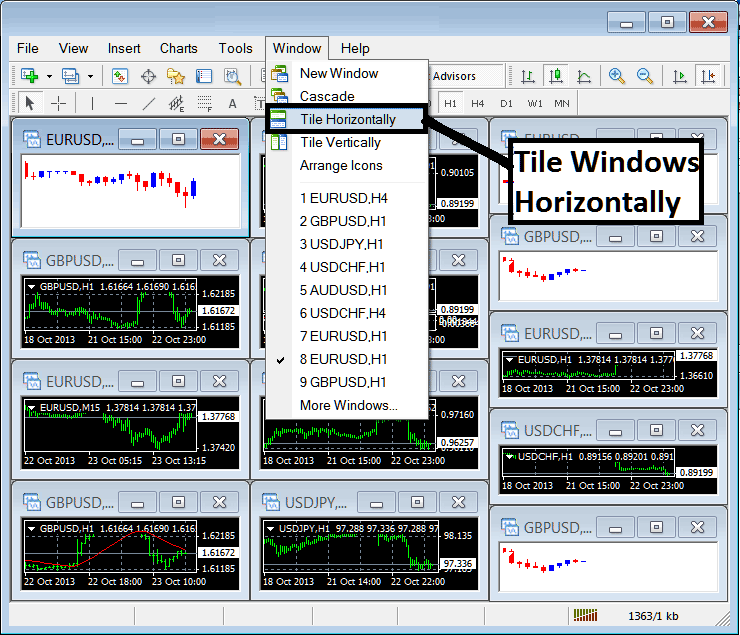
Tile Horizontally Oil Trading Charts
The third option is Tile Horizontally Crude Oil Trading Charts & this option will arrange all the charts horizontally as shown in the crude oil trading example explained below.
Tile Vertically Oil Charts
The fourth option in panel menu is Tile Vertically Crude Oil Trading Charts & this option will arrange all the charts vertically as shown in the crude oil trading example explained below.
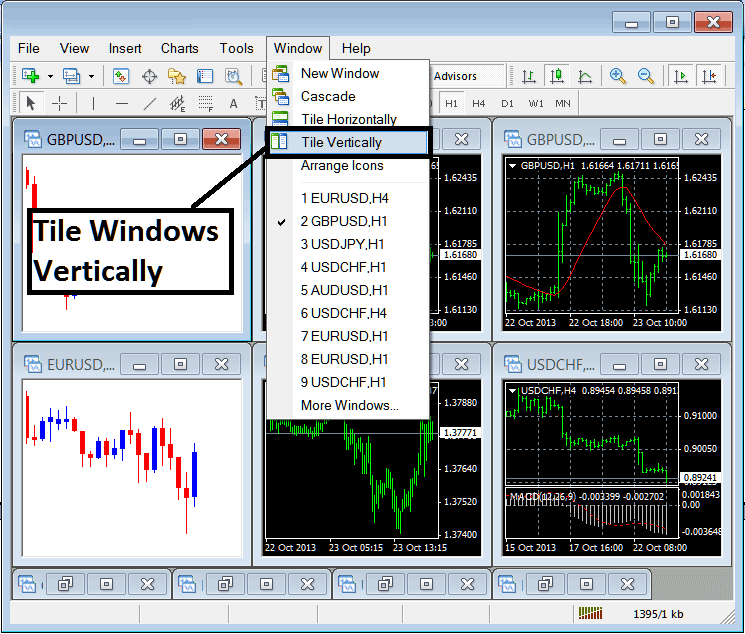
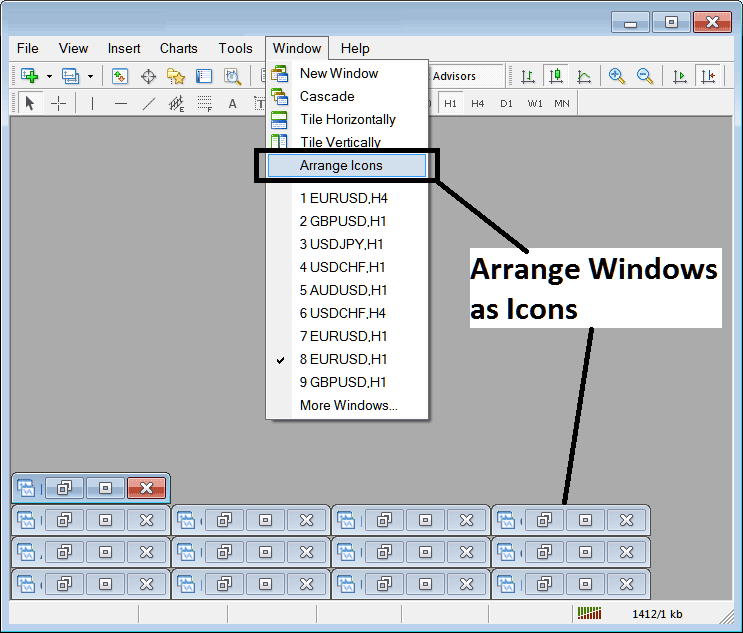
Arrange Icons
The fifth option is the arrange icons option which will arrange all charts as icons as shown and illustrated on the crude oil trading example explained below.
Open Oil Trading Charts List
Next items are shown as a list of the instruments represented, the chart currently on the work-space is checked on the left as displayed below:
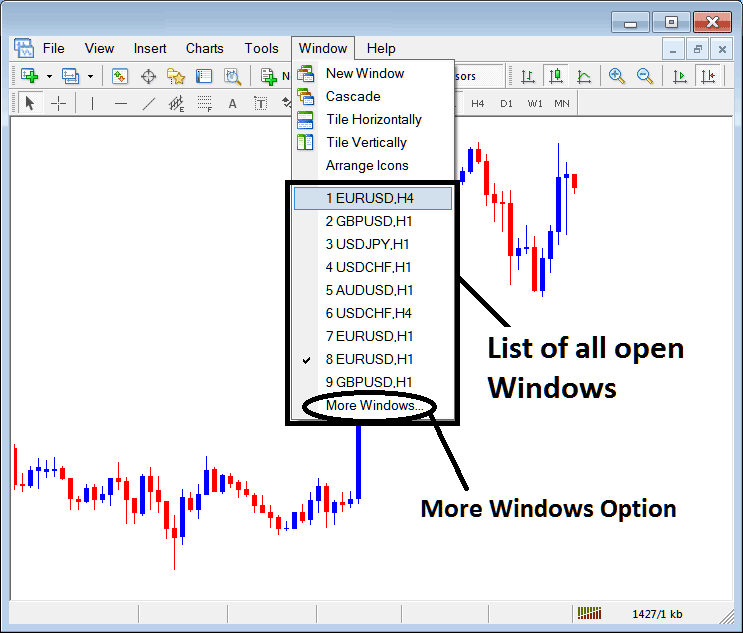
The more windows option shown above can also be used to show a list of other opened trading instruments that are not on the list numbered from 1 to 9. By clicking this more option the following popup will appear within the MT5 Crude Oil Trading Platform and a trader can select any oil trading instrument from this pop up.
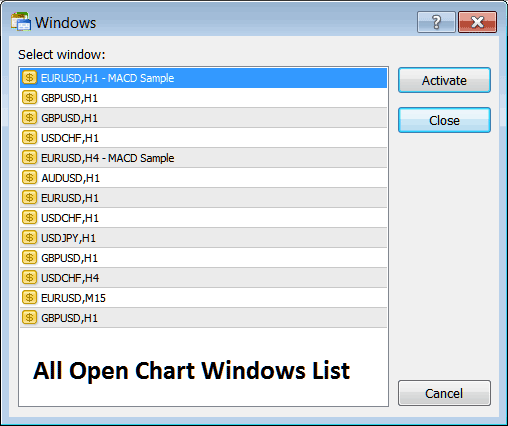
To display any of the above listed trading instruments just click "Activate" button key to the right of this popup.




