Line Studies Toolbar Menu on MT5
Sometimes traders will say "oh, I can't find Fibonacci expansion tool on my MT5 where can I get it?"
The thing is that all these line studies are located on the line studies toolbar: however, by default not all are set to display, therefore a trader must know where to get these trading tools that are not shown by default on the MT5 Oil Software. So how can a trader add a tool, to the line studies MT5 toolbar shown below?
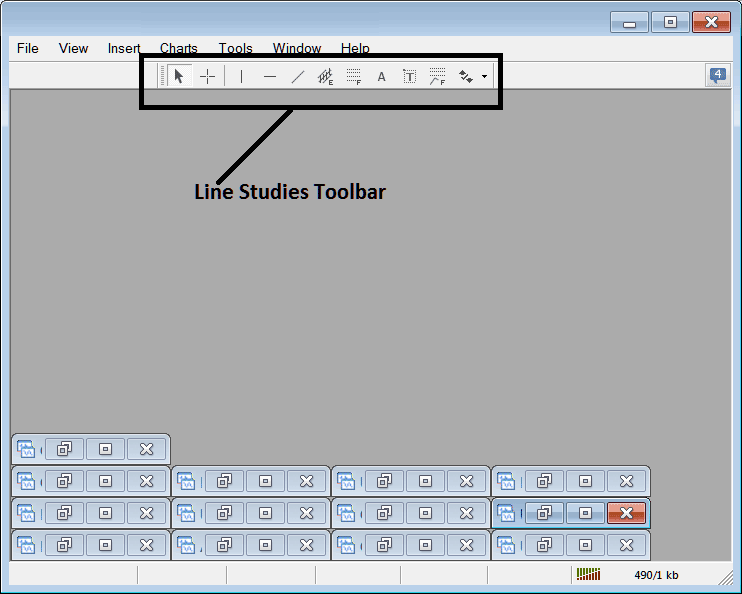
Customize a Toolbar on Oil Trading Platform
To add a tool not listed above a trader has to follow these steps
- Right-Click at MT5 toolbar button to the left of this (Looks like a stack of coins) as displayed below
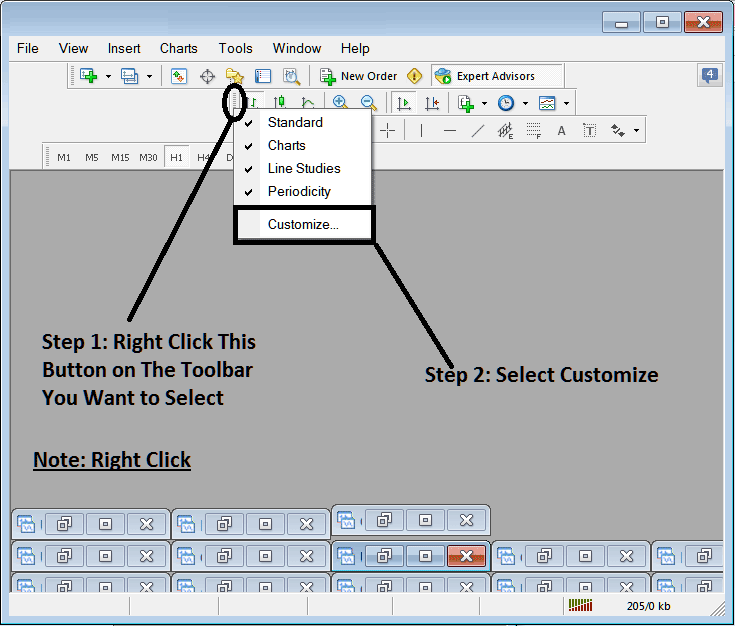
3. Click customize 4. Add all Tools
Following customize popup panel will popup:
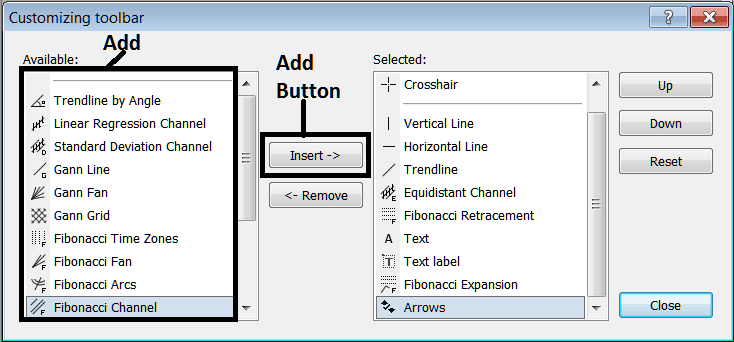
Choose all the tools from the left window panel & add them: After adding this will look like:
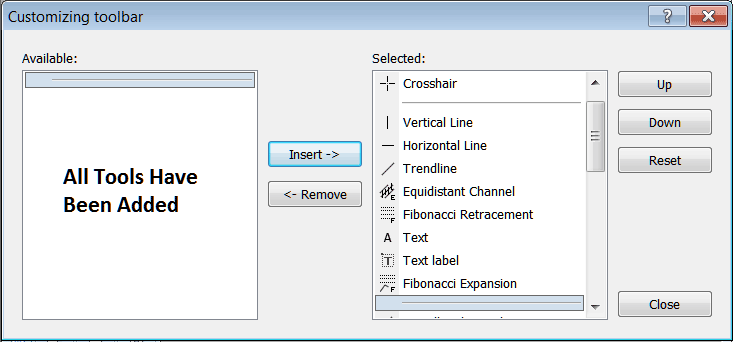
The MetaTrader 5 tool-bar will now look like:
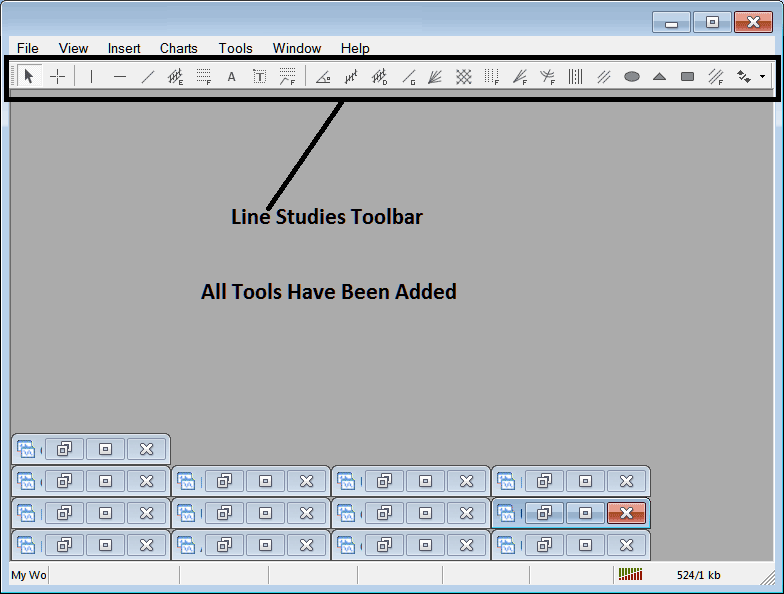
Explanations of Each Tool
The following is the explanation of each tool on this tool bar.

1: Choose mouse as cursor, change mouse to the default cursor
2: Select Cross Hair cursor, a type of cursor that maps coordinates to the axis of the charts
3: Draw a vertical line
4: Draw a Horizontal line
5: Draw a oil trend line
6: Equidistant Channel
7: Oil Fibonacci Retracement
8: Text button
9: Text Label Button Key
10: Oil Trading Fib Expansion
11: oil trend by Angle
12: Linear Regression Channel
13:Standard Deviation Channel
14: Gann Lines
15: Gann Fan
16: Gann Grid
17: Fibonacci Time zones
18: Fib Fan
19: Fibo Arc
20: Cycle Lines
21: Andrew's Pitchfork
22: Insert Ellipse
23: Insert Triangle
24: Insert Rectangle
25: Fibonacci Channels
26: Draw Arrows
How to Remove Tools from Crude Oil Trading Software
As a trader you'll not require all these button keys and you can hide some of them by clicking the customize button key, then select some of the items on right window & then select hide.
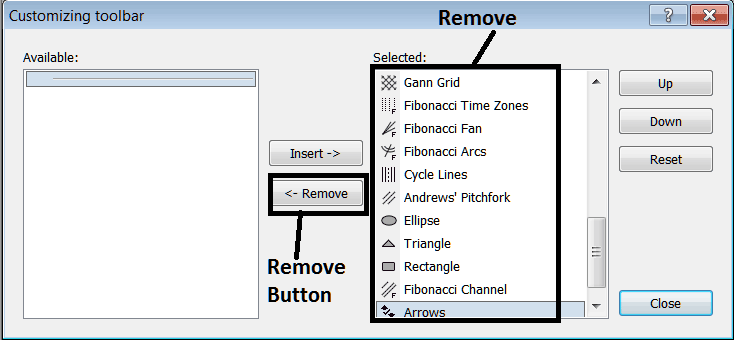
Remove the above tools by clicking on them and then clicking the remove button, so as to save space on your MT5 Oil Trading Platform workspace.




