How to Add Crude Oil EA on your MetaTrader 4 Oil Trading Platform
How to Trade with Oil EA on your MetaTrader 4 Oil Trading Platform
Before starting to trade with an Automated Oil Expert-Advisor you must first attach a crude oil EA on MT4 crude oil chart.
To attach a crude oil EA on MT4 oil chart - go to the MT4 Navigator Window, then select the crude oil trading Expert Advisor that you want to place on the oil chart - and then right click on it and specify the option 'Attach to Chart', once the EA is attached to MetaTrader 4 oil chart it will appear as is shown below - Then Right-Click on the Expert Advisor, choose properties & then select the option by Checking 'Allow Live Trading' and the Automated Oil Trading EA can now start executing trades in MetaTrader 4 Oil Trading platform.
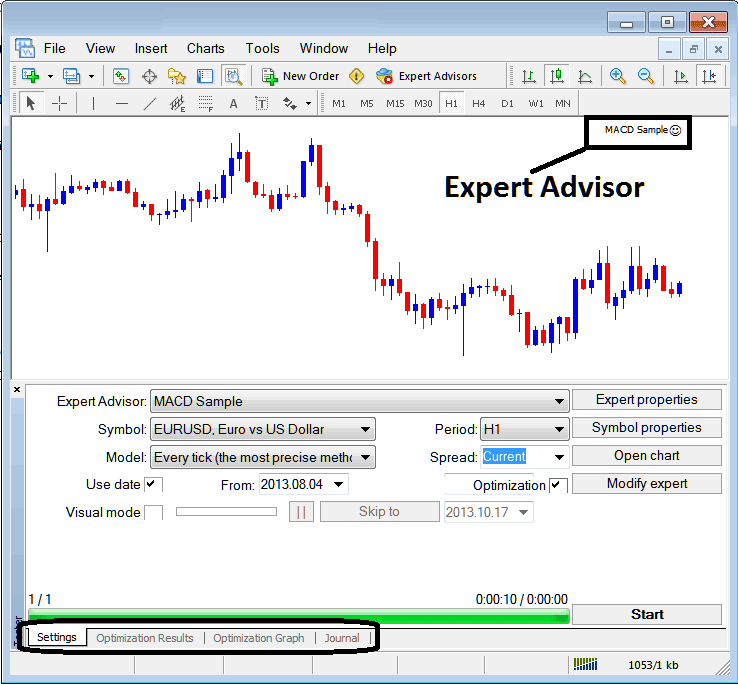
Selecting EA you want to Add Among those Installed on your MetaTrader 4 Crude Oil Trading Platform
For an EA to Mobile Appear on the Navigator Panel you must first download & install the Expert Advisor on your oil trading platform. To learn how to add a download crude oil Expert Advisor before Activating The Oil Trading EA follow the MT4 Oil Expert Advisor install guide below.
If you are a Oil Trader Looking for EA Oil Robots, then you can find them on the MT4 Oil Trading Expert Advisors Library.
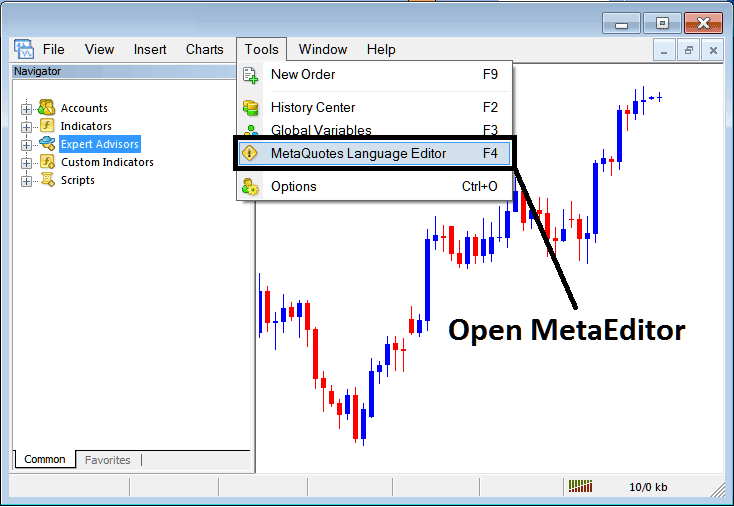
Open MetaEditor in MetaTrader 4
MetaEditor

After Adding a new MetaTrader 4 Oil Trading Expert-Advisor, a trader will be required to compile this newly added item so that it can now be recognized by the MT4 crude oil trading software & for this new item to start to appear on the list of available MT4 Oil Trading Expert Advisors.
Adding a New MT4 Oil Trading EA
Once you have opened the MT4 MetaEditor Work Space as shown above, Keyboard Short Cut Keys - Press F4, then follow the steps below to add your new MetaTrader 4 Oil Trading EA.
Step1: Go To File Menu, Select 'New'
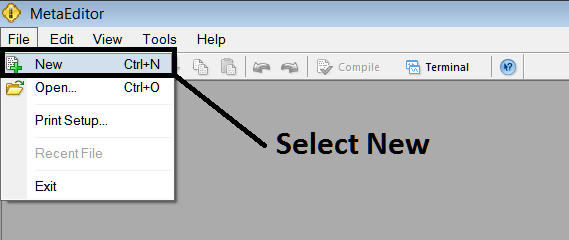
Adding a New Custom Expert Advisor on MT4
Step2: On Popup window that appears select 'EA'and click next as shown below
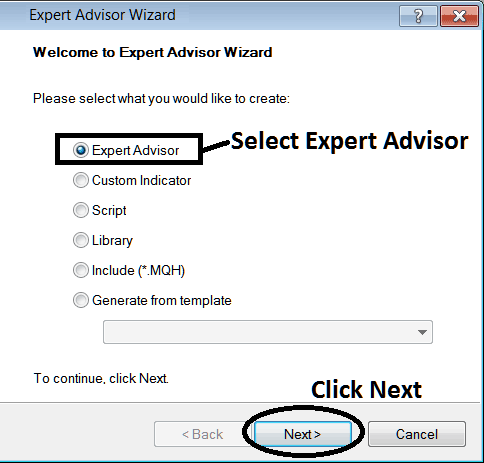
Adding MT4 Oil Expert Advisor in MetaTrader 4 MetaEditor
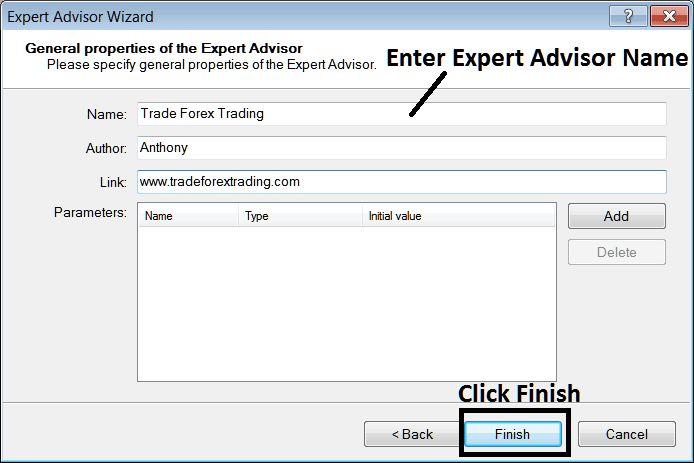
Step3: Enter Name of Expert-Advisor as Shown Below and Click Finish