Place MACD Indicator on CFDs Chart in MetaTrader 5
MetaTrader 5 CFD Platform - MACD CFDs Indicator on a CFDs MT5 cfd chart in the MT5 Platform. For Technical Analysis: MT5 Indicator Technical analysis of cfd MACD.
How to Place MT5 Indicators on MetaTrader 5 CFDs Charts
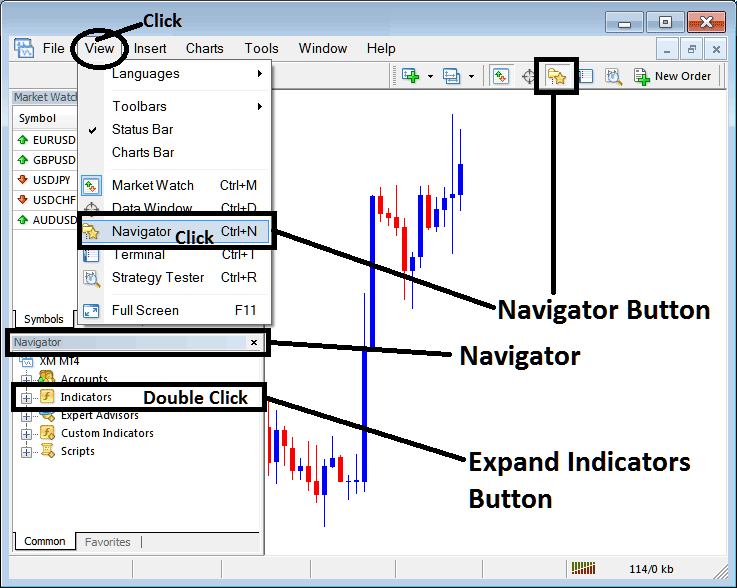
Step 1: Open The Platform Navigator Window
Open Navigator panel as illustrated below: Navigate to ' View ' menu (click on it), then choose the ' Navigator ' window panel (click), or From the Standard Tool-Bar click on 'Navigator' button key or press short cut keyboard keys 'Ctrl+N'
On MetaTrader 5 Navigator window, choose "Technical Indicators" , (Double-Click)
Step 2: Expand MetaTrader 5 Indicators Menu on Navigator Menu
Expand the menu by clicking expand button marker (+) or doubleclick the 'indicators' menu, after this MetaTrader 5 button will then appear as (-) and will now show as a list as displayed below.
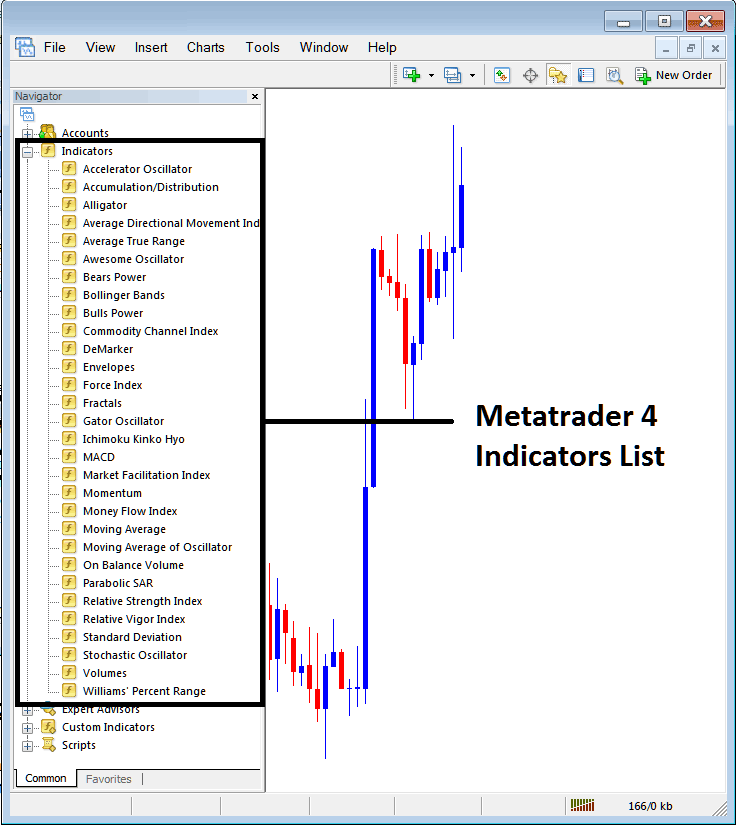
From the Above panel you can then add any MT5 indicator you want in MetaTrader 5 cfd trading chart.
Placing MACD on CFD Trading Chart
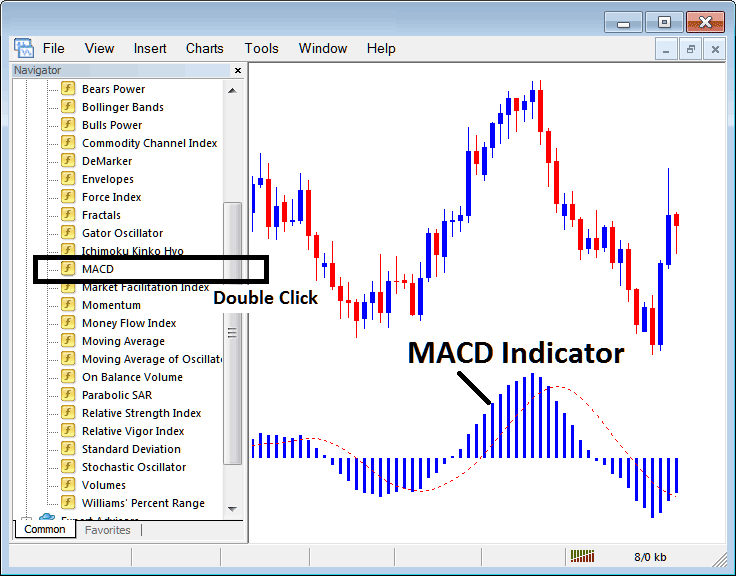
Step 1: Select the MACD button on the MT5 list of technical indicators as shown below:
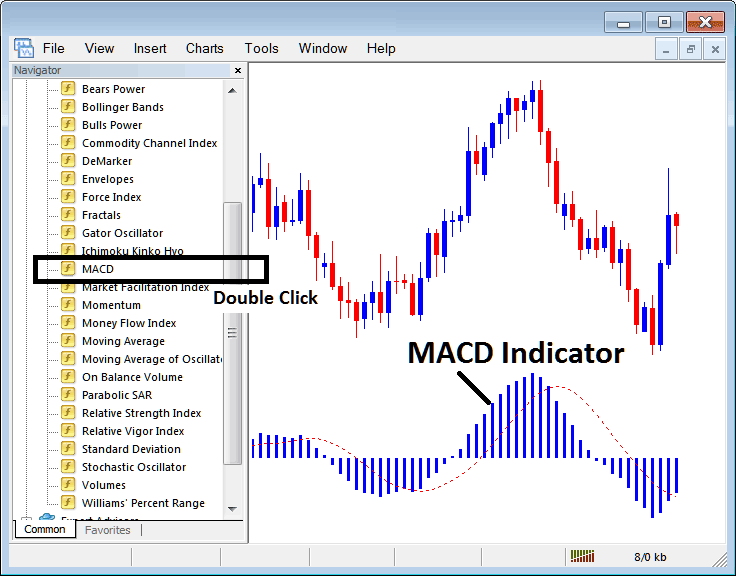
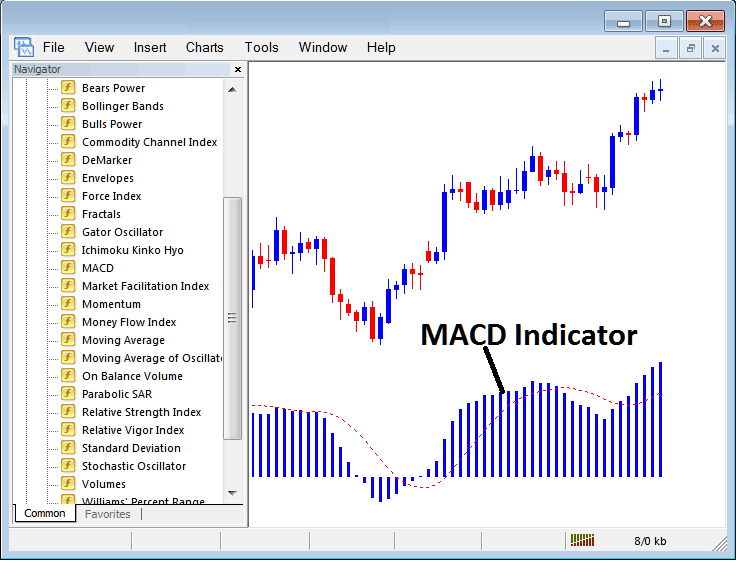
Step 2: Double-click the MACD Button Key, and click okay to place the indicator on the chart as displayed below:
Edit Indicator Settings
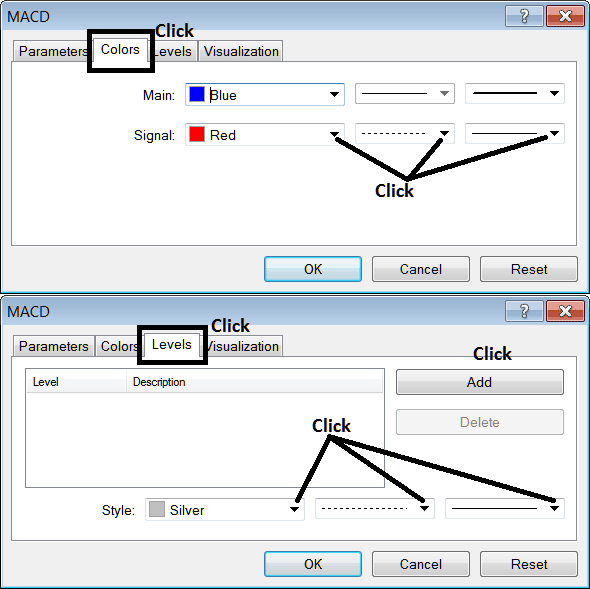
To Adjust Settings, right click in MACD CFDs Indicator, select properties & then edit the settings using the popup menu that appears & then click okay button key after you've changed settings.
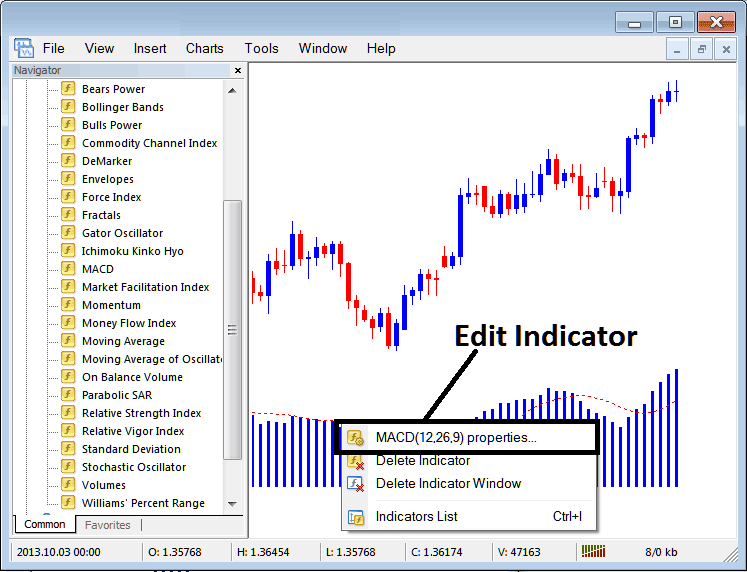
The following popup panel appears and MACD CFDs Technical Indicator settings can be edited from this pop up panel.