Profiles and Saving a Profile in MetaTrader 5
In MetaTrader 5 cfds trading platform, you may want to save a MetaTrader 5 work space that you have opened, especially if you have come to a CFD tutorial site like this one that has shown you how to place indicators and open many CFD charts & put various tools on these charts & you want to continue tomorrow from where you left of, then this saving your cfds platform MetaTrader 5 work space tutorial will show you how to do it.
To save a MT5 work space on MetaTrader 5 cfds trading platform you'll use the "Profiles" button key, which is fourth choice on the "File" drop-down menu list - this button key is shown & illustrated below:
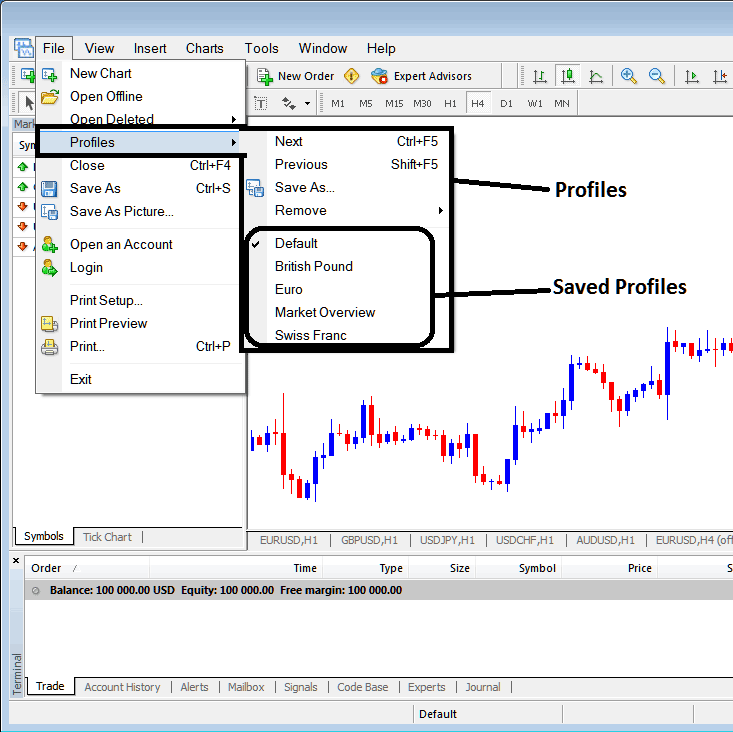
How to Save MetaTrader 5 Work Space in MT5
From the above profile button, once you click this button, another sub menu pops up to the right as shown above, to save your current MT5 work space as a profile, click "Save As" button key shown above & name your profile, for examples you can call it "My MT5 Work Space"
Examples of how to save a MT5 work space named "My MetaTrader 5 Work-Space"
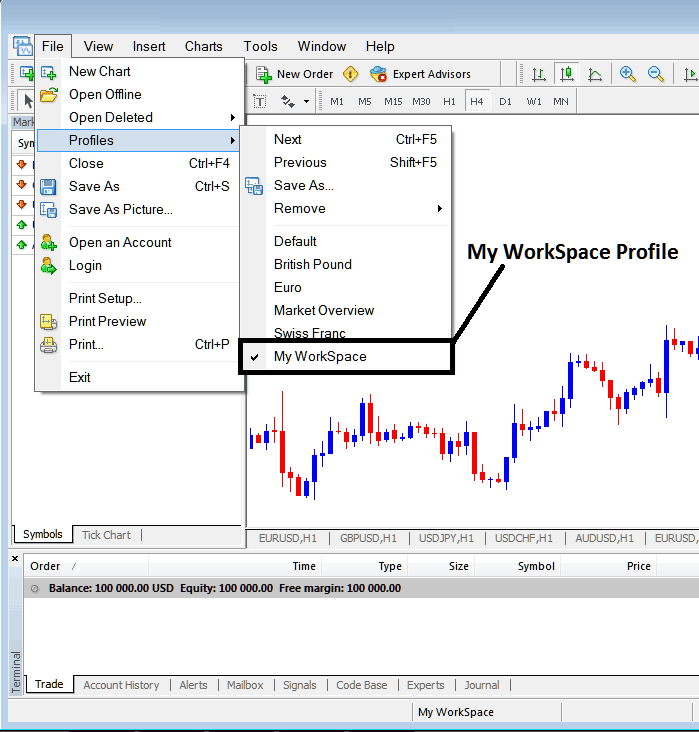
Saving MetaTrader 5 Work Space on MetaTrader 5
The next time that you will login to the MetaTrader 5 CFD trade platform and you want to load the saved "My MetaTrader 5 Work Space" profile: You will go to File Menu>>>Then Click Profiles>>>and Then Select "My MetaTrader 5 Work Space". In the above case this profile is already selected as shown by the check mark/ tick mark. If you wanted to switch to another saved MetaTrader 5 work space or profile for example the one marked Swiss Franc or EUR in the above example, then you would just click on the name of profile that you want and the load it on the MT5 Platform.
The loaded MetaTrader 5 work space "My MetaTrader 5 Work Space" is also displayed at the bottom center of the MT5 cfds platform: (below $100,000 MT5 account balance transaction window, below the "Experts" tab, at the middle bottoms position of the MetaTrader 5 cfds platform as illustrated above).
Another shortcut to load this "profiles" is using this button at the bottom center position of MT5 trade platform as displayed below.
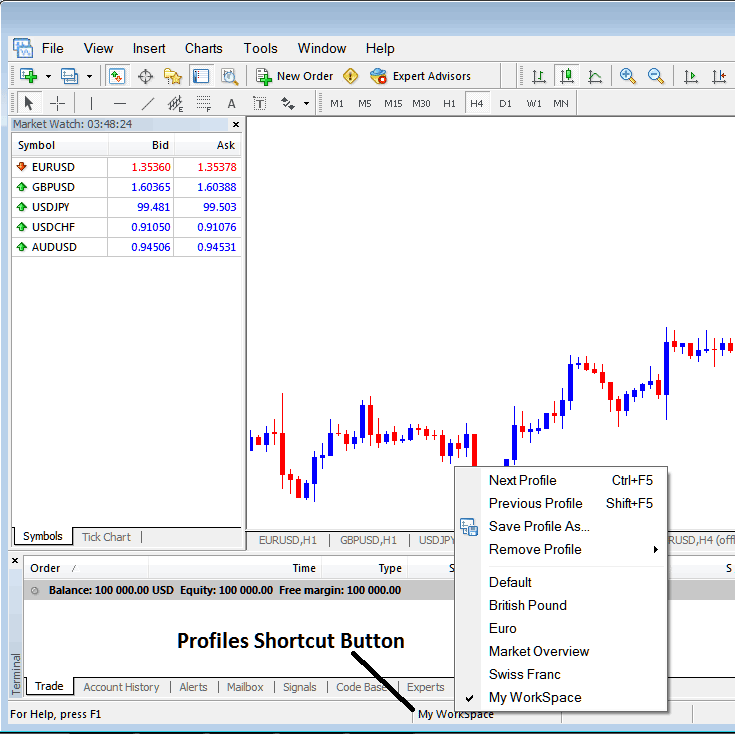
Saving and Loading Profiles in MT5
From this tutorial, now as a trader you have learned how to save a MetaTrader 5 work space using the profiles button on the MT5 Platform, under the file drop down menu and you can now save as many profiles as you want on yourMT5 cfds trading platformand then choose any of these saved profiles any other time that you might need to trade with them.




