Best Technical CFDs Indicators for CFD MT5
On MT5 CFD Platform charts menu in the MetaTrader 5 CFD Platform, the first option is the Charts Menu. The cfd indicators list is shown and illustrated below: however it is grayed out meaning that as a trader for now you cannot use this button key, so the question is how to activate? - The button key is shown and illustrated below:
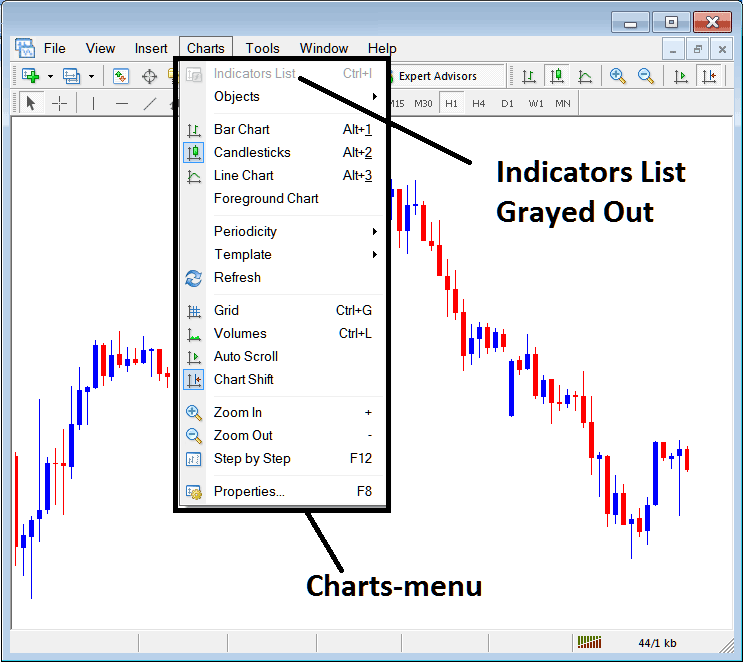
How to Add Indicators to MT5 CFDs Chart Indicators Tutorial
This CFDs Chart Technical Indicators list will be activated once some indicators are placed on the cfds chart, from the cfd example explained and illustrated below the CFDs Chart Indicators list button has been activated as shown below once the moving average & RSI CFD Technical Indicators have been added on the cfds charts as shown below:
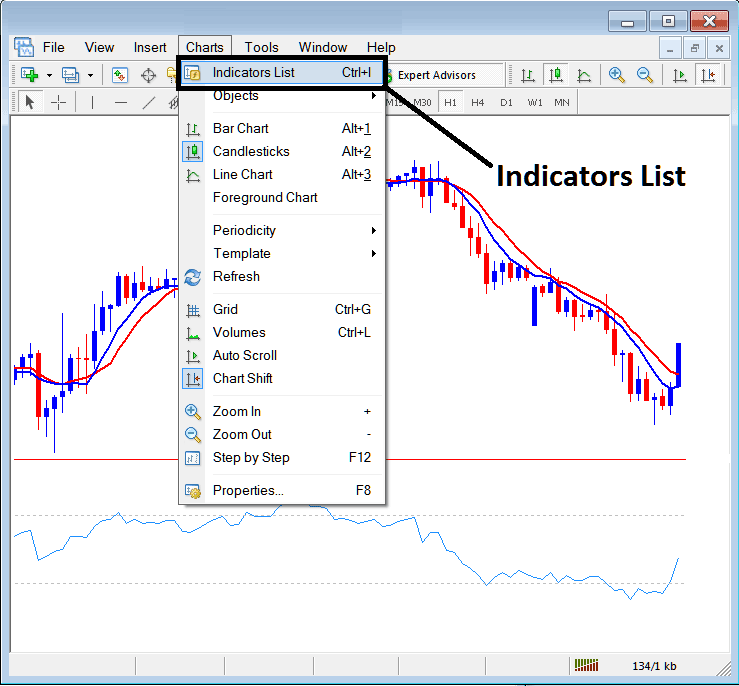
This MT5 option in MetaTrader 5 platform is used to list all the MT5 technical indicators that have been placed on the cfds chart. For example once you click the above button a popup window will appear listing all the cfd indicators placed on the chart - CFD Indicators Collection on MT5 CFDs Chart.
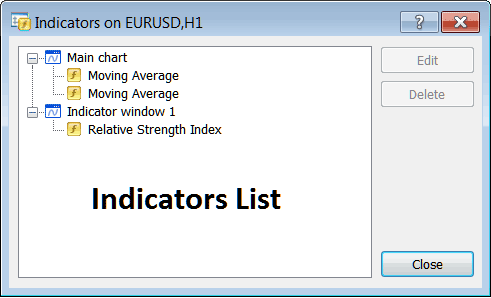
As a trader you can select any of the technical indicators listed here on this CFD Indicators Collection and either edit the MT5 indicator or delete the MT5 indicator. To edit or delete select a single indicator & click the "Edit" or "Delete" button.
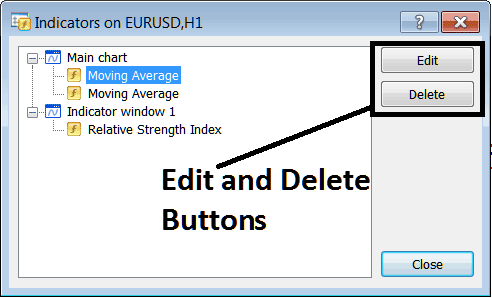
To Edit a MetaTrader 5 Technical CFDs Indicator, once you click the edit button, then the following window panel will pop-up:
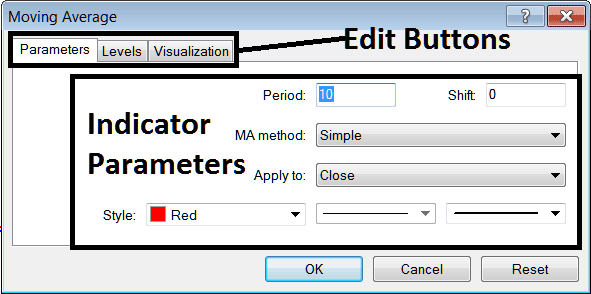
From above Edit Buttons
- Parameters Button - Edit parameters of an MT5 technical indicator such as color, line width, calculation method, and the number of cfd price periods used to calculate the MT5 indicator settings.
- Levels Button - Add a level, for examples add overbought level at 80% and oversold level at 20% on RSI, by choosing the "levels" button, then choosing the point 80 & click add, and repeat for point 20. (First Choose The RSI indicator to edit its settings)
- Visualization Button - Specify on which cfd chart timeframe the MT5 technical indicator will appear on.
The second button key is for "Delete", if you want to delete one cfd indicator or many of them at once, just select the one you want to delete and then click and press this button.
MT5 Indicators - CFD Technical Indicators Tutorial - How to Add Indicators to MT5




