History Center on Tools Menu on MetaTrader 5
The history center on MetaTrader 5 is located on the tools menu. The history center will start to store data for every chart that you open on the MT5, This means that if you open the CFD Trading MT4 Symbol M15 chart, then from that point on the MT5 history center will store information for this CFD Trading MT4 Symbol time frame and every time you login again to the platform to trade this information will be updated with the most recent cfd prices and will then stored.
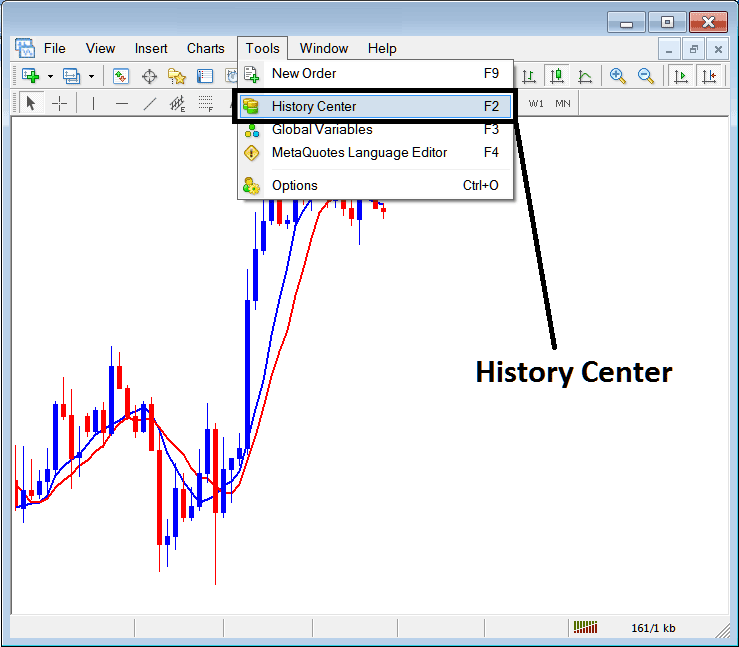
This also means that for any other chart not opened on your MT5 the platform will not start to save data for that chart. For example if you only open M15 for CFD Trading MT4 Symbol only information for M15 will be stored, and not for CFD Trading MT4 Symbol 1H or CFD MT4 Quote 4 Hour chart. Therefore, if you want to begin saving records for 1 Hour & H4, then you must begin by opening these timeframes & the data will start to get saved from this point.
In the cfd example explained and illustrated below, the CFD Trading MT4 Symbol Time frames are Shown, However only M15, H1 and H4 Icons are marked yellow and Green meaning data is being saved and updated to the History center. All the others are Gray in color, meaning they have not yet been opened on this cfd platform. To change this and have these charts start to update and have the cfd price information saved, just open any time frame for the CFD Trading MT4 Symbol, for examples the 30 minutes & the Icon for this timeframe will immediately change from Gray to Yellow and Green, do the same for all the others.
From the above example you can see the format that MT5 uses to store cfd price data information as figures, these figures are the ones used to replicate the trading chart.
Why Use The MT5 History Center
Because of the format of storing data in figures it means that these figures can be analyzed using mathematical formulas & mathematical methods can then be used to trade by analyzing cfd prices.
These Mathematical methods are implemented for trading using computer programs. Computer programs will be programmed using these mathematical methods and formulas. This will produce what in programming is known as algorithm, these algorithms are implemented in MetaTrader 5 using programs known as Automated CFDs Expert Advisors - Automated CFD Programs.
This Automated CFDs Expert Advisors answer the question why the need for the History center? The information stored is used by traders to test their automated CFD Automated CFDs Expert Advisors to get an idea of how these EA CFD Robots would have traded and then determine whether they are profitable or not. If these are profitable, traders implement these automated systems on the real market, if not then the trader changes their mathematical formula & reprograms the algorithm, then tests this new algorithm with the same data on the history center until the time the trader will program an algorithm that's profitable enough to trade the live CFD market & make profitable trades.
One of the methods of obtaining data to the history center is to download this information using the download button key as shown and illustrated below: However, this downloaded figures tends to have gaps & give inaccurate information, therefore as a trader it is best to use data that has been downloaded by the platform itself after installing it. That means the information that is available from when you downloaded the platform and started to trade with it, even if it is a few weeks or a few months.
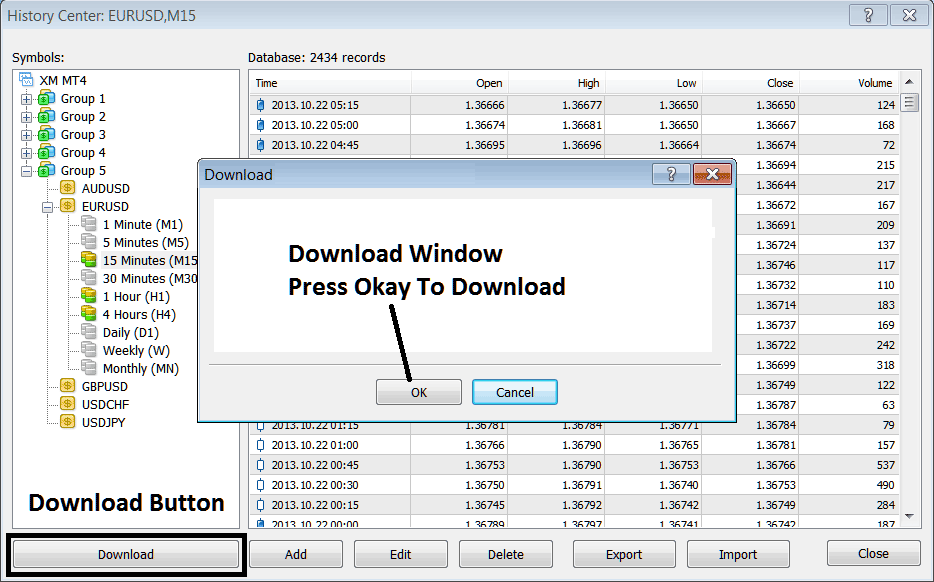
If you want to start testing these Automated CFDs Expert Advisors then for every cfd you trade you must open that cfd instrument, as well as opening all the time frames of that cfd instrument, that's the following:
- 1 Min - M1
- 5 Min - M5
- 15 Min - M15
- 30 Min - M30
- 1 H - H1
- 4 Hours - H4
- Daily - D1
- Weekly - W1
- Monthly - MN
When it comes to testing your Automated CFDs Expert Advisor, select the start date as the date when you will execute the above operation of downloading all the data for these cfd chart timeframes, so as to make sure your Automated CFDs Expert Advisors are using correct data and give you the right results.
Because of this reason you should not download any information on your MT5, just use the data that is available after you open the charts as displayed above & start from that point onwards.




