Customizing and Arranging Charts Toolbars on MetaTrader 5
Charts Tool bars are the most widely used tools in the MT5 platform. Therefore, the name MT5 tool bars: meaning a list in bar format of the most commonly used tools in the platform. These are used mostly for trading, placing indicators, placing cfd technical analysis indicators, placing Expert Advisors or drawing line studies.
There are 4 main ones are shown and illustrated below.
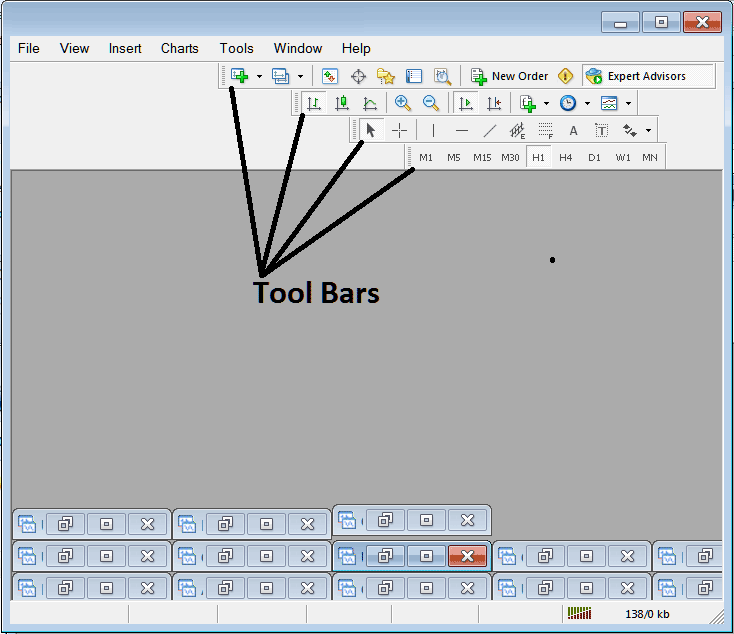
Names of Toolbars
There are 4 main toolbars, these are named:
- Standard
- Charts
- Line Studies
- Periodicity
These are listed below:
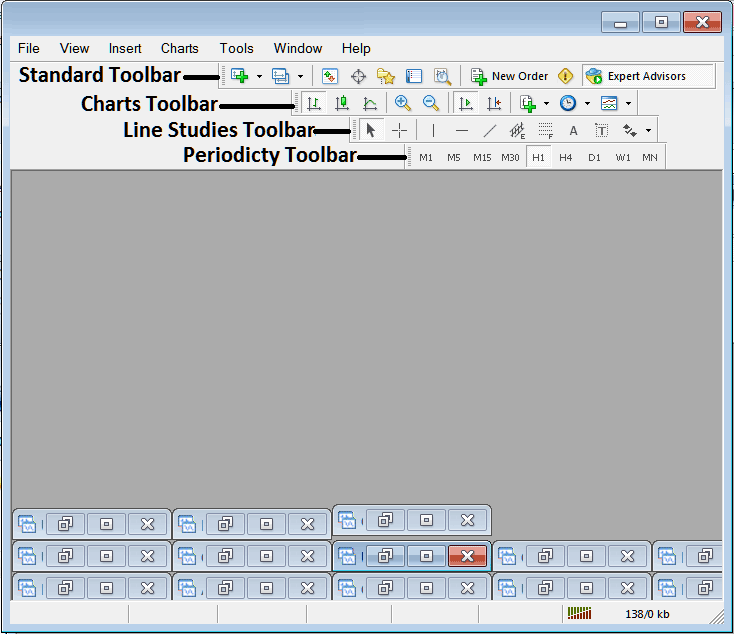
All these Four will be covered in different topics, However, for now let's look at How Do I Customize These Bars?
How to Customize
For customizing, a trader can either move the MT5 toolbar to a different location, maybe a little to the left or to the right. Or another option is to add or remove MT5 buttons from its list.
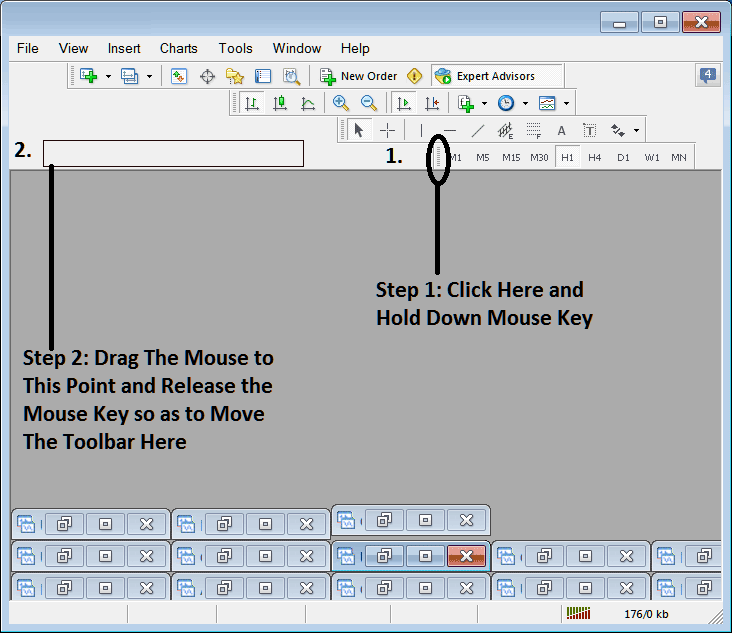
Moving a Tool Bar on CFD Trading Platform
To move, follow the guide lines below:
Step 1: Click & Hold Down Mouse Button at the position Shown below.
Step 2: While still holding down the mouse button, drag the mouse to position 2 as displayed below & release the mouse button, this will move MetaTrader 5 tool bar to the new position (position 2.)
Adding Buttons to CFD Trading Software
Step1: Right-Click the customize button as Shown Below:
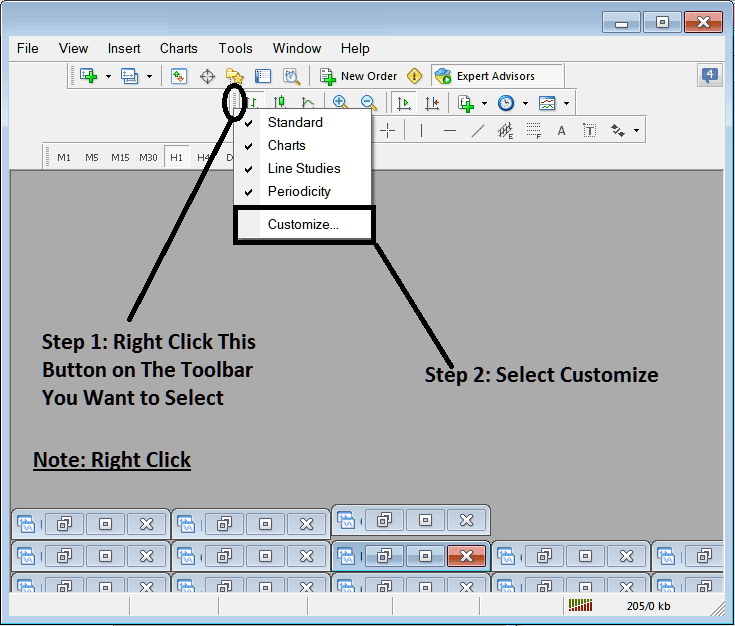
Next Step: For this Examples we shall use the Customize Pop-up Panel
After clicking customize as displayed above, the following popup pops up:
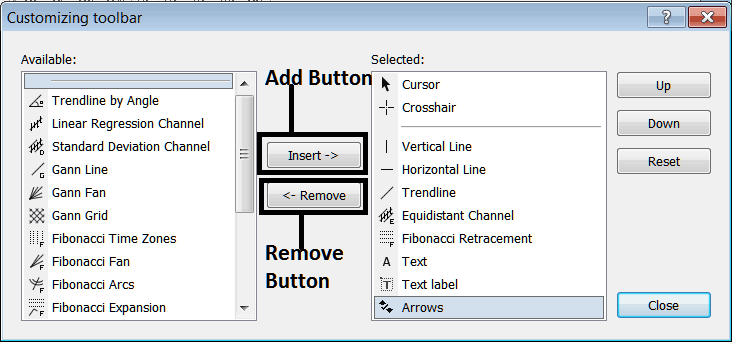
Step1: Select Any Tool on the Left, To add it Click insert button on the middle as displayed above.
For example selecting CFD Fibonacci Expansion and clicking insert will add this indicator in the Right side Window named 'Selected'
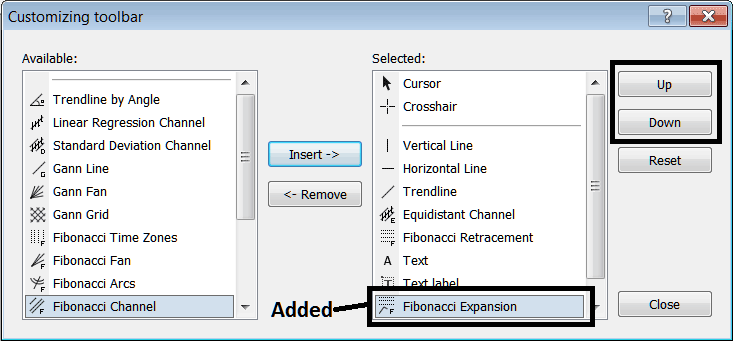
To move the indicator up or down use the UP or DOWN Button Keys on the right side, shown above:
the MetaTrader 5 tool bar will now look like:
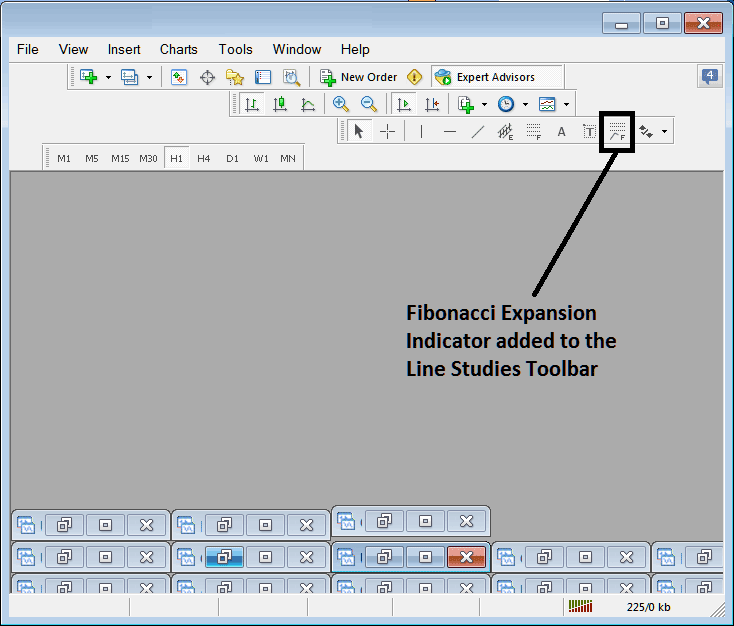
Customizing Toolbars : If there is any tool that is not placed on the list, you can use this option to add it to the list, just like the above examples where CFD Fibonacci Expansion was not listed and now it has been added. If you do not know where an item is located & on which tool bar, right-click in customize button key on the left side of any of the four tool bars, & view list of all the names of all items that can be added, these will be on the left window on this customize window.
Also you can remove some tools, the ones you do not use, so as to save on the space also, for example if you trade only with 15 minute, 1 Hour and 4 hour charts, you can hide all the other time-frames on the Periodicity bar and remaining with only these 3 timeframes.




