How to Activate CFDs Expert-Advisor on your MT4 CFD Platform
How to Trade with CFDs Expert Advisor on your MT4 CFD Platform
Before starting to trade with an Automated CFDs Expert Advisor you must first attach a cfd Expert Advisor on a MT4 cfd trading chart.
To attach a cfd Expert Advisor on a MT4 cfd chart - go to the MT4 Navigator Window, then select the cfd Expert Advisor that you want to place on the cfds chart - and then right click on it and specify the option "Attach to Chart", once the Expert Advisor is attached to the MT4 cfd chart it will appear as is illustrated below - Then Right Click on the Expert Advisor, select properties & then choose the option by Ticking "Allow Live Trading" & the Automated CFD EA can now start executing trades on MT4 platform.
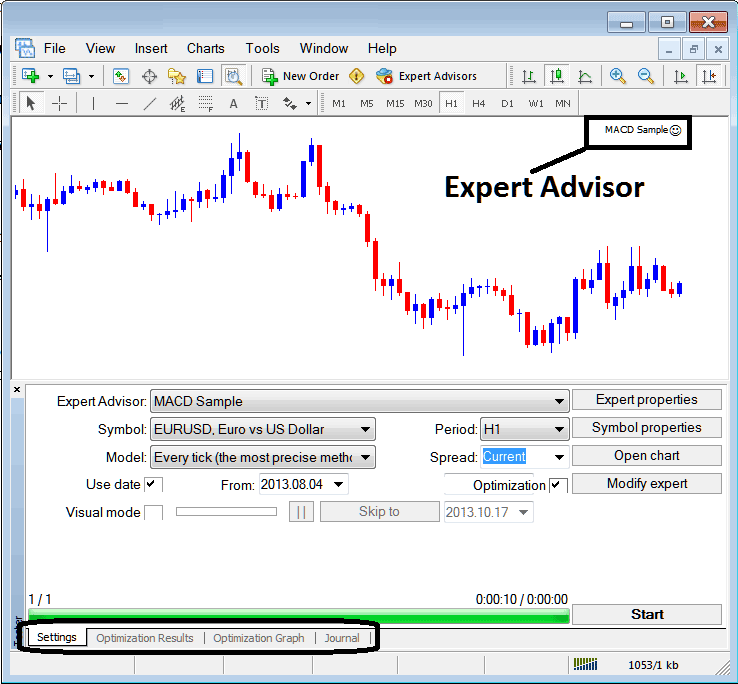
Selecting Expert Advisor you want to Add Among those Installed on your MT4 CFDs Platform
For an Expert Advisor to Mobile Appear on the Navigator Window Panel you must first download and install the Expert Advisor on your cfd platform. To learn how to add a download cfd Expert Advisor before Activating The CFD EA follow the MT4 CFDs EA install guide below.
If you are a CFD Trader Looking for Expert-Advisor CFD Bots, then you can find them on the MetaTrader 4 CFDs Expert Advisors Library.
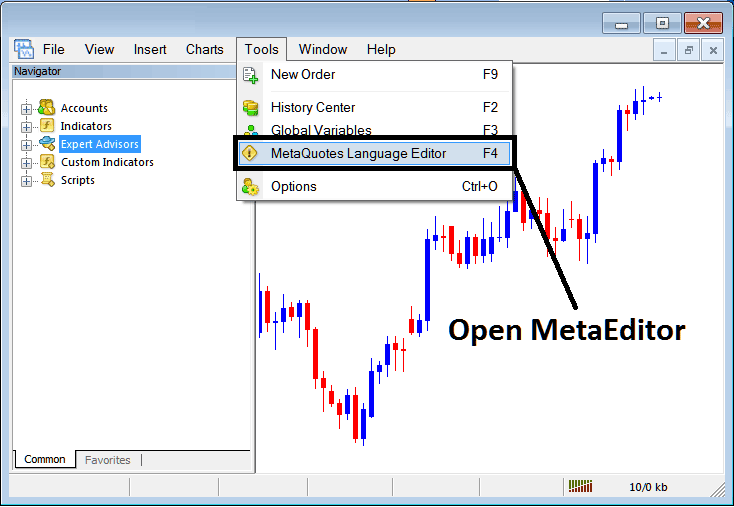
Open Meta Editor in MetaTrader 4
MetaEditor

After Adding a new MT4 CFDs Expert-Advisor, a trader will be required to compile this newly added item so that it can now be recognized by the MT4 cfds platform & for this new item to start to appear on the list of available MT4 CFDs EAs.
Adding a New MT4 CFDs Expert-Advisor
Once you have opened the MT4 MetaEditor Work Space as shown above, Short Cut Keyboard Keys - Press F4, then follow the steps below to add your new MT4 CFDs Expert Advisor.
Step1: Go To File Menu, Select "New"
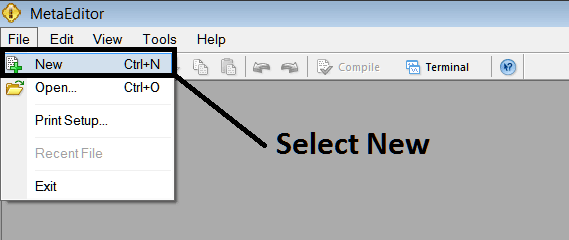
Adding a New Custom Expert Advisor in MetaTrader 4
Step2: On Pop up panel that pops up select "EA"and click next as illustrated below
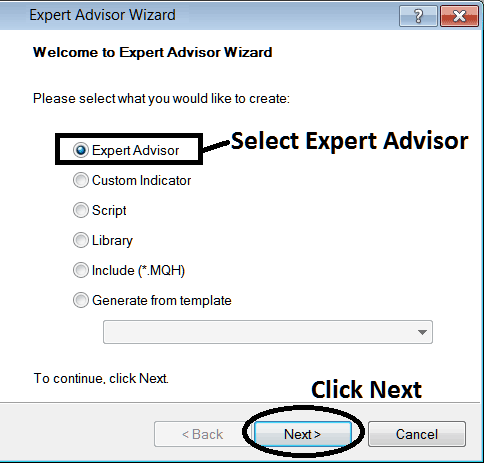
Adding MetaTrader 4 CFDs Expert-Advisor on MetaTrader 4 Meta Editor
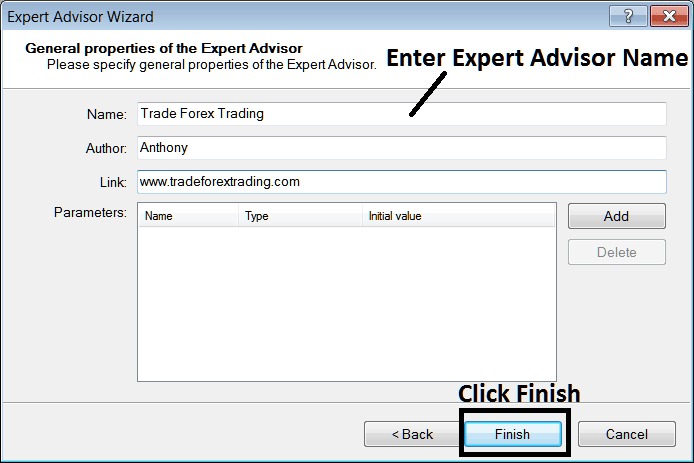
Step3: Enter Name of Expert-Advisor as Shown Below and Click Finish