How to Add Ultimate Oscillator on MetaTrader 4 Charts - Adding MT4 Ultimate Oscillator
Step 1: Open Navigator Window Panel on CFDs Trading Software
Open Navigator window panel as illustrated below: Navigate to 'View' menu (click on it), then select 'Navigator' window panel (click), or From Standard Toolbar click the 'Navigator' button key or press keyboard shortcut key 'Ctrl+N'
On Navigator window, choose 'Technical Indicators', (Double-Click)
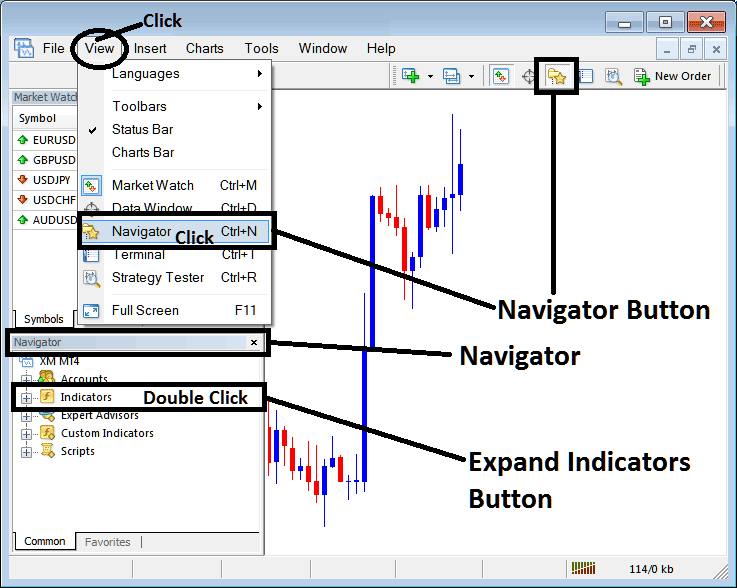
How to Add Ultimate Oscillator Indicator in MT4 - MT4 Ultimate Oscillator Technical Indicator
Step 2: Expand the Indicators Menu on the Navigator - Adding Ultimate Oscillator MT4 Indicator
Expand the menu by clicking the expand button marker (+) or double click the 'indicators' menu, after this the button will appear as (-) and will now display a list as shown below - select the Ultimate Oscillator cfds chart indicator from this list of cfds indicators so as to add the Ultimate Oscillator indicator on the cfd chart.
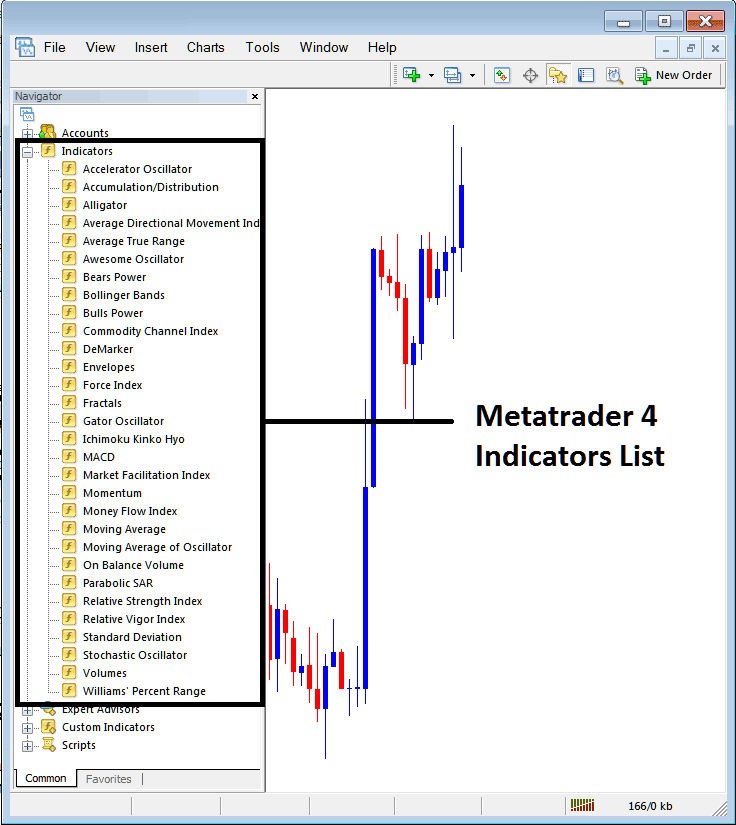
How to Add Ultimate Oscillator Indicator - From the Above window you can then place Ultimate Oscillator indicator that you want on the CFDs chart
How to Add Custom Ultimate Oscillator Indicator to MT4
If the technical indicator you want to add is a custom indicator - for example if the Ultimate Oscillator technical indicator you want to add is a custom indicator you will need to first add this custom Ultimate Oscillator indicator on the MetaTrader 4 software & then compile the custom Ultimate Oscillator indicator so that the newly added Ultimate Oscillator custom indicator pops up on the list of custom indicators in MetaTrader 4 software.
To learn how to install Ultimate Oscillator indicators on MT4, how to add Ultimate Oscillator indicator window to MT4 and how to add Ultimate Oscillator custom indicator in MT4 - How to add a custom Ultimate Oscillator indicator in MT4.
About Ultimate Oscillator Technical Indicator Explained
Ultimate Oscillator Technical Analysis and Ultimate Oscillator Trading Signals
Originally developed and used to trade stocks & commodities markets.
This oscillator aims at striking a balance between leading signals & lagging signals given by the common indicators.
- Leading - some indicators lead the market and give signals earlier than the optimum time
- Lagging - some indicators lag the market so far that half of the move is over before a signal is generated.
This is the balance that the oscillator aims to strike, not to lead too much or lag too much - this way the oscillator will always give a signal at the ultimate time, thus its name.
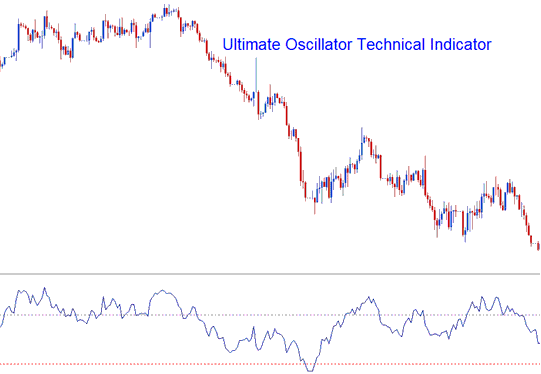
This indicator uses 3 different n-number of candlesticks and calculates the combined weighted sums of price action from these candlesticks and plots these values a scale ranging from 0 to 100. Values of above 70 are considered to be overbought levels while values of below 30 are considered to be oversold levels.
The time periods used to calculate the ultimate oscillator are 7 periods (short term trend), 14 periods (intermediate term trend) and 28 periods (long term trend).
CFD Trading Technical Analysis & How to Generate Trading Signals
This CFDs technical indicator can be used in generating buy and sell signals using various methods.
Center line CFD Trading Crossover Trading Signal
Buy Signal - values above 50 center line level
Sell Signal - values below 50 center line level
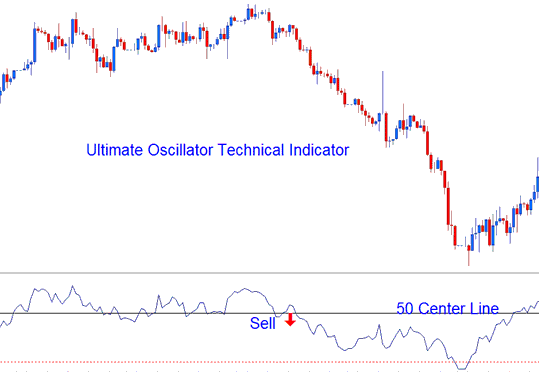
Center line CFD Trading Crossover Trading Signal
Overbought/Oversold Levels on Technical Indicator
Overbought - levels above 70 - sell signal
Oversold - levels below 30 - buy signal
CFDs Trading Divergence CFDs Trading
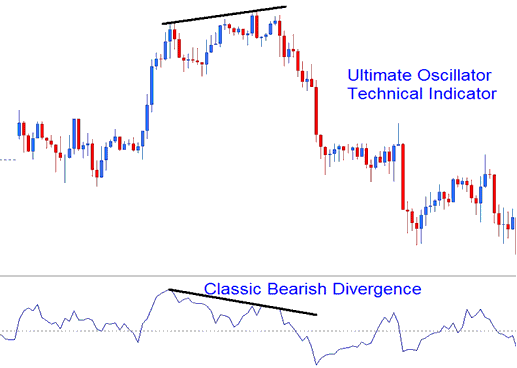
The oscillator can also be used to trade divergence CFDs trading signals, below is an example of a classic bearish divergence signal.
Technical Analysis




