How to Add Stochastic Oscillator Indicator in MT4 Charts - Adding MT4 Stochastic Oscillator
Step 1: Open Navigator Window Panel on CFD Trading Software
Open Navigator window panel as illustrated below: Navigate to 'View' menu (click on it), then select 'Navigator' window panel (click), or From Standard Toolbar click the 'Navigator' button key or press keyboard shortcut key 'Ctrl+N'
On Navigator window, choose 'Technical Indicators', (Double-Click)
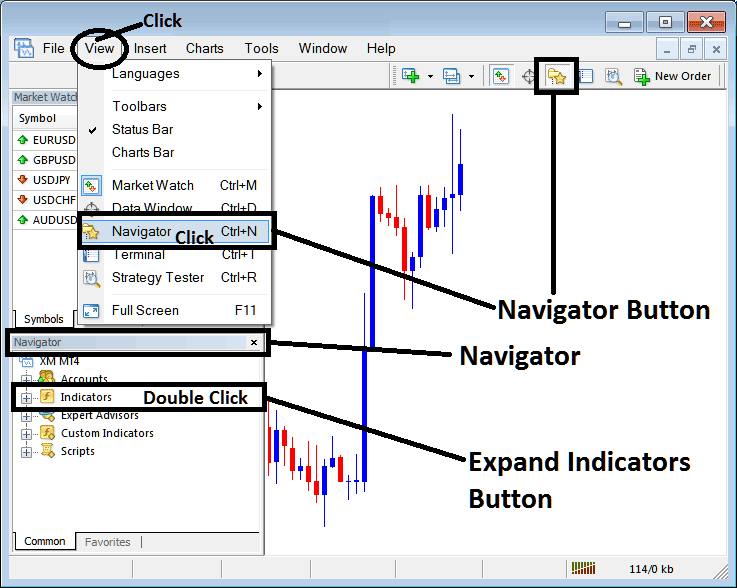
How to Add Stochastic Oscillator Indicator in MT4 - MT4 Stochastic Oscillator Technical Indicator
Step 2: Expand the Indicators Menu on the Navigator - Adding Stochastic Oscillator MT4
Expand the menu by clicking the expand button marker (+) or double click the 'indicators' menu, after this the button will appear as (-) and will now display a list as shown below - select the Stochastic Oscillator cfds chart indicator from this list of cfds indicators so as to add the Stochastic Oscillator indicator on the cfd chart.
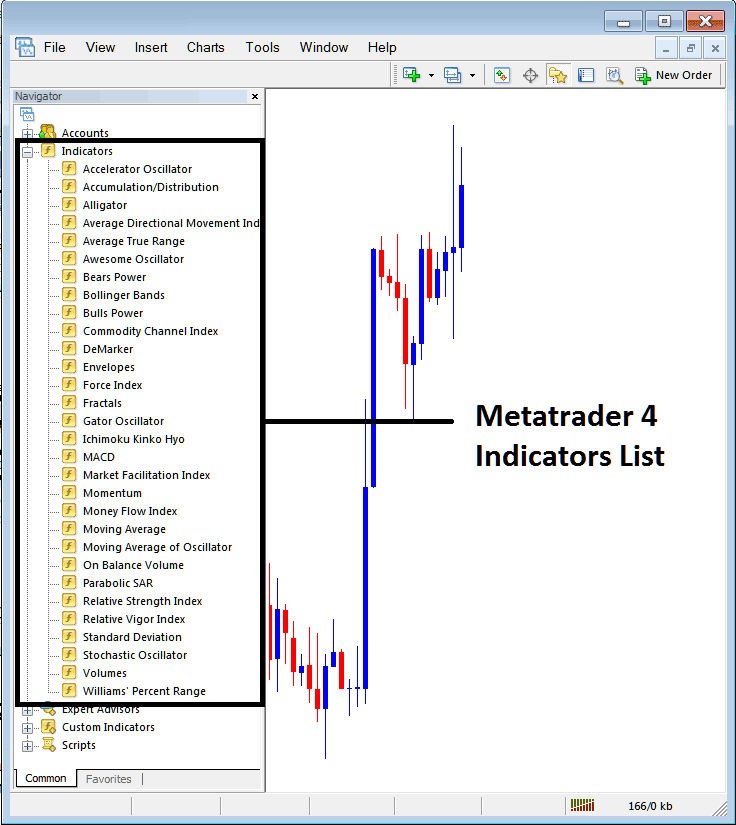
How to Add Stochastic Oscillator Indicator - From the Above window you can then place Stochastic Oscillator indicator that you want on the CFDs chart
How to Add Custom Stochastic Oscillator Indicator to MT4
If the technical indicator you want to add is a custom indicator - for example if the Stochastic Oscillator technical indicator you want to add is a custom indicator you will need to first add this custom Stochastic Oscillator indicator on the MetaTrader 4 software & then compile the custom Stochastic Oscillator indicator so that the newly added Stochastic Oscillator custom indicator pops up on the list of custom indicators in MetaTrader 4 software.
To learn how to install Stochastic Oscillator indicators on MT4, how to add Stochastic Oscillator indicator window to MT4 and how to add Stochastic Oscillator custom indicator in MT4 - How to add a custom Stochastic Oscillator indicator in MetaTrader 4.
About Stochastic Oscillator Technical Indicator Explained
Stochastic Oscillator Technical Analysis and Stochastic Oscillator Trading Signals
Developed by George C. Lane
The Stochastic Oscillator is a momentum indicator - it shows the relation between the current closing price relative to the high and low range over a given number of n periods. The Oscillator uses a scale of 0-100 to plot its values.
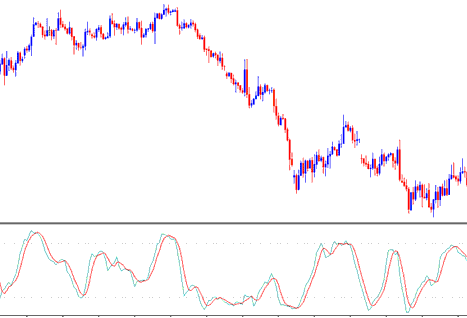
This Oscillator is based on the theory that in an uptrend market the price closes near the high of the price range and in a downward trending market the price will close near the low of the price range.
The Stochastic Lines are drawn as 2 lines - %K and %D.
- Fast line %K is the main
- Slow line %D is the signal
3 Types of Stochastics CFDs Oscillators: Fast, Slow and Full Stochastics
There are Three types are: fast, slow and full Stochastic. The 3 indicators look at a given chart period for examples the 14-day period, and measures how the price of today’s close compares to the high/low range of the time period that is being used to calculate the stochastic.
This oscillator works on the principle that:
- In an uptrend, price tends to close at the high of the candlestick.
- In a downtrend, price tends to close at the low of the candlestick.
This indicator shows the momentum of the CFDs trends, and identifies the times when a market is overbought or oversold.
CFD Trading Technical Analysis & How to Generate Trading Signals
The most common techniques used for analysis of Stochastic Oscillators to generate CFDs trading signals are cross overs trading signals, divergence signals & overbought over-sold levels. The following are the techniques used for generating trade signals
CFD Trading Crossover Trading Signals
Buy signal - %K line crosses above %D line (both lines heading up)
Sell signal - %K line crosses below the %D line (both lines heading down)
50-level Crossover:
Buy signal - when stochastic lines cross above 50 a buy trading signal is generated.
Sell signal - when stochastic lines cross below 50 a sell trading signal is generated.
CFD Trading Divergence CFDs Trading
Stochastic is also used to look for divergences between this indicator and the price.
This is used to determine potential CFDs trend reversal signals.
Upward/rising trend reversal - identified by a classic bearish divergence
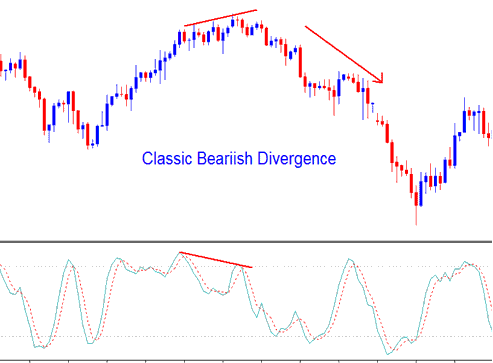
Trend reversal - identified by a classic bearish divergence
Downwards/descending trend reversal - identified by a classic bullish divergence
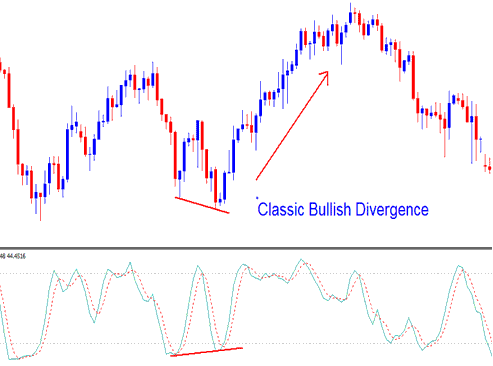
Trend reversal - identified by a classic bullish divergence
Overbought/Oversold Levels on Indicator
Stochastic is mainly used to identify potential overbought & over-sold conditions in price movements.
- Over-bought values greater than 70 level - A sell signal occurs when the oscillator rises above 70% and then falls below this level.
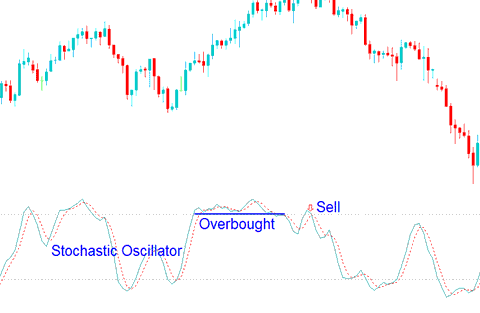
Overbought - Values Greater 70
- Over-sold values less than 30 level - a buy trading signal is generated when oscillator goes below 30% and then rises above this level.
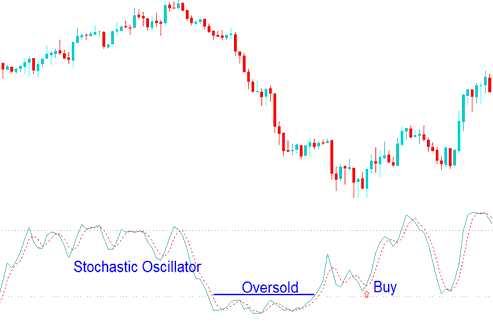
Oversold - Values Less Than 30
Trades are generated when Stochastic Oscillator crosses these levels. However, overbought/oversold levels are prone to whipsaws especially when the cfd market is trending upward or downwards.




