How to Add Aroon Oscillator Indicator on MT4 Charts - Adding MT4 Aroon Oscillator
Step 1: Open Navigator Window on CFD Trading Software
Open Navigator panel as shown and illustrated below: Navigate to "View" menu (click on it), then select "Navigator" window (click), or From Standard Toolbar click the "Navigator" button or press key-board short-cut keys "Ctrl+N"
On Navigator window, select 'Technical Indicators', (Double-Click)
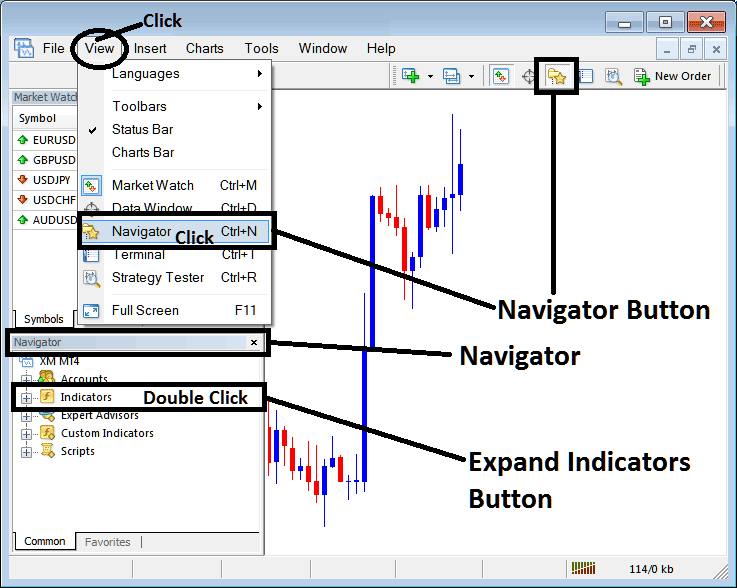
How to Add Aroon Oscillator Indicator in MT4 - MT4 Aroon Oscillator Technical Indicator
Step 2: Expand the Indicators Menu on the Navigator - Adding Aroon Oscillator MT4
Expand the menu by clicking the expand button marker (+) or double click the "indicators" menu, after this the button will appear as (-) and will now display a list as shown below - select the Aroon Oscillator cfds chart indicator from this list of cfds indicators so as to add the Aroon Oscillator cfds indicator on the cfd trading chart.
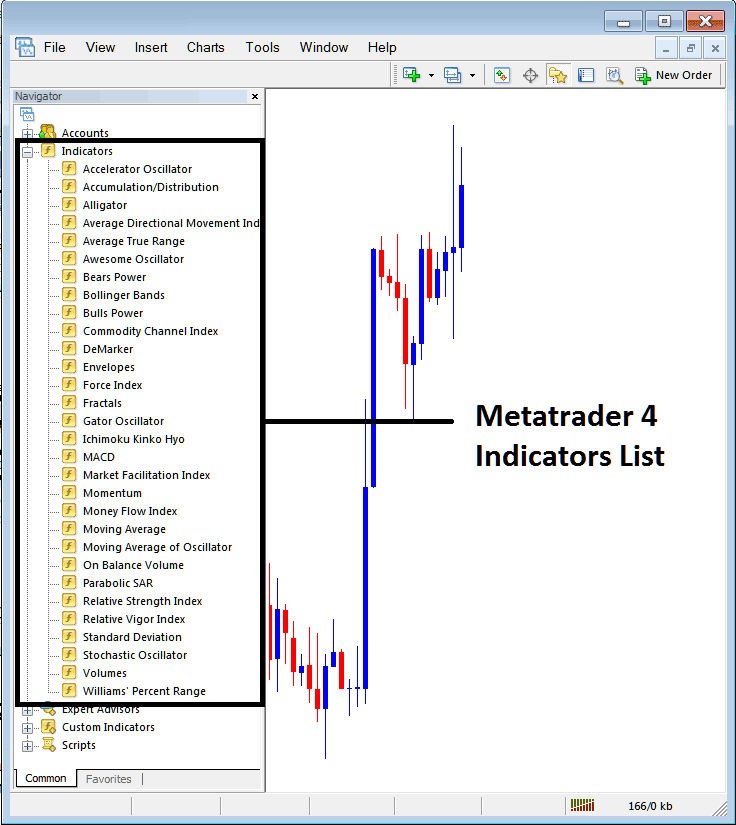
How to Add Aroon Oscillator Indicator - From the Above window you can then place Aroon Oscillator indicator that you want on the CFDs chart
How to Add Custom Aroon Oscillator Indicator to MT4
If the technical indicator you want to add is a custom indicator - for example if the Aroon Oscillator technical indicator you want to add is a custom indicator you will need to first add this custom Aroon Oscillator indicator on the MT4 software & then compile the custom Aroon Oscillator indicator so that the newly added Aroon Oscillator custom indicator appears on the list of custom indicators on the MT4 platform.
To learn how to install Aroon Oscillator indicators on MT4, how to add Aroon Oscillator indicator window to MT4 and how to add Aroon Oscillator custom indicator on MetaTrader 4 - How to add a custom Aroon Oscillator cfd indicator in MT4.
About Aroon Oscillator Technical Indicator Guide
Aroon Oscillator Technical Analysis and Aroon Oscillator Trading Signals
Calculated from Aroon Indicator.
Calculation
The oscillator is calculated by subtracting Aroon DOWN from Aroon UP.
Oscillator oscillates between -100 & +100, this is because both Aroon UP and Aroon DOWN moves between Zero & 100.
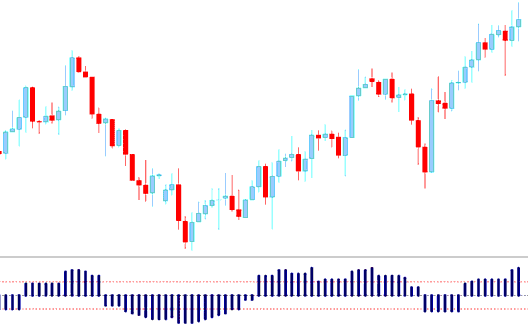
CFDs Technical Analysis and How to Generate Trading Signals
Buy Trading Signal
The Oscillator gives a technical buy signal when it goes above the Zero line. The further it is from zero the stronger the up trend
The indicator shows price is gaining momentum if it keeps heading toward +100, and momentum is reducing if it is approaching the Zero mark.
Sell Trading Signal
The Oscillator gives a technical short signal when it goes below the Zero line. Further it is from zero the stronger the down trend
The indicator shows price is gaining momentum if it keeps heading toward -100, and momentum is reducing if it is approaching the Zero mark.
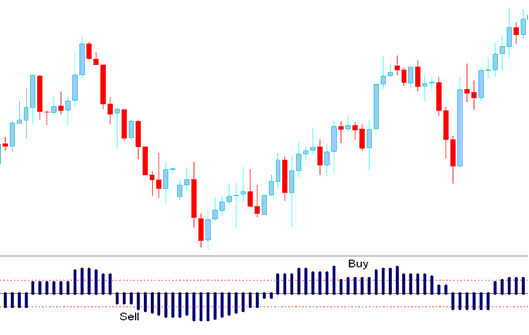
Aroon Oscillator Indicator Buy and Sell CFDs Signals - Aroon Oscillator Technical Indicator




