How Do You Set CFDs Orders on MT4 CFD Charts?
How Do You Set CFDs Orders on MT4 CFD Charts?
To set a new cfd order on MT4 software use the procedure described below:
Place New CFDs Order on Tools Menu on MetaTrader 4 Platform
A new cfd order to buy or sell a trade can be found on the tools menu found in the MT4 CFD Software as illustrated below. The New order button key for placing a new cfds trade is displayed and illustrated below. (MT4 Short Cut Keyboard Keys "F9")
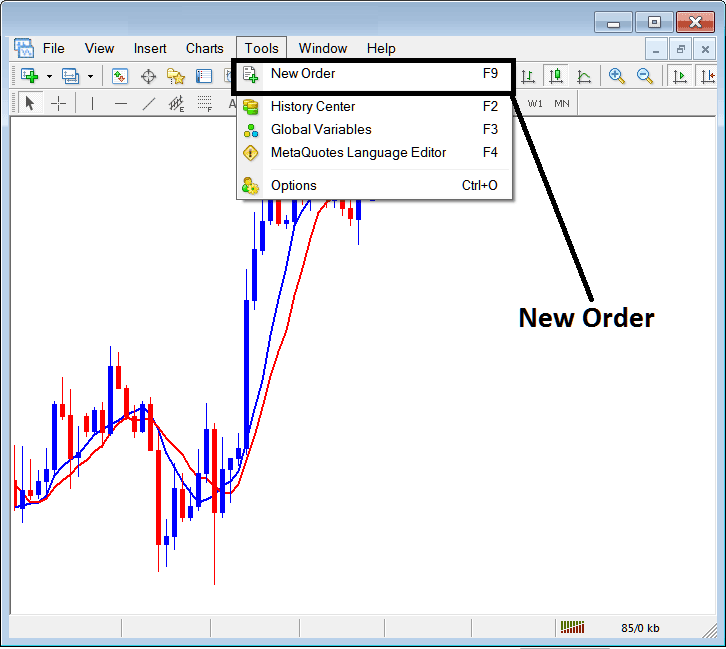
How Do You Set CFDs Orders on MT4 CFD Charts? - How Do I Set CFDs Orders on MT4 CFD Charts?
Placing a New CFD Order
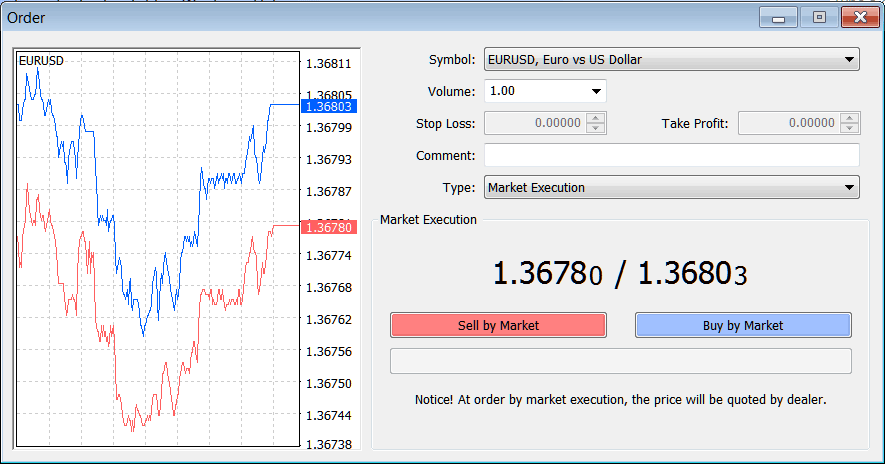
Once you select the new cfd order button as illustrated above the following cfd trading order pop up window will pop-up.
This pop up includes settings for placing a new cfd order.
How Do You Set CFDs Orders on MT4 CFD Charts? - How Do I Set CFDs Orders on MT4 CFD Charts?
The Following Order Setting are specified for setting up a new cfd order:
- Quote - Specify the instrument to be traded.
- Volume - The Number of Lots to be transacted
- Stop Loss CFDs Order - Set Stop Loss CFD Order, This option can be set after opening trade, or for pending cfd orders
- Take Profit CFDs Order - Set Take Profit CFD Order, This option can be set after opening trade, or for pending cfd orders
- Type: Market Execution or Pending CFD Order
- Sell by Market - Open a Sell CFD Trade
- Buy by Market - Open a Buy CFD Trade
To Buy at current cfd price and open new cfd order choose Buy by Market cfd order button
To Sell at current cfd price and open new cfd order select Sell by Market cfd order button
How Do You Set CFDs Orders on MT4 CFD Charts?




