Trading CFD Analyze and Activate a MetaTrader 4 CFD EA on MetaTrader 4
How Do You Trade and Activate a MetaTrader 4 CFD EA on MetaTrader 4?
Steps on Trading CFD Activate CFDs Trading Expert Advisor on MT4.
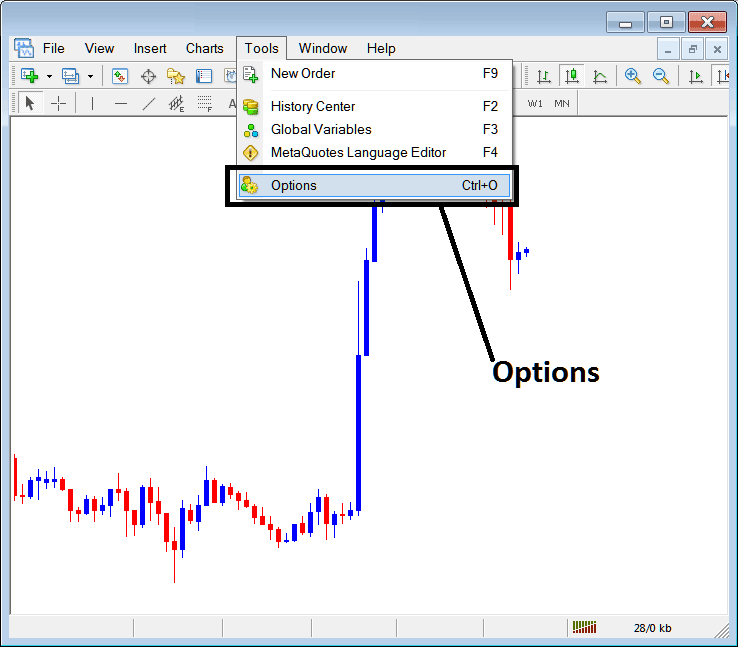
- Select the Tools Menu
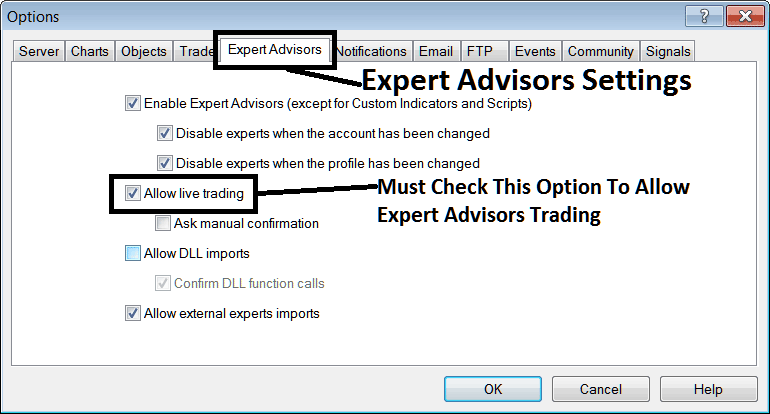
- Select The Expert Advisors Tab
- Click the Check Box 'Enable Expert Advisors'
- Click the Check Box 'Allow Live Trading'
Procedure on how to activate an MT4 CFDs Expert Advisor
Options Settings on Tools Menu in MT4 Software
The options setting button is used for a variety of many different tasks on the MetaTrader 4 cfds trading platform. The Option setting button is listed within tools menu in MT4 as displayed below. The Short cut key for this - 'Ctrl+O'.
Interpret and Activate a MetaTrader 4 CFD EA on MetaTrader 4?
Expert Advisors Automated CFD Trading Setup
These settings on MetaTrader 4 are shown and illustrated below: the list of various button keys are displayed as tabs as displayed on the image below. As a trader to edit anything on this window just click on any of these button keys & then change the settings.
CFDs Trading Expert Advisors Tab
The CFD Trading Platform Expert Advisors panel is shown and illustrated below:
Interpret and Activate a MetaTrader 4 CFD EA on MetaTrader 4?
following options are used for CFDs Expert Advisors Automated Trading:
Enable Expert Advisors - Allow for Expert Advisor to be placed on chart for the purposes of automated trading execution
Disable experts when trading accounts have been changed - login to a different account deactivates Expert Advisors
Disable Experts when profile has been change - When you change profiles the Expert-Advisors setting for allowing trading in new profile is deactivated until you allow and manually place an Expert-Advisor on this new opened cfds trading chart.
Allow Live Trading - Give Permission to the EA to open trades on the live cfd market.
(Ask Manual Confirmation - no needs for this if you're using EAs, leave this as it is shown without checking it.)
Allow DLL imports - Dynamic Link Libraries, which are external, unless required this option should be left unticked. (External which means that these libraries are referenced from an external source outside of your Desktop PC computer, so be careful with this one)
Confirm DLL functions calls - Exercise manual permission for every function call, either allow it or disallow it depending on your trade parameters.
Allow External Experts imports - This is used to allow your Expert-Advisor to reference some data from another Expert Advisor that's in another place, away from your Desktop computer, (External means these Expert Advisor CFD Trading Robots are referenced from an external source that is outside of your Desktop Computer, so you need to be careful with this option).
MQL5 CFDs Expert Advisor Community
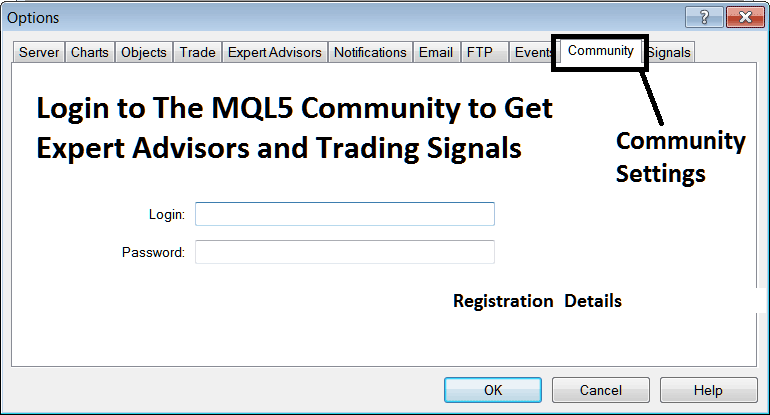
The MQL5 cfds trading Expert Advisor forum is a community where traders can find other cfd traders and Exchange Expert Advisors & CFD Signals with each other.
CFD Traders have to register to this MQL5 CFDs Expert Advisors community and can then access services from their MetaTrader 4 cfds trading platform directly. To get details information on how to access & sign up in this forum, login to your MetaTrader 4software & go to window shown below and follow the instructions.
How Do You Trade and Activate a MetaTrader 4 CFD EA on MetaTrader 4?
How Do You Activate a CFD MetaTrader 4 Trading Expert Advisor in MT4?




