MT4 CFD Simulator Strategy Tester Tutorial
The MetaTrader 4 CFD Strategy Tester in the MT4 platform is the environment used to backtest the profitability of an MT4 CFDs Expert-Advisor which is an Automated Trading Software & determine the profitability of this Expert Advisor automated cfd strategy and then Optimize this EA to a point where it's giving good profits from its cfd automated trading activities.
Note: Before beginning the MT4 CFD Strategy Tester shown below, you must first attach a cfd Expert Advisor on a MT4 cfd chart, by going to the Navigator Window, choosing the cfd Expert Advisor and then right click on it and specify the option "Attach to Chart", once the Expert Advisor is attached to the MT4 cfd chart it will add EA as shown and illustrated below, Then Right Click on the EA, select properties and then select the option by Checking/Ticking "Allow Live Trading" & then continue with the CFD Simulator MT4 Free - MT4 CFD EA Strategy Tester shown below.
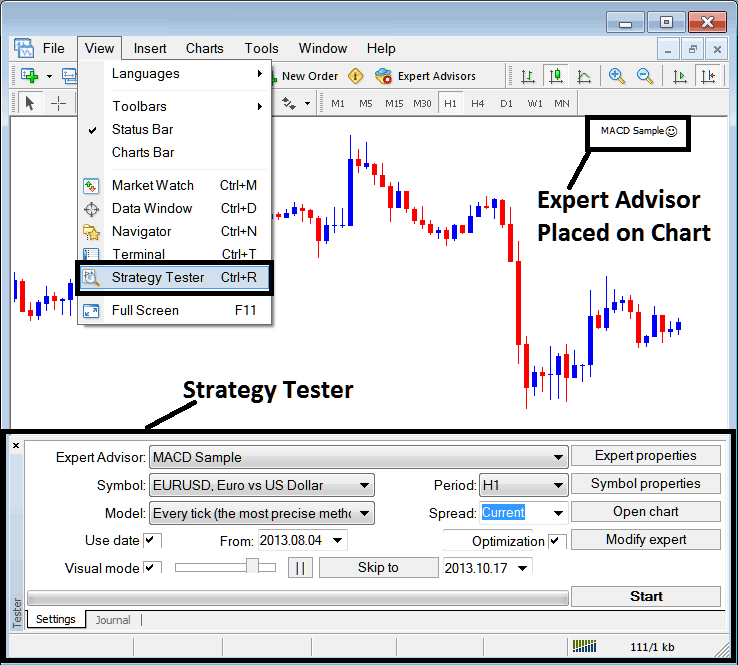
The CFD Simulator MT4 Free - MT4 CFD EA Strategy Tester option can be activated from view menu and it is the second last menu item on View Menu, A short-cut is to Press Ctrl+R button keys on your keyboard.
The CFD Simulator MT4 Free - MT4 CFD EA Strategy Tester has the following Parameters for setting up before testing an Expert advisor automated cfd system & also for optimizing the profitability of this cfd Expert Advisor.
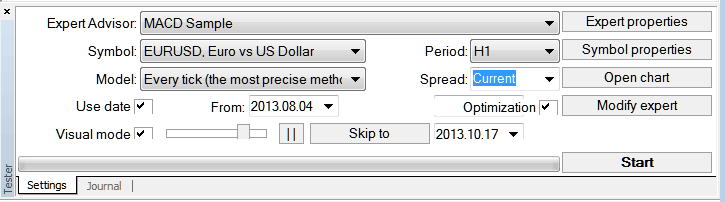
EA: Parameter for selecting which cfd Expert Advisor you want to test among those installed on your MT4 software.
Symbol: The cfd instrument for which you want to test the cfd EA on
Model: Whether to execute based on tick technique, open cfd prices or control points
Use Date: Set the date to begin the testing & the date to end the testing of the cfd Expert-Advisor
Visual Mode: Choose To view the illustration of where this cfd Expert Advisor opens and closes cfd trade as testing goes on, there is also a slide bar to increase or decrease the speed for this visual mode.
Period: CFDs Chart Timeframe for which to use examples 1 Hour CFD Chart
Optimization: Allow Optimization Settings for your EA Automated CFD Robot
For example to test the above cfd EA on the cfds chart for profitability, the settings can be set up as shown above and the MetaTrader platform strategies tester is then run, by clicking the "Begin Button Key".
Following trade results are generated & an automated cfd trader can choose to optimize the cfd Expert Advisor further by changing the Expert Advisors cfd settings.
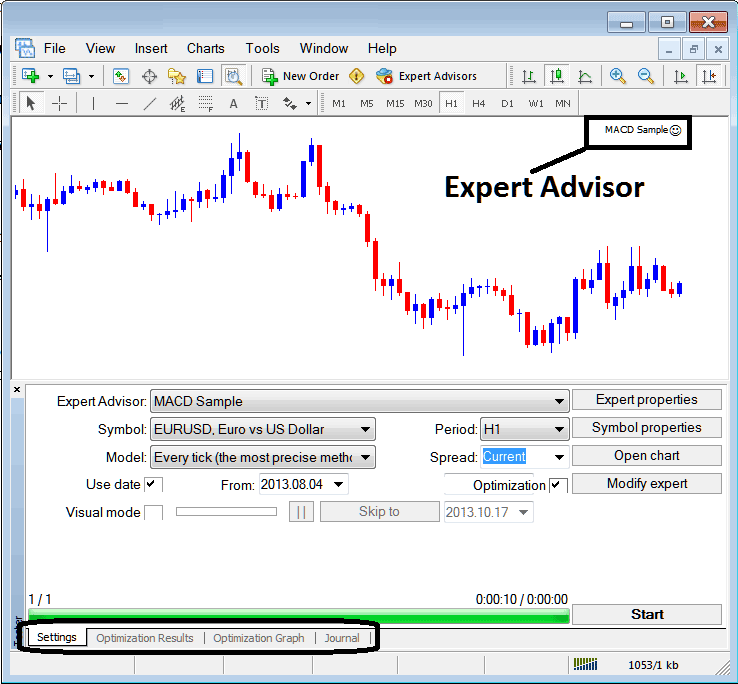
Once the optimization of the cfd Expert-Advisor is complete the status bar will show progress, the above status bar shows the progress that the cfd Expert Advisor testing is complete.
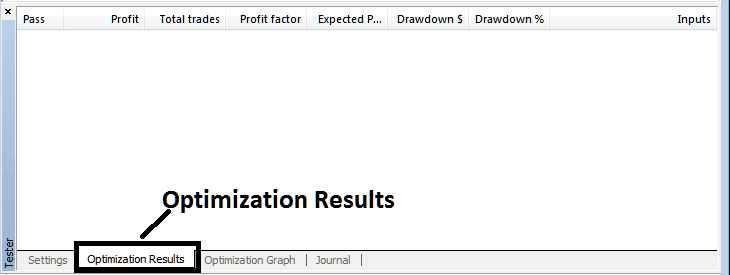
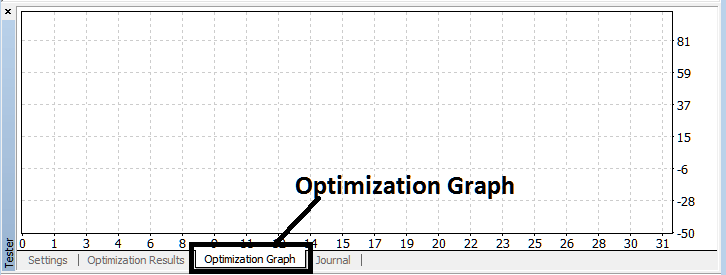
To view result click the options high lighted above (Optimization Result, Optimization Graph, Journal)
Before running this CFD Simulator MT4 Free - MT4 CFD EA Strategy Tester for CFDs Expert-Advisor testing you must go to navigator window panel, doubleclick on this cfd Expert Advisor to attach it to the cfds chart & set the parameters as shown and illustrated below by checking the options provided below:
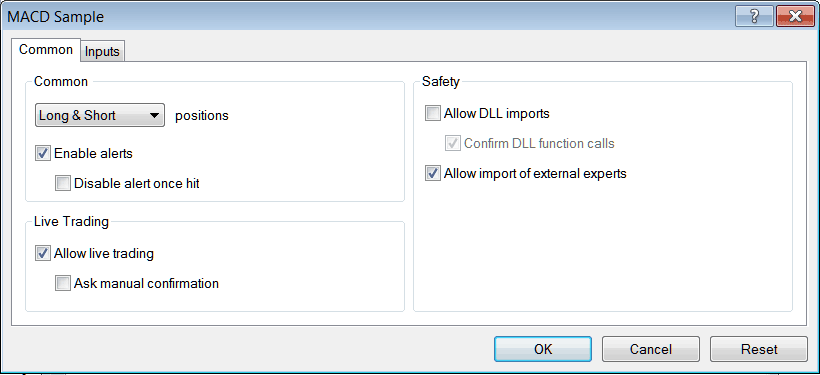
After setting the above settings then you can test your automated cfd strategy within the CFD Simulator MT4 Free - MT4 CFD EA Strategy Tester.
Once you Run your EA the Results will be shown on the following window
MT4 CFDs Expert Advisor Strategies Tester Optimization Results
MT4 CFD Expert Advisor Strategies Tester Optimization Graph
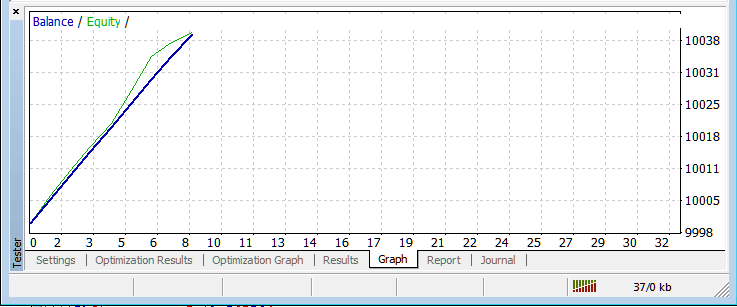
MT4 CFDs EA Strategy-Tester Balance and Equity Graph
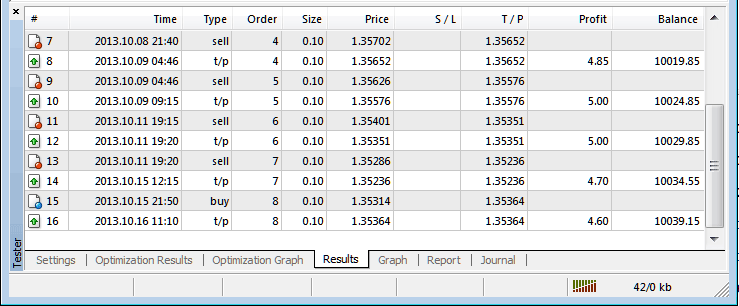
MT4 CFD EA Strategy Tester Profit and Loss Graph - CFD Simulator MT4 Free - MT4 CFD EA Strategy Tester Tutorial
Above is just a brief introduction to the CFD Simulator MT4 Free - MT4 CFD EA Strategy Tester - automated trading with EA CFD Robots is a wide topic that a trader will take some time and research to learn about but the main environment to test & optimize the cfd Expert Advisor automated cfd robot will be the MetaTrader 4 CFD Expert-Advisor Strategy Tester.
Note: You can only implement an Automated CFDs Expert Advisor using data which has been downloaded and saved on your MetaTrader 4 software, therefore for the date settings select the dates that you have been trading with your MT4 to get a graph representation of how your automated cfd Expert Advisor would trade.




